Menus
The Menus section in WordPress allows you to create, edit, and manage navigation menus for your site. Each menu serves a specific purpose and can be customized to enhance your site's structure and user experience.
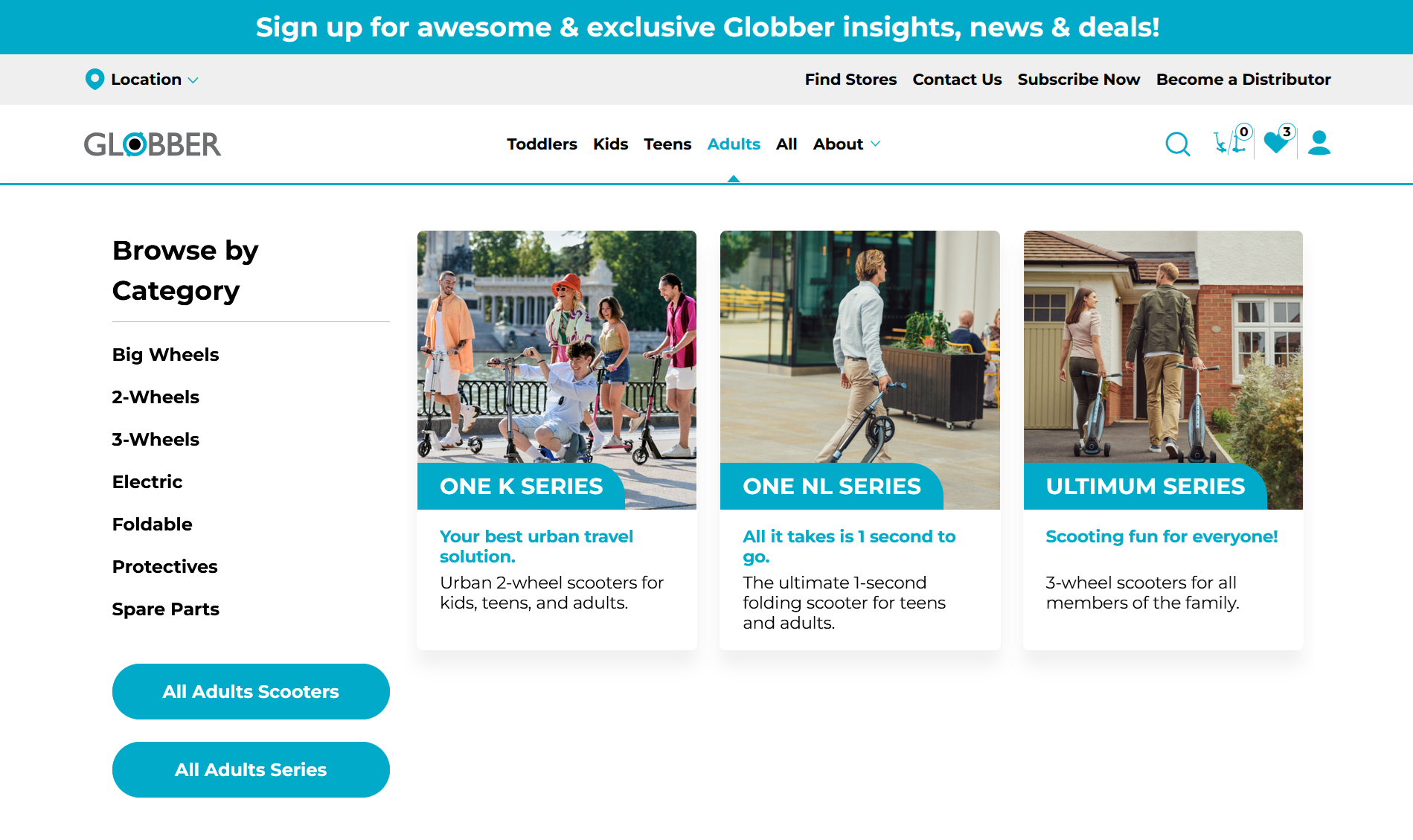
Navigate to Appearance > Menus to get started.
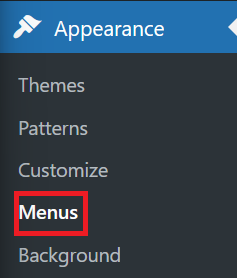
Primary Menu
The Primary Menu is the main navigation menu, usually displayed in the header. It helps visitors quickly access key pages and categories.

This menu is ideal for showcasing product categories aimed at different age groups.
Structure
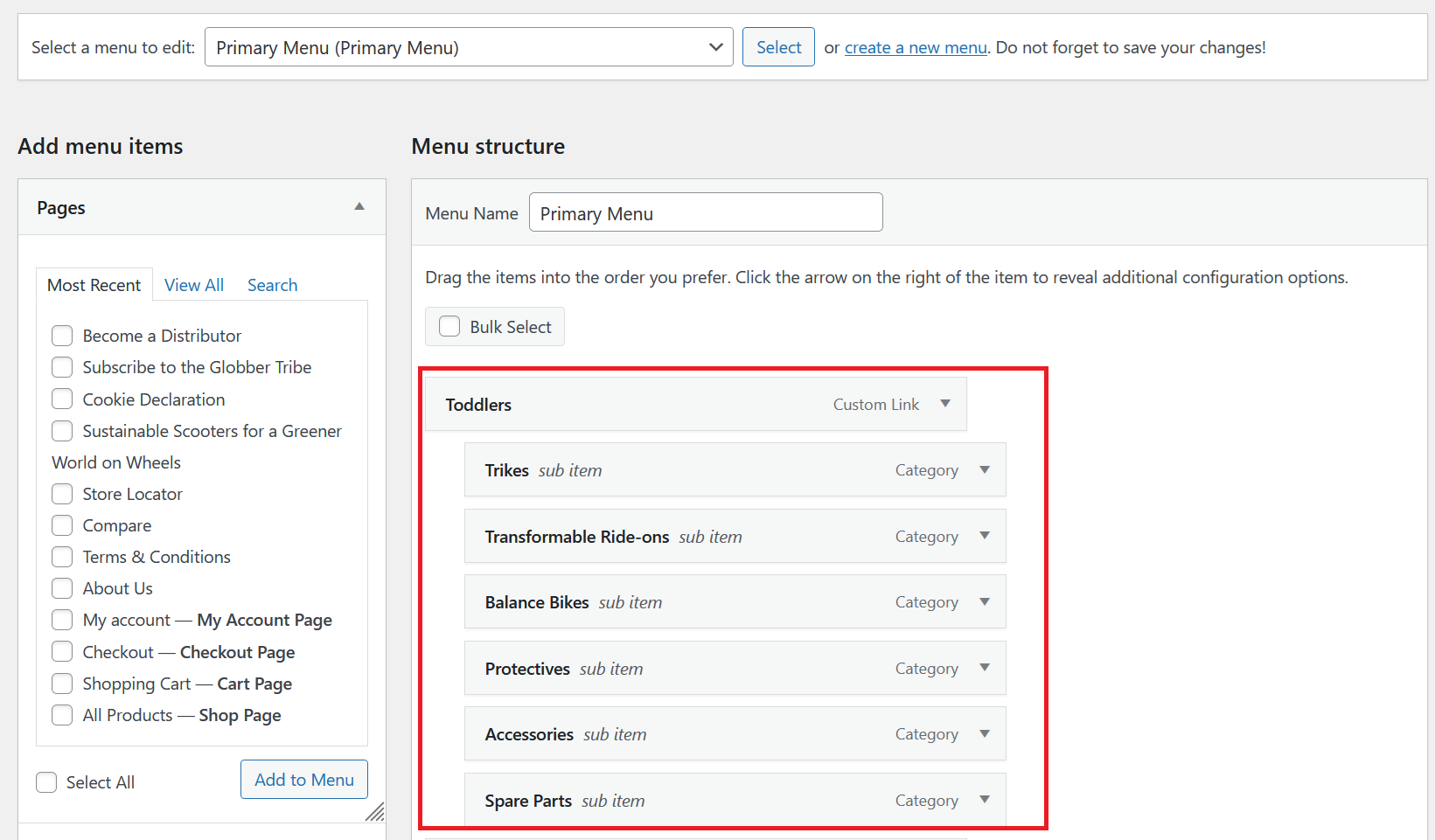
The Primary Menu includes main categories with optional sub-items for better organization.
Example:
- Toddlers: A category with sub-items like Trikes, Balance Bikes, and Accessories.
You can adjust the menu by:
- Dragging items to reorder them.
- Indenting items to create sub-items under a category.
How to Modify
- Select "Primary Menu" from the dropdown.
- Add items like pages, posts, categories, or custom links.
- Drag and drop items to arrange them.
- Save changes to update the menu.
Top Menu
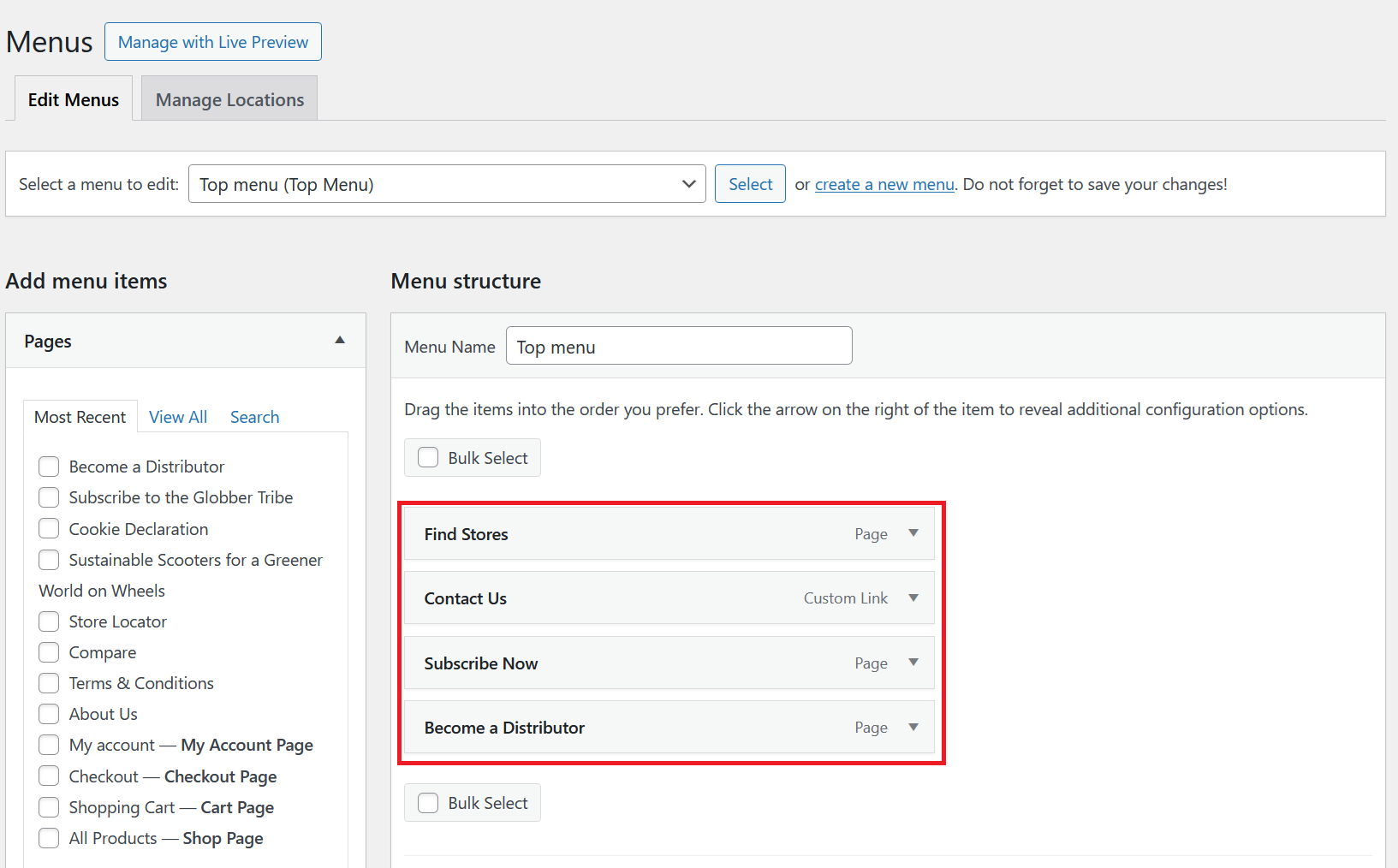
The Top Menu is typically displayed at the very top of your site, often used for quick links to essential pages or actions.

Structure
- Get Help: Custom link.
- Find Stores: Page.
- Contact Us: Custom link.
- Subscribe Now: Page.
How to Modify
- Select "Top Menu" from the dropdown.
- Add relevant items like custom links or pages.
- Organize the structure and save changes.
Footer Menu
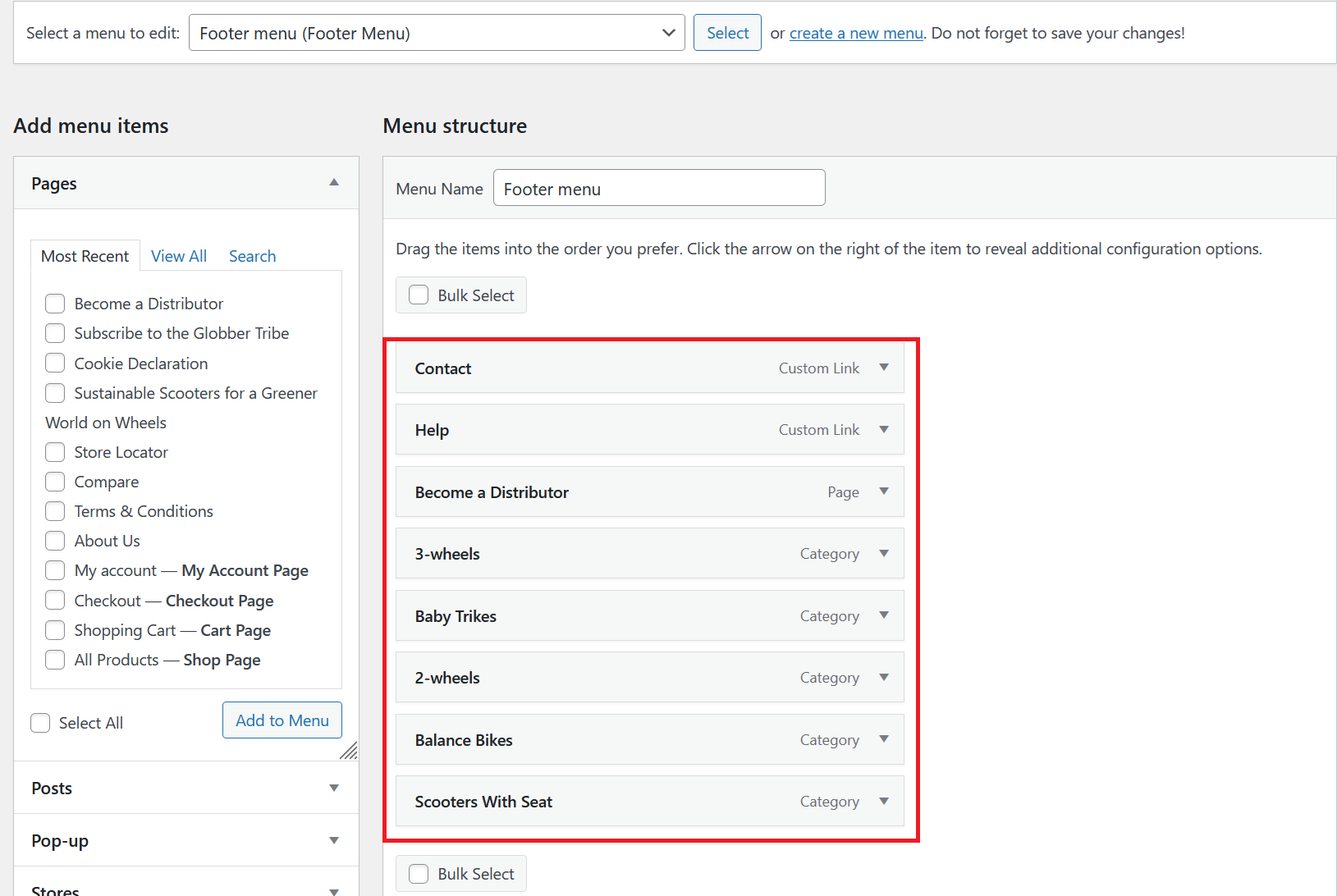
The Footer Menu appears at the bottom of your site and is ideal for links to categories and informational pages.

Structure
- 3-wheels, Baby Trikes, Electric, 2-wheels, Balance Bikes, Scooters With Seat: Categories.
- Help, Contact: Custom links.
How to Modify
- Select "Footer Menu" from the dropdown.
- Add items such as categories or custom links.
- Arrange the order and save changes.
Footer Bottom First Menu
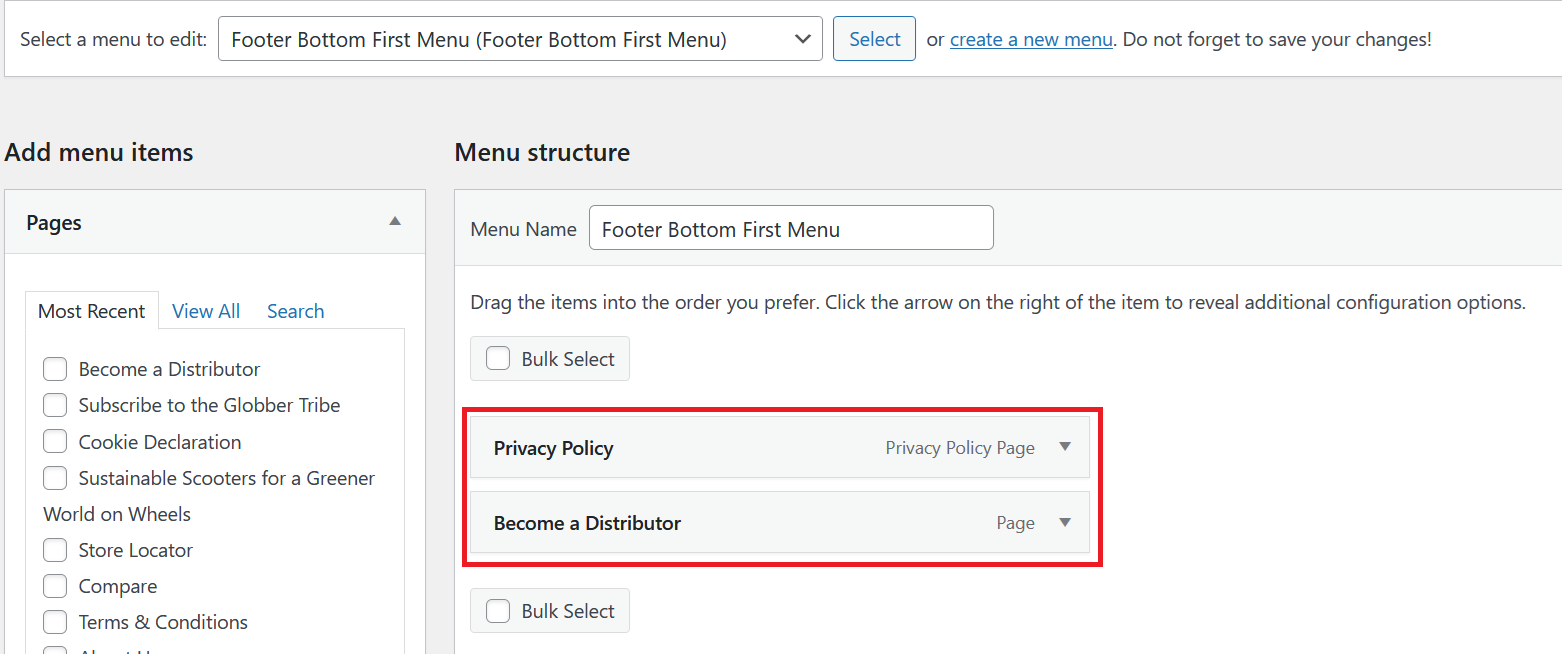
This menu is displayed in the first section of the footer, often used for legal or policy-related links.

Structure
- Privacy Policy: Privacy Policy Page.
How to Modify
- Select "Footer Bottom First Menu" from the dropdown.
- Add items like pages or custom links.
- Save changes after organizing.
Footer Bottom Second Menu
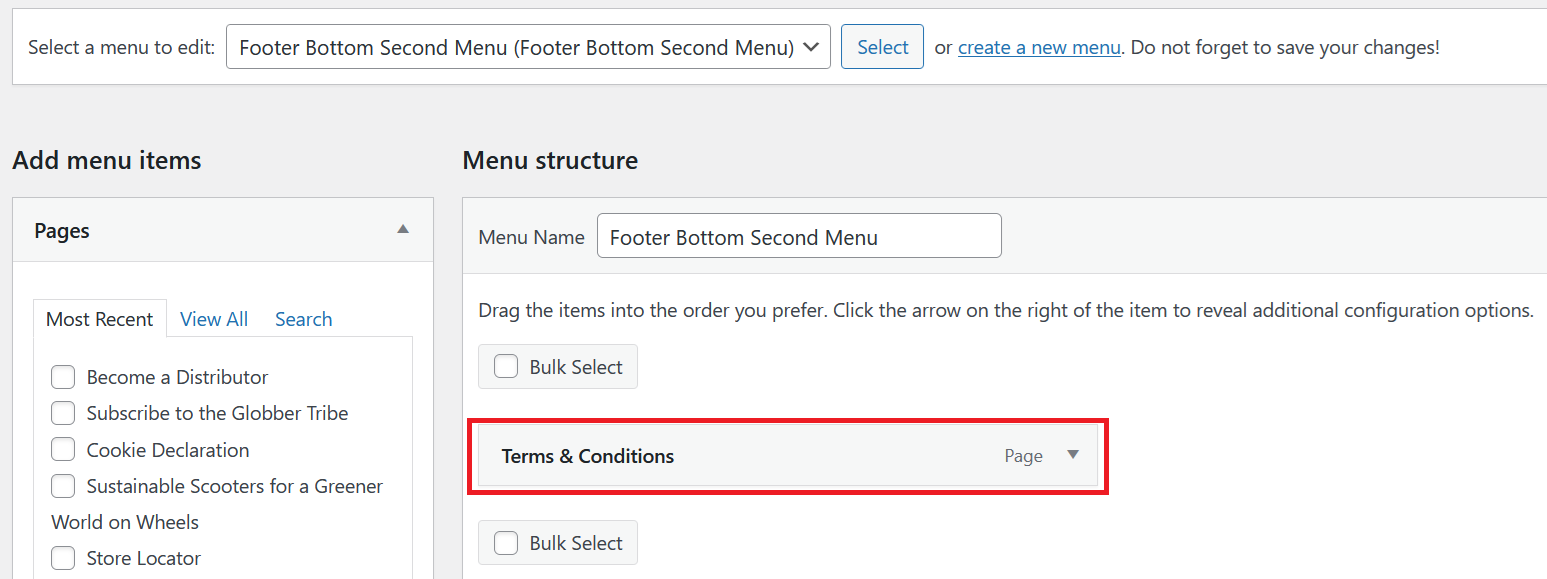
This menu is displayed in the second section of the footer, typically used for secondary links or additional navigation.

Structure
- Terms & Conditions: Page.
How to Modify
- Select "Footer Bottom Second Menu" from the dropdown.
- Add items and arrange them as needed.
- Save changes to apply updates.
Menus are essential for guiding visitors through your site and ensuring a seamless user experience.