Cart Message
You can assign a customizable message on the Cart page. This message appears in a grey info box and can be the same or different for logged-in and logged-out users.
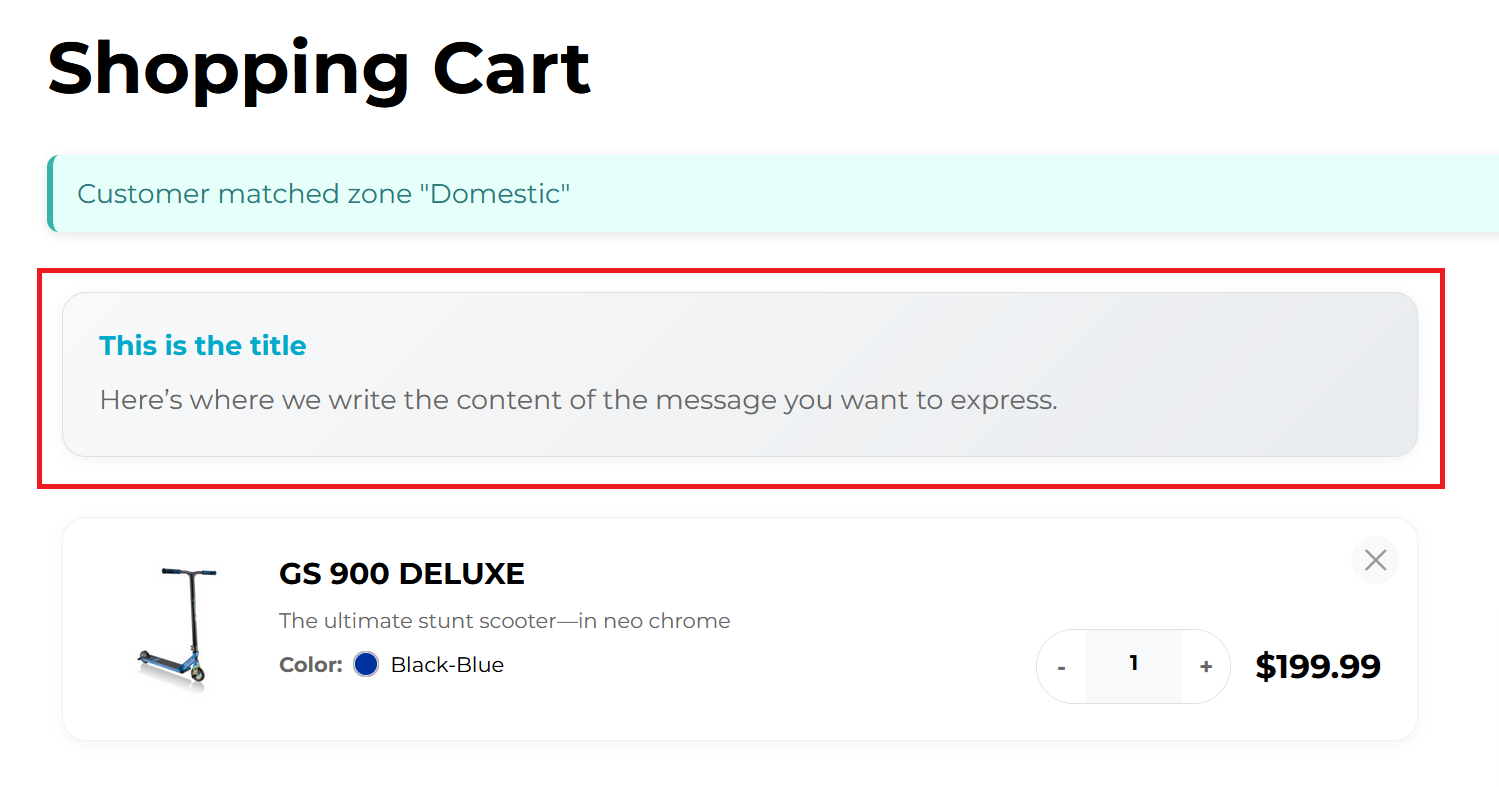
Where to Setup Cart Message
In WordPress, hover over Site Settings on the left-hand side. Click Site Settings.
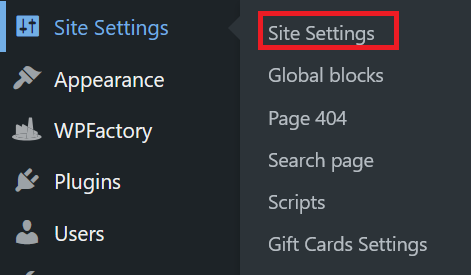
Select Cart tab to get started.

Enabling Cart Message
Check Enable cart message to turn the feature on.

Enter a Title (heading of the grey box), and add your Content (body text) in the editor.
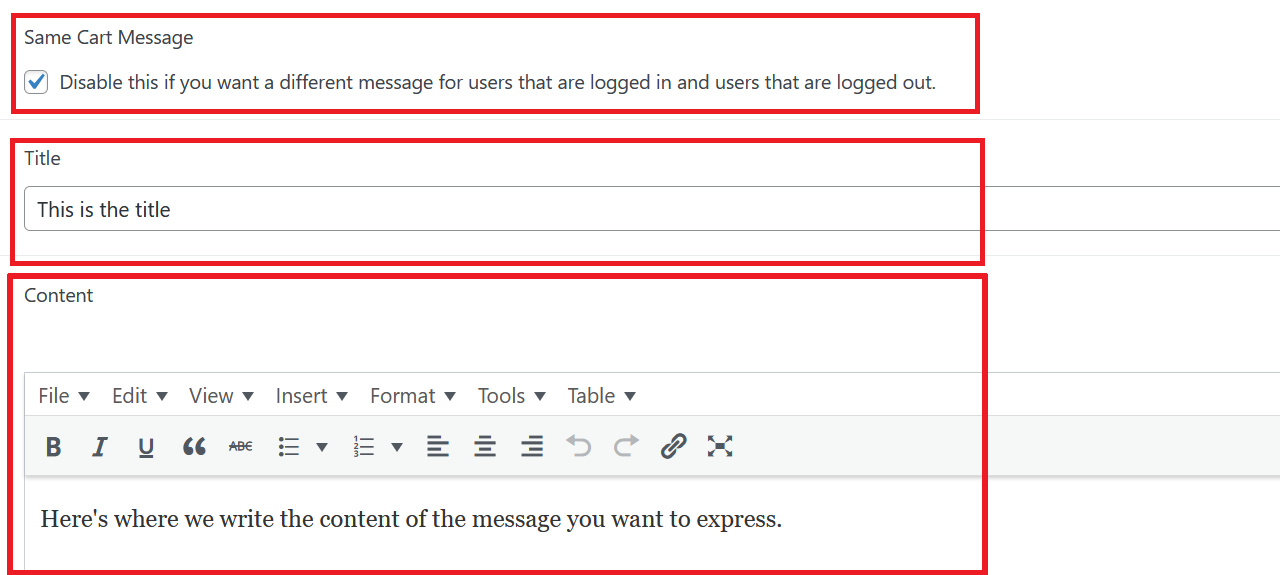
[Optional] Check Same Cart Message if you want the same text for logged-in and logged-out users.
Leave it unchecked to create different messages per user state.
Payment Methods
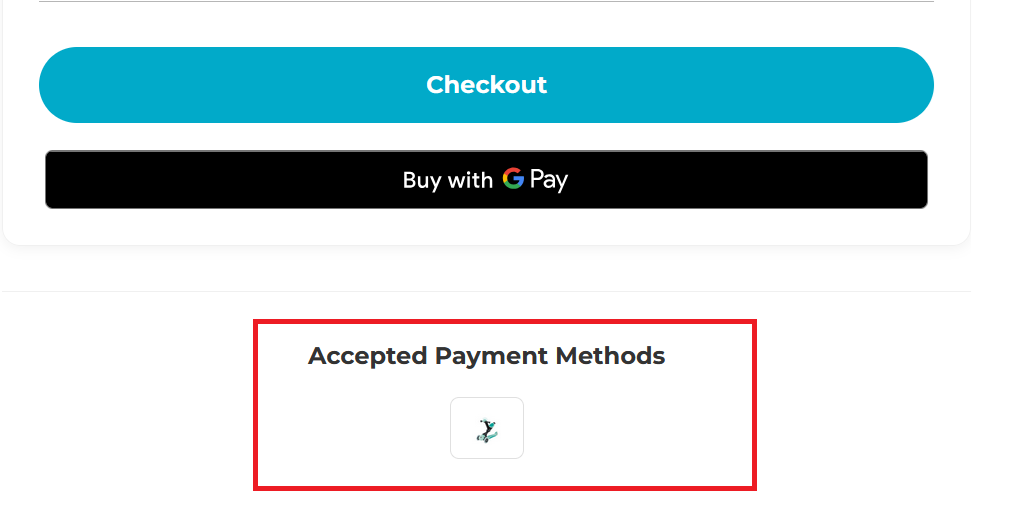
Use the Payment methods area to clarify which options are accepted at checkout (e.g., Visa, MasterCard, PayPal). Keep this list brief and customer-friendly.
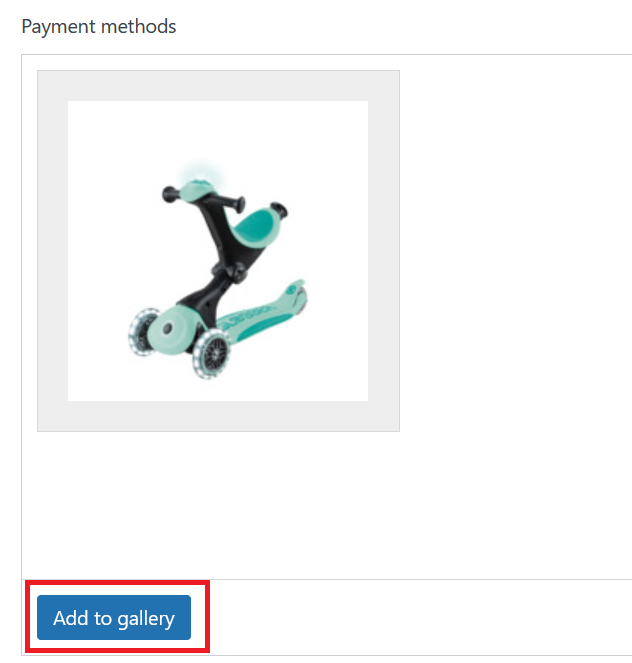
Payment methods will appear on the cart page here, just below the checkout button.
Save Changes
Click Update/Publish on the right to apply your message to the cart page.
