Buy One Get One
This page explains how to create and manage Buy One Get One (BOGO) offers for your products.
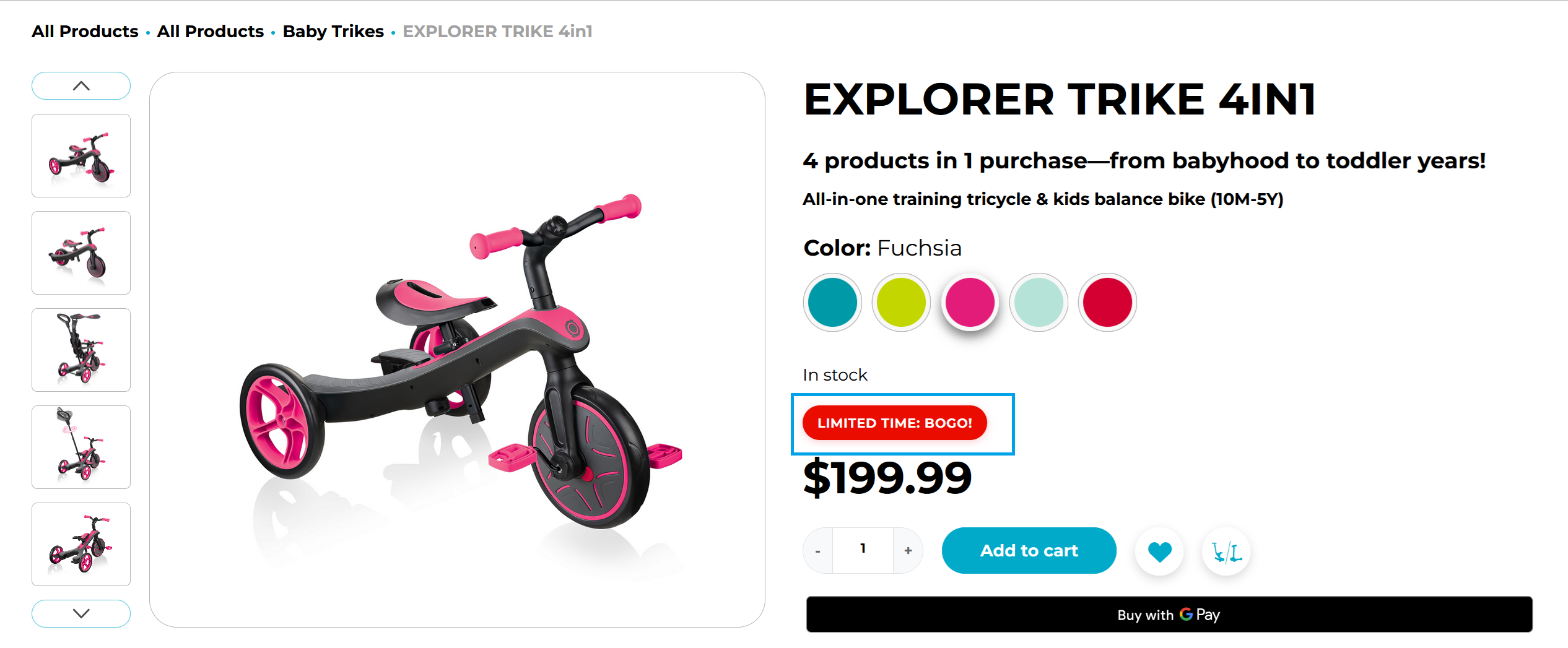
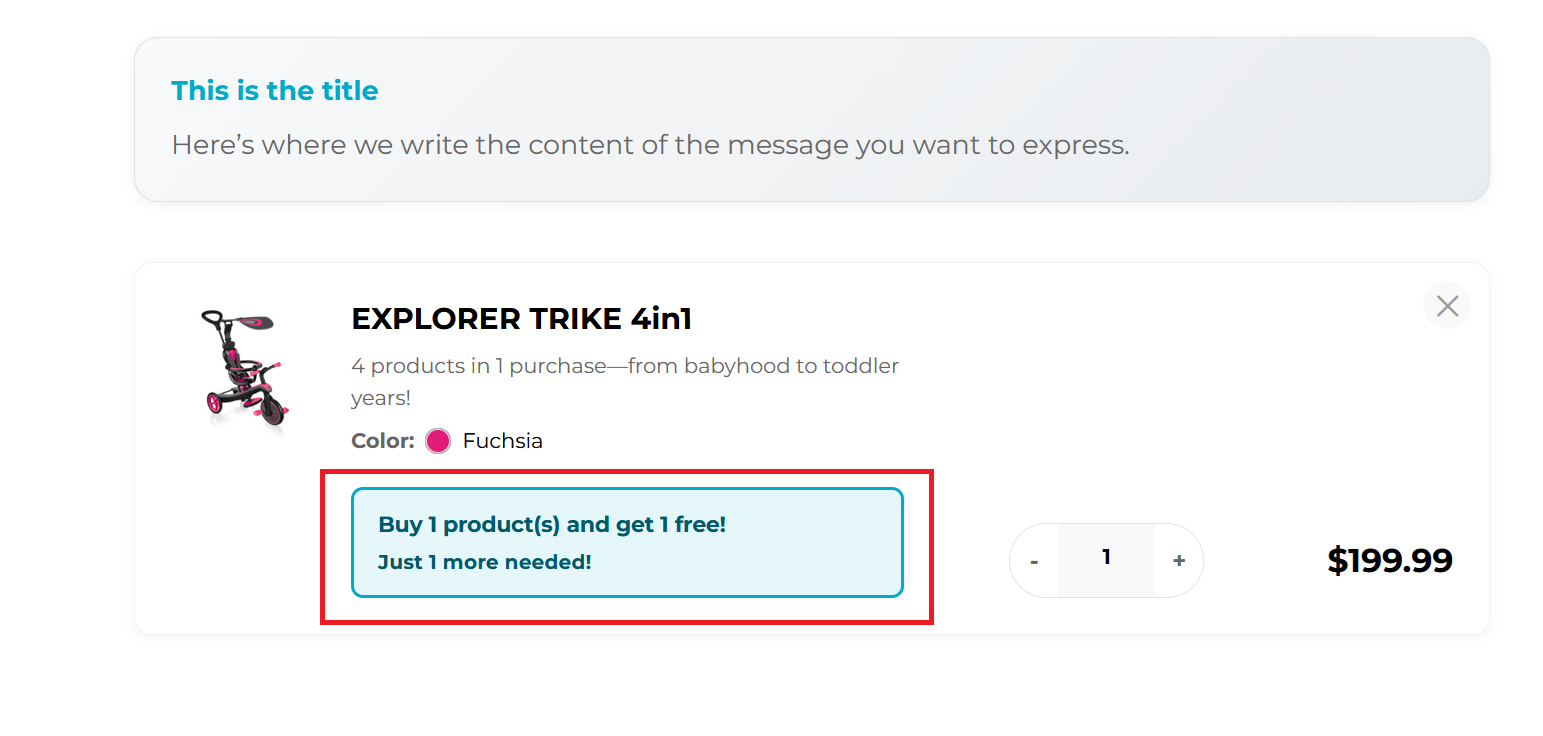
BOGO offers appear in two different places.
- At product page
- At cart page
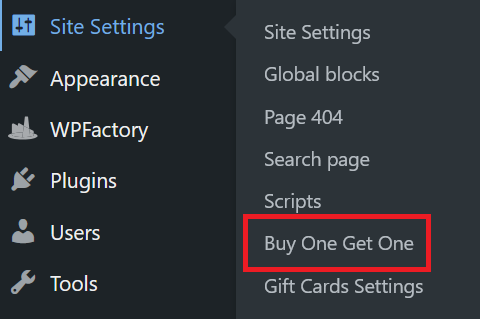
To get started, navigate to Site Settings and click on Buy One Get One.
You will arrive at the Buy One Get One management section.
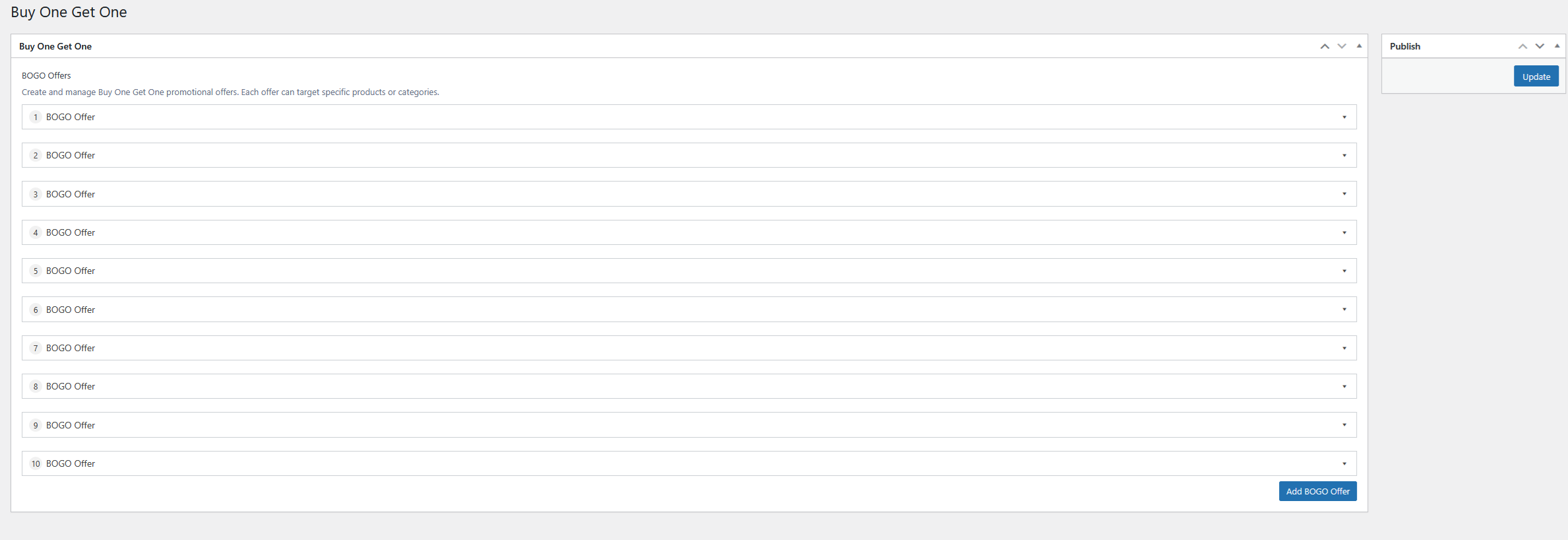
From here, click the Add BOGO Offer button and select BOGO Offer from the dropdown to start setting up.

BOGO Offers
Configure the core settings for your Buy One Get One promotional offer.
Basic Setup
Offer Name* (Required): Create a clear name for internal reference.
Enable Offer: Toggle to activate or deactivate the offer.

Offer Type* (Required): Choose from available BOGO types:
- Buy X Get Y Free: Classic BOGO (e.g., Buy 1 Get 1 Free)
- Buy X Get Y at % Discount: Percentage off additional items
- Buy X Get Y at Fixed Price: Set specific price for additional items
- Buy X Get 1 Specific Item: Automatically add one selected product for free, at a percentage discount, or at a fixed price

Offer Management
Manage how this offer interacts with other promotional offers on your site.
Priority: Set priority when multiple offers could apply (higher numbers = higher priority).
Allow Stacking: Allow more than one offer to apply during the same order. Separate eligible cart items can receive different offers, but the same cart item will not be discounted twice.

Quantity Settings
Set how many items customers need to buy and how many they'll get as a reward.
Buy Quantity* (Required): Number of items customer must purchase. Get Quantity* (Required): Number of items customer receives as benefit.
When multiple eligible items are in the cart, the discount is applied to the lowest-priced eligible items first.

Specific Item Offers
When you select Buy X Get 1 Specific Item, configure the product that will be added to the customer's cart:
- Specific Item: Select the product to add. The selected product must be a simple product, not a variable product.
- Item Price: Choose Free (100% discount), Percentage Discount, or Fixed Price.
- Discount Value: Enter the percentage discount or the final fixed price. This field is not shown when Free (100% discount) is selected.
The selected item is added automatically when the cart qualifies. If the qualifying products are removed, the required quantity or cart total is no longer met, the offer becomes inactive, or a higher-priority offer blocks it, the automatically added item is removed.
Automatically added items do not count toward qualifying for another BOGO offer. Customers can remove an automatically added item from their cart. If the selected item is out of stock, it is not added and the customer sees an out-of-stock message.
Product Targeting
Choose which products in your store will be eligible for this BOGO offer.
Apply To (Required): Select which products are eligible:
- All Products: Applies to entire catalog
- Specific Products: Choose individual products
- Specific Categories: Target product categories
- Specific Product Tags: Target by product tags

Get Same Products:
- ON: Free/discount items must be the same as the ones bought.
- OFF: Free/discount items can be different.

Get Products Selection: Choose what items the customer can receive for free or at a discount:
- All Products: Any product can be the free/discounted item.
- Specific Products: Only the products you select can be the free/discounted items.
- Specific Categories: Only products in the categories you select can be the free/discounted items.

Date Restrictions
Set specific time periods when your BOGO offer will be active or inactive.
Start Date: When the offer begins.
End Date: When the offer expires.
Set Enable Date Restrictions to No for permanent offers.

Display Settings
Control how your BOGO offer appears to customers on your website.
Product Badges
Show Badge on Products: Display BOGO badge on product pages and listings.
Badge Text: Customize the badge message (e.g., "Buy 1 Get 1 Free").

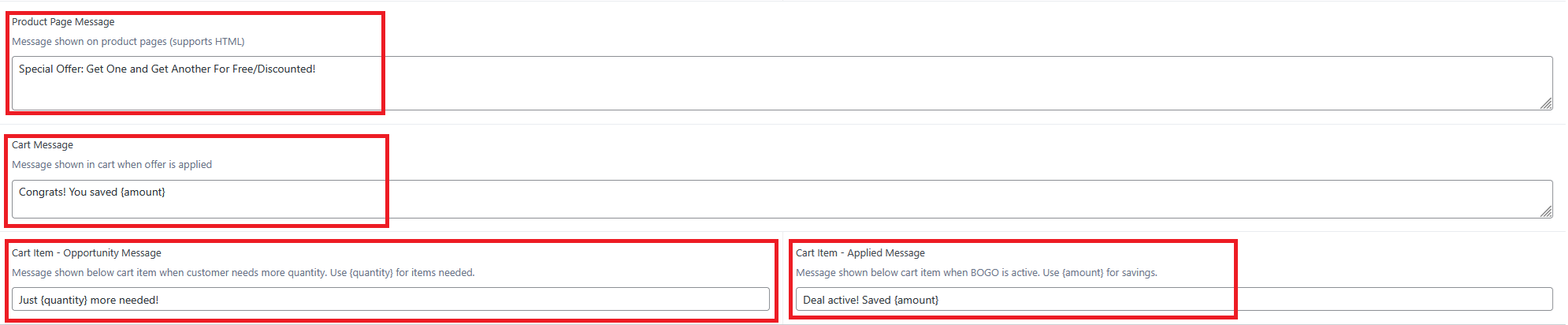
Custom Messages
Customize the text messages that appear throughout the shopping experience.
Product Page Message: Text shown on individual product pages.
Cart Message: Message displayed when offer is applied in cart.
Cart Item Opportunity Message: Shown when customer needs more items to qualify.
Cart Item Applied Message: Confirmation when offer is active.
Advanced Options
Configure additional rules and limitations for your BOGO offer.
Restrictions
Minimum Cart Total: Require minimum purchase amount.
Max Uses Per Order: Limit how many times offer applies per order.
Exclude Sale Items: Prevent offer from applying to already discounted products.

User Targeting
Control which types of users can access this BOGO offer.
User Role Restrictions: Limit offer to specific user types (Customer, Wholesale, etc.).
