Instagram Feed Integration
Display your Instagram posts directly on your website with our native Instagram Feed integration. Each subsite can connect its own Instagram Business account for a personalized social media experience.
Overview
The Instagram Feed integration allows you to:
- 🔗 Connect your Instagram Business or Creator account
- 📸 Display your latest posts in a beautiful carousel
- ❤️ Show engagement metrics (likes and comments)
- 🔄 Automatic feed updates with smart caching
- 🏢 Independent connections per subsite (multisite supported)
Prerequisites
Before you begin, ensure you have:
- Instagram Business or Creator Account — Personal accounts are not supported
- Facebook Page — Your Instagram account must be linked to a Facebook Page
Go to your Instagram app → Settings → Account → Switch to Professional Account to convert to a Business or Creator account.
Connecting Your Instagram Account
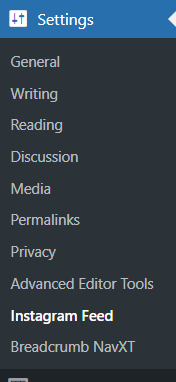
Step 1: Access Settings
Navigate to Settings → Instagram Feed in your WordPress admin dashboard.
Step 2: Initiate Connection
Click the Connect Instagram Account button. You'll be redirected to Facebook to authorize the connection.
Step 3: Authorize Permissions
- Log in to Facebook with the account that manages your Facebook Page
- Review the requested permissions:
- instagram_basic — Access your Instagram profile and media
- pages_show_list — See the list of Pages you manage
- pages_read_engagement — Read engagement data
- business_management — Manage your business assets
- Click Continue to grant permissions
Make sure to grant all requested permissions. The integration won't work correctly with partial permissions.
Step 4: Select Your Account
If you manage multiple Facebook Pages with Instagram accounts:
- A dropdown will appear showing all available Instagram accounts
- Select the account you want to connect (displayed as
@username (Page Name)) - Click Connect Account
If you only have one eligible account, it will be connected automatically.
Step 5: Confirmation
Once connected, you'll see:
- ✅ Green Connected status indicator
- 📛 Your Instagram username (e.g.,
@globber.official) - 📅 Token expiration date with countdown
- 🕐 Cache last updated time
Managing Your Connection
Connection Status
The settings page displays your current connection status:
| Status | Indicator | Meaning |
|---|---|---|
| Connected | 🟢 Green | Everything working normally |
| Token Expiring Soon | 🟡 Yellow | Token expires within 7 days |
| Not Connected | 🔴 Red | No account connected |
Available Actions
Refresh Cache
Forces an immediate update of your Instagram feed data.
- Click Refresh Cache to fetch the latest posts
- Use when you've posted new content and want it to appear immediately
- Cache normally refreshes automatically every hour
Refresh Token
Extends your access token validity for another 60 days.
- Click Refresh Token to renew
- Recommended when you see the "Token Expiring Soon" warning
- Token can only be refreshed while still valid
The system automatically attempts to refresh tokens when they're within 7 days of expiring. However, we recommend manually refreshing as a backup.
Disconnect
Removes the Instagram connection from your site.
- Click Disconnect
- Confirm the action in the popup
- Your feed will no longer display until reconnected
Frontend Display
Where the Feed Appears
The Instagram feed appears on your homepage (and other configured pages) as a carousel slider showing your latest posts.
What's Displayed
Each post in the feed shows:
- 📷 Image — The post image (or thumbnail for videos)
- ❤️ Like Count — Number of likes
- 💬 Comment Count — Number of comments
- 📝 Caption — The post caption text
- 🔗 Link — Clicking opens the post on Instagram
Customizing the Title
To change the feed section title:
- Go to Site Settings
- Find the Global Blocks section
- Open the Our Instagram tab
- Update the Title field
- Save changes
Troubleshooting
Feed Not Displaying
| Issue | Solution |
|---|---|
| Section completely missing | Check if Instagram is connected in Settings |
| "Not Connected" status | Click Connect Instagram Account |
| Connected but no posts | Click Refresh Cache, ensure account has public posts |
Connection Issues
| Issue | Solution |
|---|---|
| OAuth error during connection | Ensure you're logged into the correct Facebook account |
| "No Instagram accounts found" | Verify your Instagram is linked to a Facebook Page |
| "Invalid state parameter" | Start the connection process again from Settings |
| Permissions error | Disconnect and reconnect, granting all permissions |
Token Issues
| Issue | Solution |
|---|---|
| Token expired | Disconnect and reconnect your account |
| Token expiring soon warning | Click Refresh Token |
| Refresh token failed | The token may have already expired; reconnect |
API Issues
| Issue | Solution |
|---|---|
| "Cache refreshed but no posts found" | Verify the Instagram account has public posts |
| API error messages | Use Test API Connection to diagnose |
| Rate limit errors | Wait and try again later; cached data will display |
Debug Tools
For troubleshooting, administrators can use the Test API Connection button in the API Information section:
This test checks:
- Token Validity — Confirms your access token is valid and shows granted permissions
- Account Access — Verifies we can access your Instagram account details
- Media Retrieval — Tests fetching posts from your account
Technical Details
Caching
- Feed data is cached for 1 hour to minimize API calls
- Cache refreshes automatically when expired
- Manual refresh available via Refresh Cache button
- If API fails, cached data is used as fallback
Token Lifecycle
- Access tokens are valid for 60 days
- Tokens can be refreshed before expiration
- Automatic refresh is attempted when within 7 days of expiry
- Expired tokens require reconnection
API Version
The integration uses Facebook Graph API v21.0. This version is displayed in the API Information section of your settings.
Security
Data Storage
- Access tokens are stored securely in our database
- Each subsite stores its own credentials separately
- Tokens are never exposed in frontend code
Permission Model
- Only Globber admins and local admins can manage the Instagram connection
- All actions are protected by WordPress nonces
- OAuth flow includes state validation for CSRF protection
FAQ
Can I connect a personal Instagram account?
No, only Business or Creator accounts are supported. This is a requirement of the Instagram Graph API.
How often does the feed update?
The feed cache refreshes every hour automatically. You can also manually refresh at any time.
Will my feed show Stories or Reels?
Currently, only standard feed posts are displayed. Stories and Reels are not included.
What happens if my token expires?
Your feed will continue showing cached posts. You'll see a warning in the admin to reconnect your account.
Can I display feeds from multiple Instagram accounts on one site?
No, each site can only connect one Instagram account at a time.
Does this work with Instagram's Basic Display API?
No, this integration uses the Instagram Graph API via Facebook, which provides more features and reliability.
Support
If you encounter issues not covered in this documentation:
- Use the Test API Connection tool to gather diagnostic information
- Check the error messages displayed in the admin
- Contact Globber Admin with the error details