Coupons
This documentation guides you in creating coupons for WooCommerce within your regional Globber site.
Coupons are codes that offer discounts to customers during purchases, aiming to boost sales and encourage repeat business. They can be found on the cart page before you hit Checkout.
Customers can now enter and apply discount codes directly within the checkout page — without going back to the cart. See the Checkout guide for details.
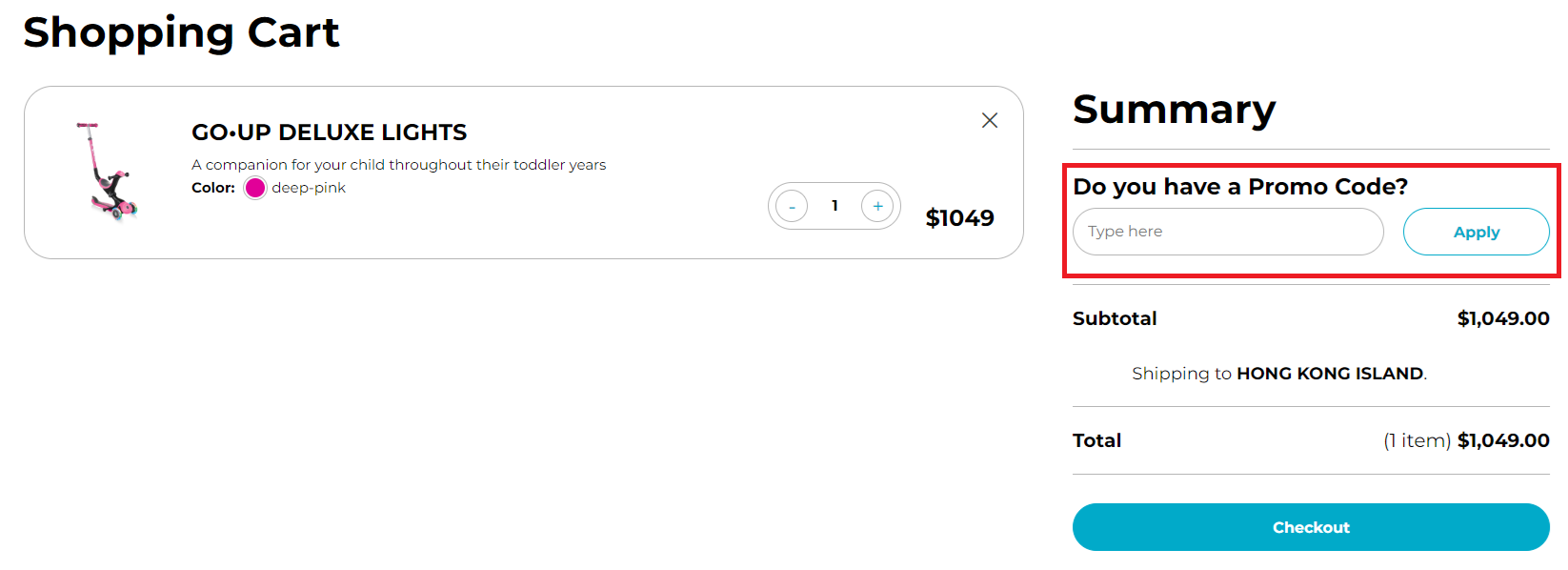
Where to Create Discount Coupons
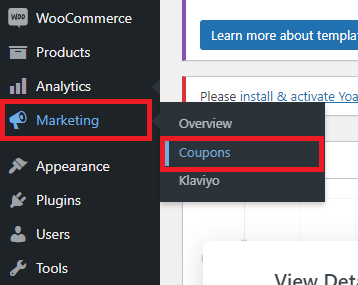
Navigate to Marketing at the left-hand side menu on WordPress and select Coupons
Click the Add coupon function in Coupons Page

Create Discount Coupons Example
To start creating a coupon, fill in the first two empty fields as highlighted below: Coupon code and Description (optional)
You can label the coupon code in a way that aligns with your sales campaign or promotion.
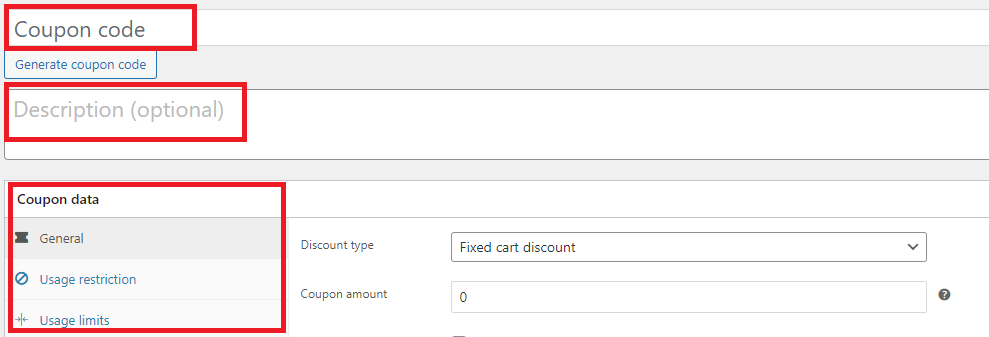
Before you submit Generate coupon code, there are various conditions you can set for the discount coupon.
Navigate to Coupon data section and start with General tab.
For discount types you can select "Percentage discount", "Fixed cart discount" or "Fixed product discount"
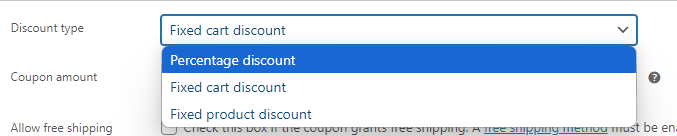
These are the definitions for each of the discount types:
- Percentage Discount: Enter a percentage amount in the Coupon Amount field — for example, type 10 for a 10% discount.
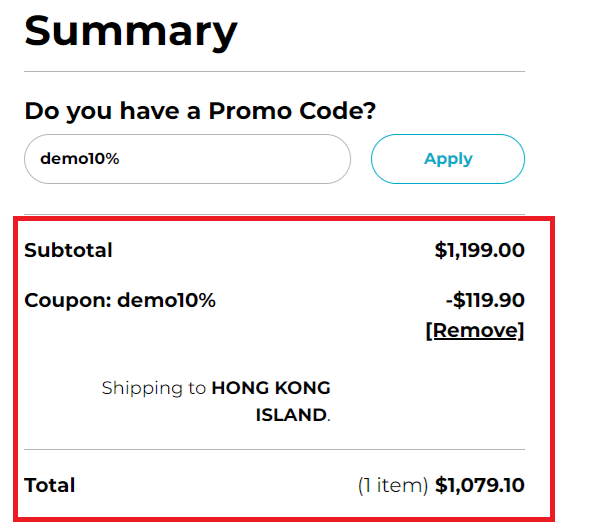
- Fixed Cart Discount: Deducts a specific dollar amount from the cart total — for example, type 10 for $10 off.
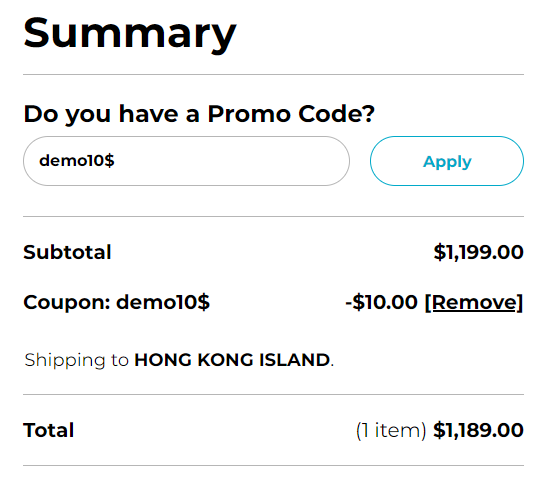
- Fixed Product Discount: Applies a fixed dollar amount discount to selected products (rather than a percentage discount).
Error will occur if a fixed product discount code is applied to a product that isn't selected.

In the General settings of the Coupon data section, you can specify whether the coupon offers free shipping and set an expiry date.

Usage Restriction
In the Usage Restriction tab of Coupon data section, you can set minimum and maximum spending limits. You can also specify which products or categories to include or exclude.
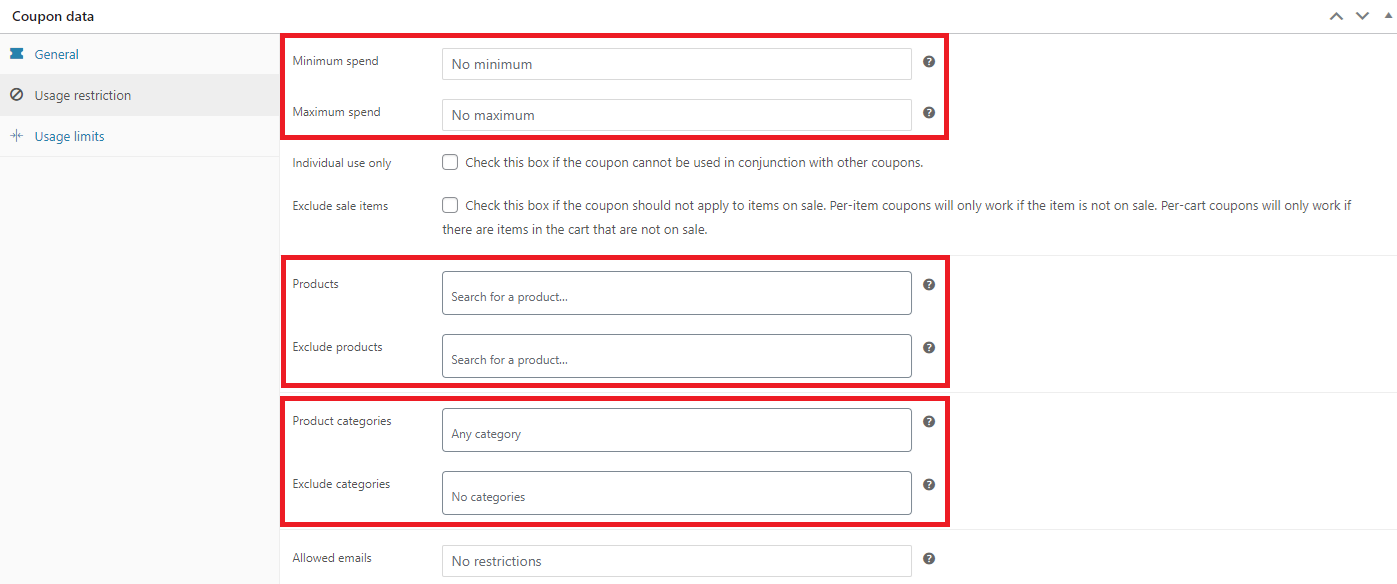
If you have multiple coupons running and want to prevent overlap, you can check the box labeled Individual use only.

Exclude sale items: Tick the box if the coupon does not apply to products on sale. Per-cart coupons don’t work when a sale item is added afterward.

Allowed emails: These are email addresses that can use a coupon.
Verified against customer’s billing email. WooCommerce also allows you to include a wildcard character (*) to match multiple email addresses, for example, *@gmail.com would allow any @gmail.com email address to use the coupon.

Usage Limits
Depending on your campaign priorities, you might want to limit access for user coupons.
You can choose these options in the Usage Limits tab of Coupon data section.
Usage limit per coupon: Each coupon has a usage limit indicating how many times all customers can use it before it becomes invalid
Usage limit per user: Each customer can use the coupon a certain number of times before it becomes invalid specifically for that customer.

Once you’ve configured all settings, select Publish and your coupon is ready to use.