Custom GA4 Events
Custom events track specific visitor actions that standard GA4 doesn't capture automatically, like product list views, form submissions, or button clicks.
You need access to both Google Tag Manager and GA4. Contact the Globber IT team if needed.
The Globber theme automatically pushes 9 ecommerce events, 3 popup events, and a newsletter opt-in event to the dataLayer — no custom code needed. See the GTM dataLayer Events Reference for the full list and payload structures.
Setting Up a Custom Event in GTM
This example sets up a view_item_list event to track product category page views. Once it's set up, you can view it at your Google Analytics dashboard.
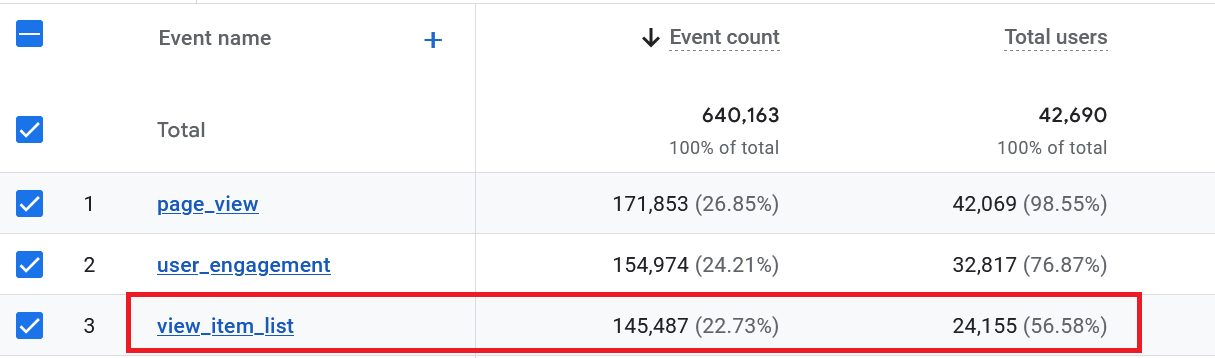
Click here for more info on Google Analytics custom events.
Step 0: Create New Custom Trigger
Before you begin, you will have to create a custom trigger.
- Go to tagmanager.google.com and sign in
- Select your website container
- Navigate to Triggers → New
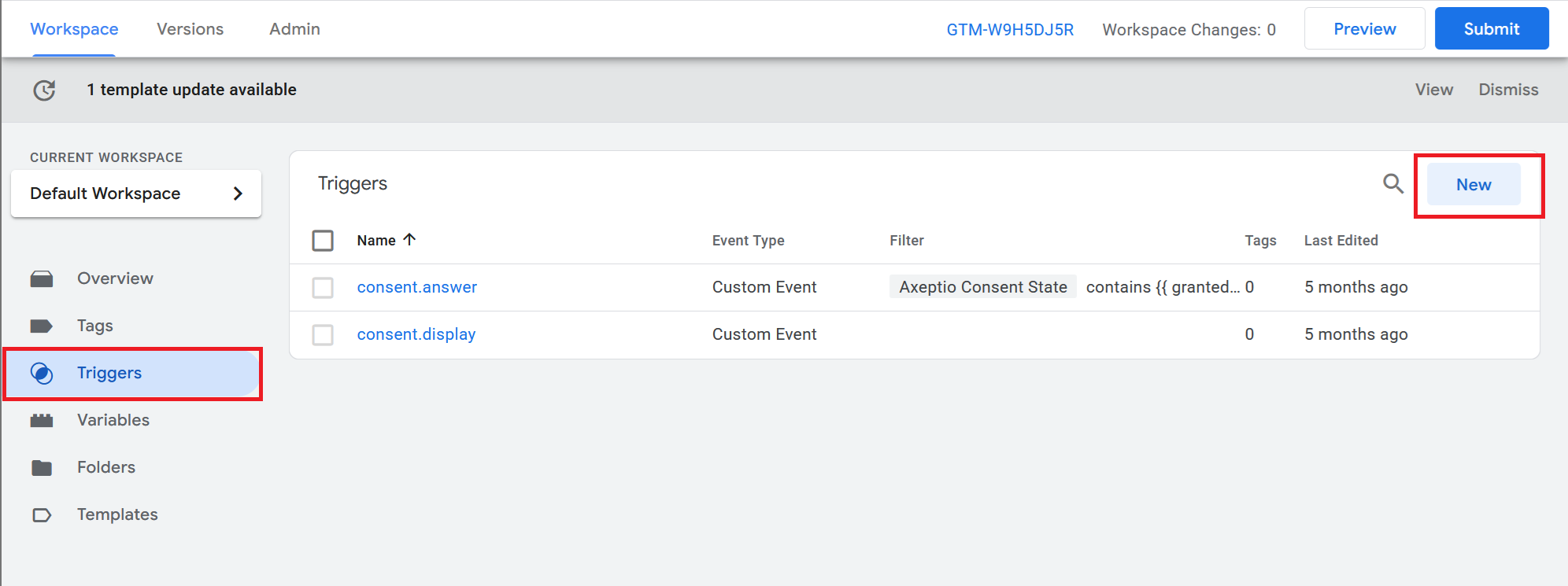
-
Click Trigger Configuration Box
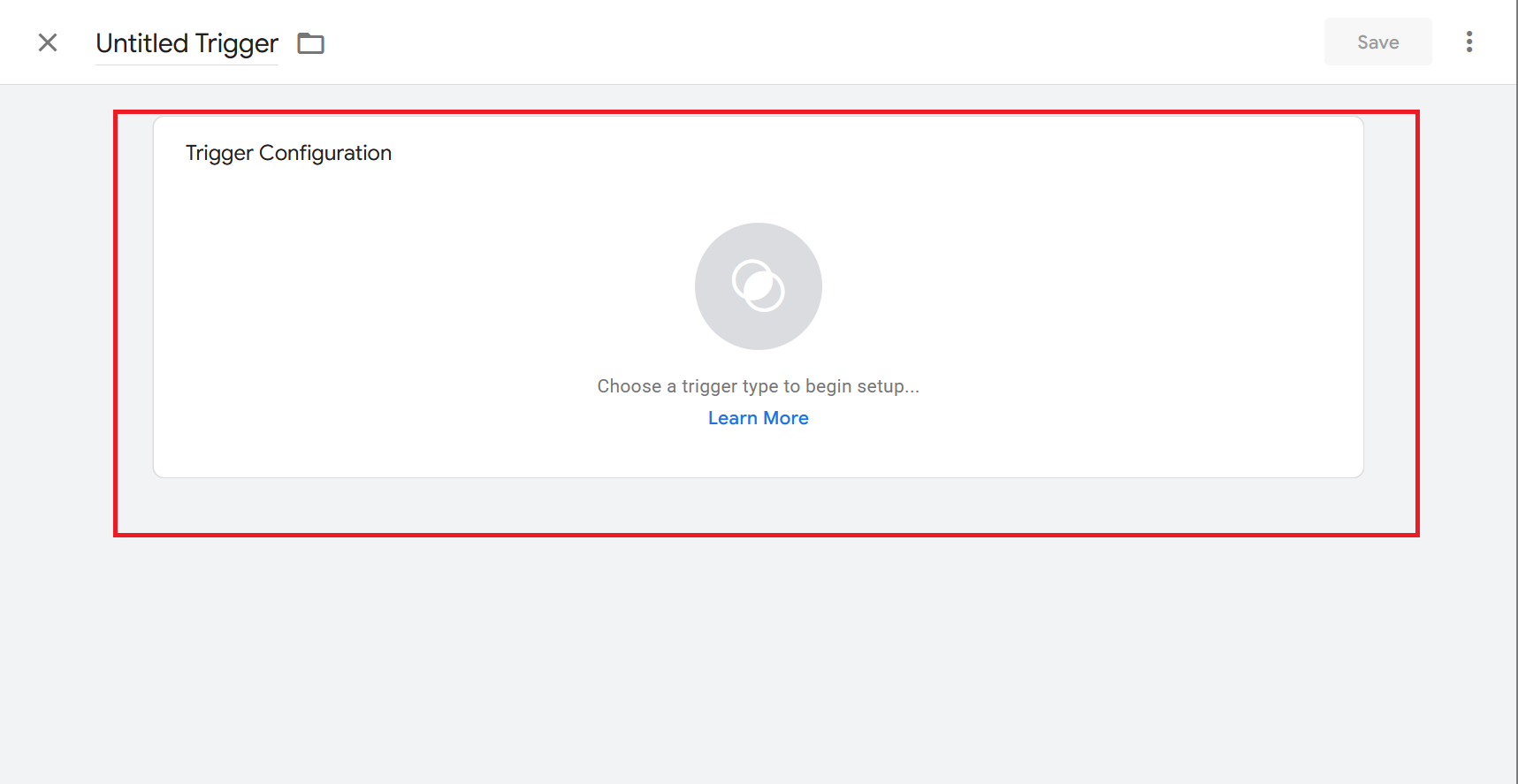
-
Go to the bottom and select Custom Event
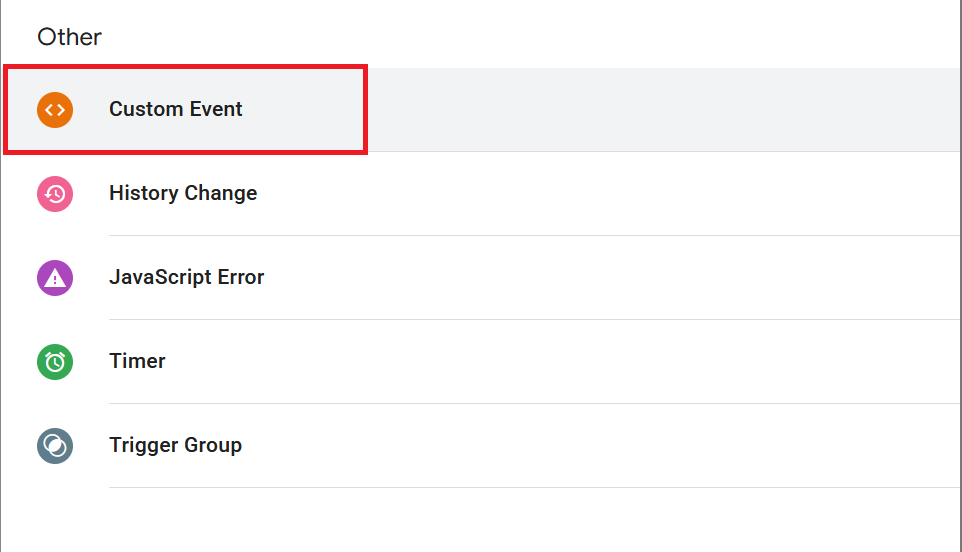
-
Name the Custom Event as Event - view_item_list and label it as view_item_list under Event name. It's important to use lower-case under event names since GA4 is case-sensitive.
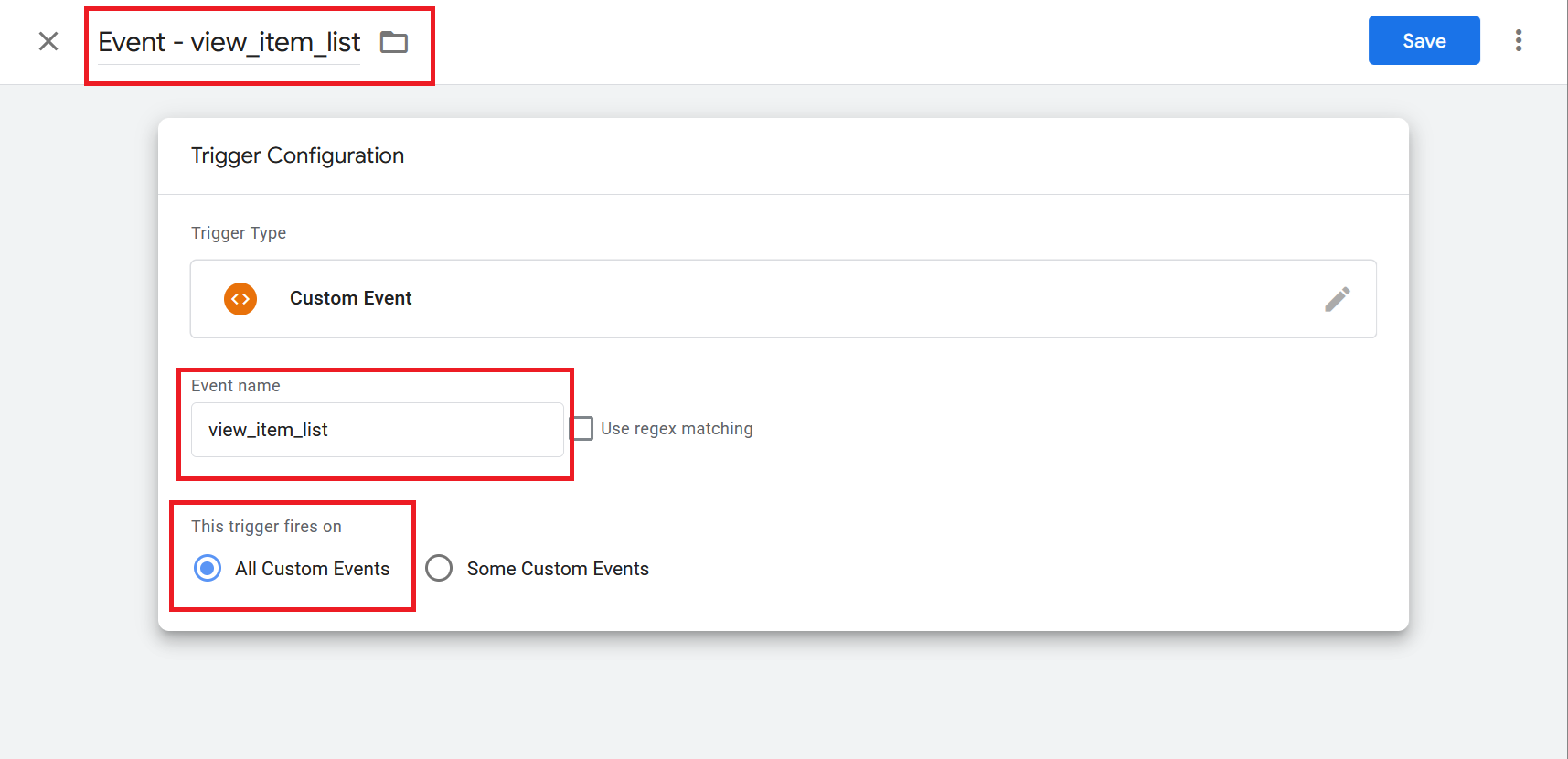
- Ensure the trigger fires on All Custom Events and hit Save when you're done.\
Step 1: Create a New Tag
- Go to tagmanager.google.com and sign in
- Select your website container
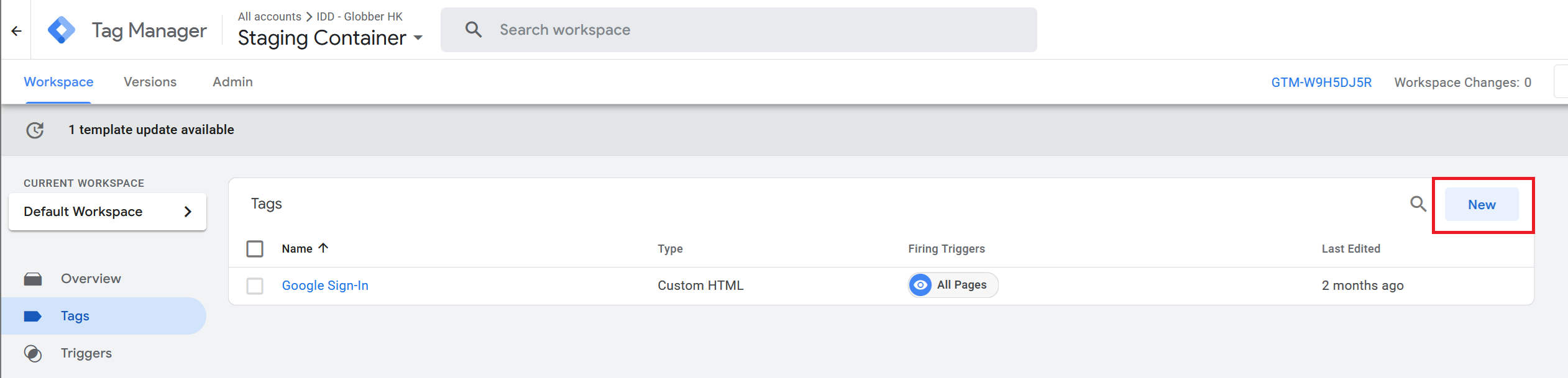
- Click Tags → New
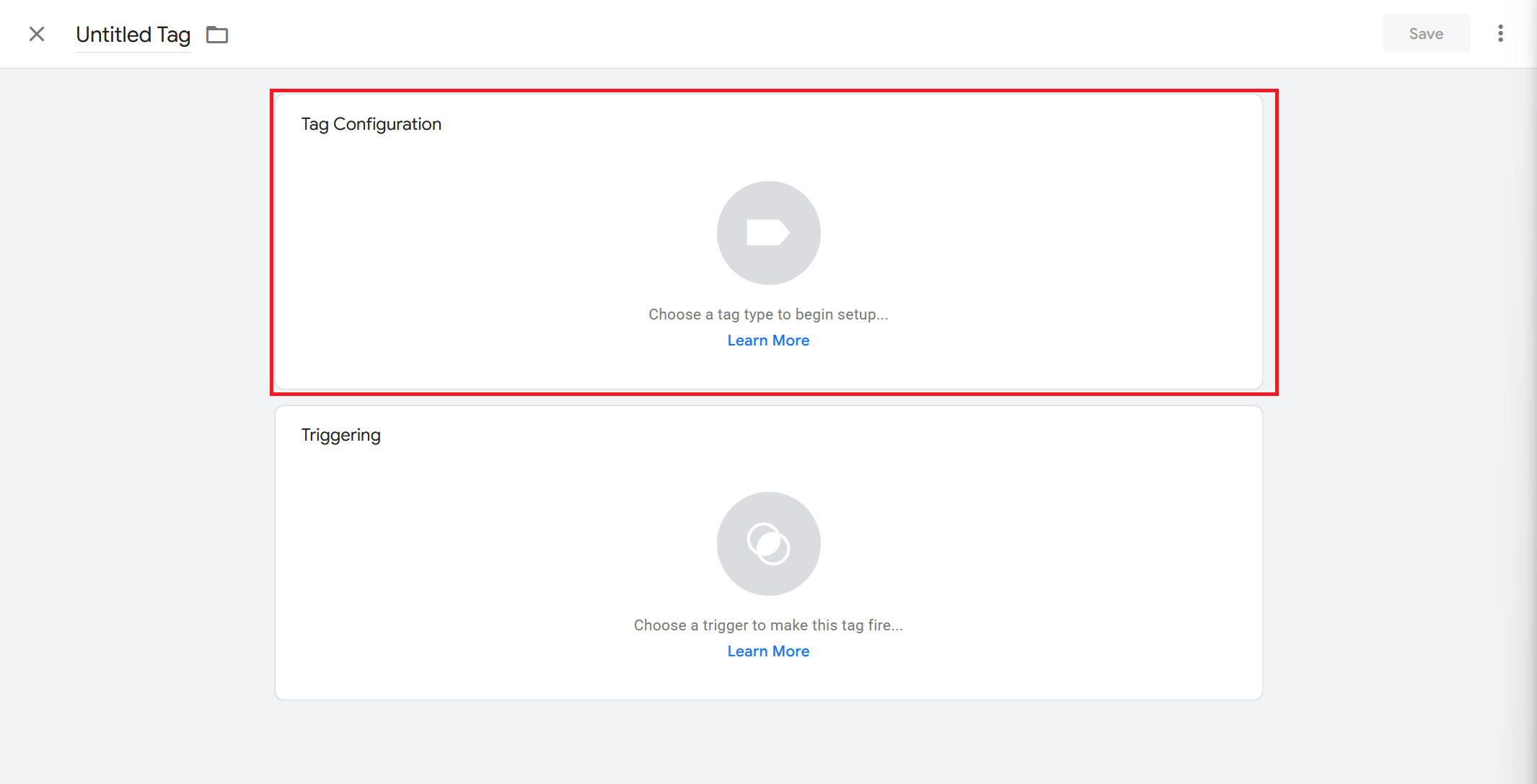
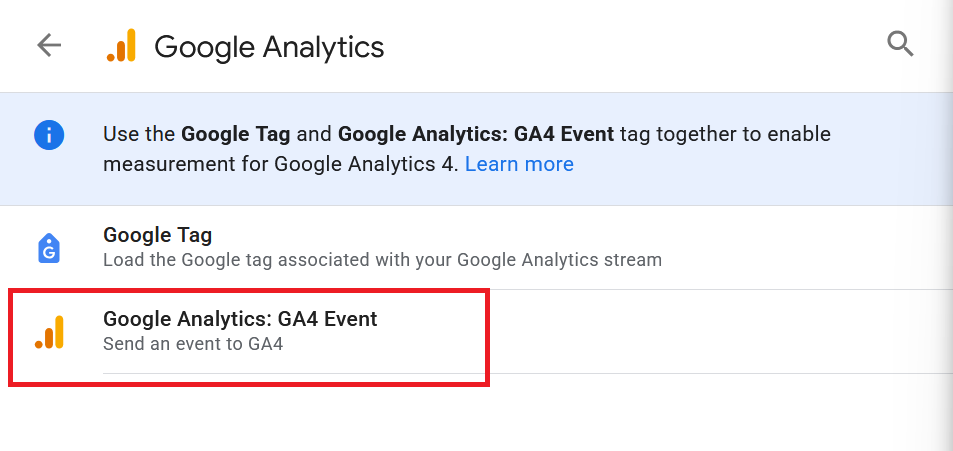
- Click the tag configuration area
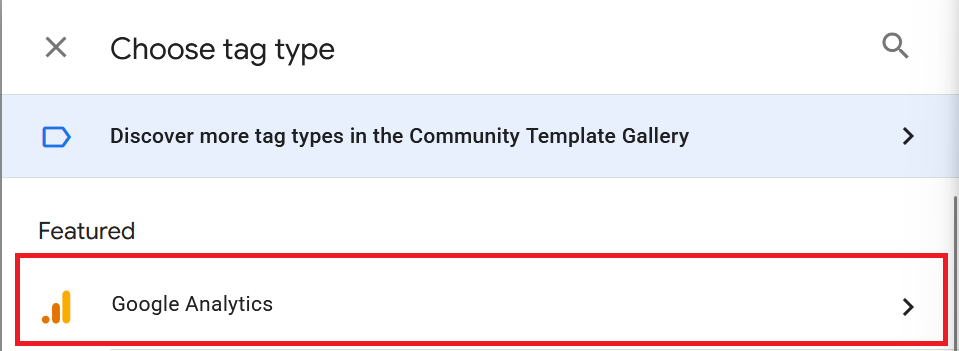
- Select Google Analytics and Google Analytics: GA4 Event
- Name your tag (e.g., "Event - View Item List") and input your Measurement ID. Under "event name", label it as view_item_list. You will have to use lower-case since GA4 is case-sensitive.
Afterwards, enable Send Ecommerce data via Data Layer data source.
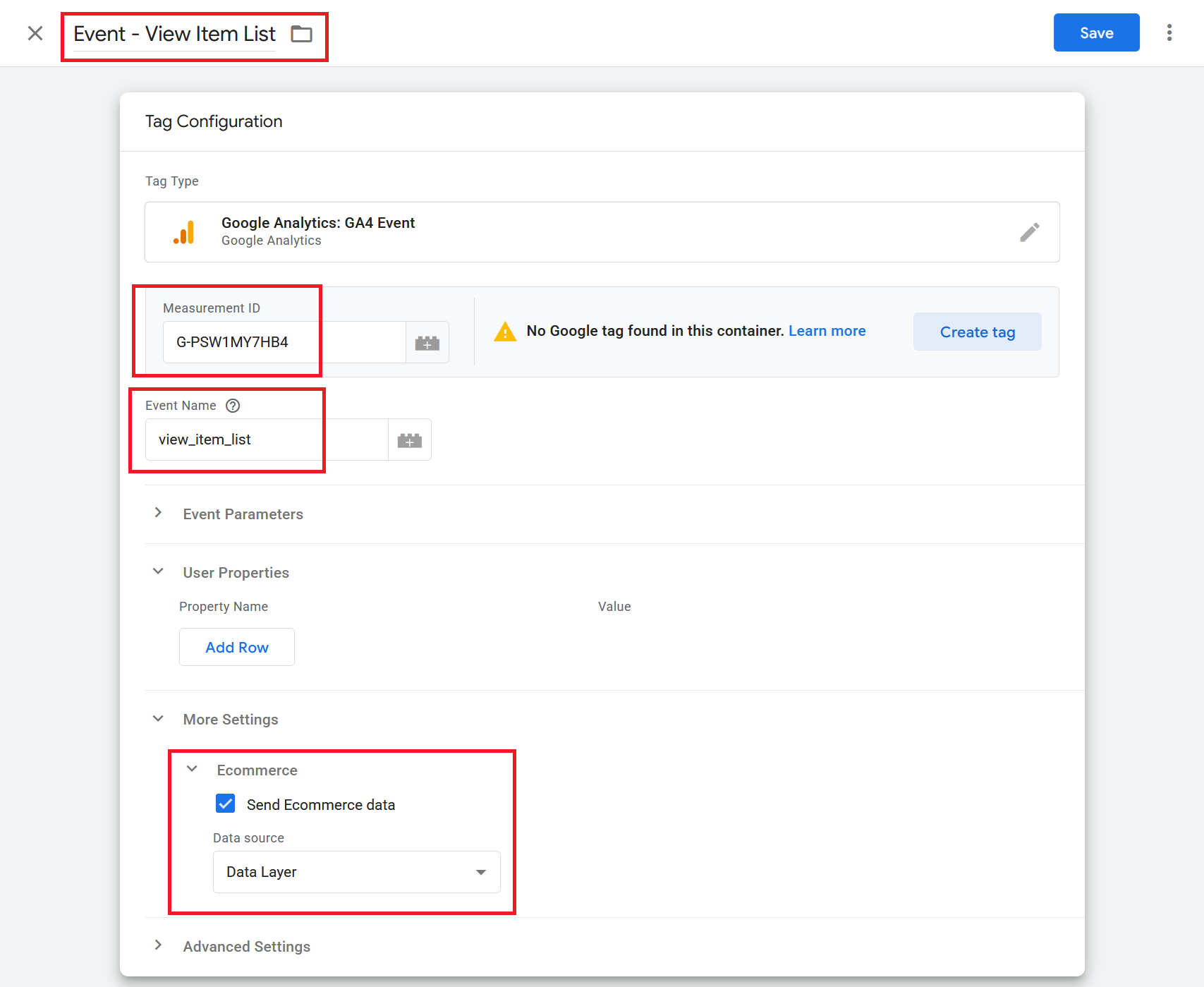
Use lowercase with underscores. GA4 is case-sensitive.
Step 2: Set Up the Trigger
- Follow-up to Step 1, click the Triggering section
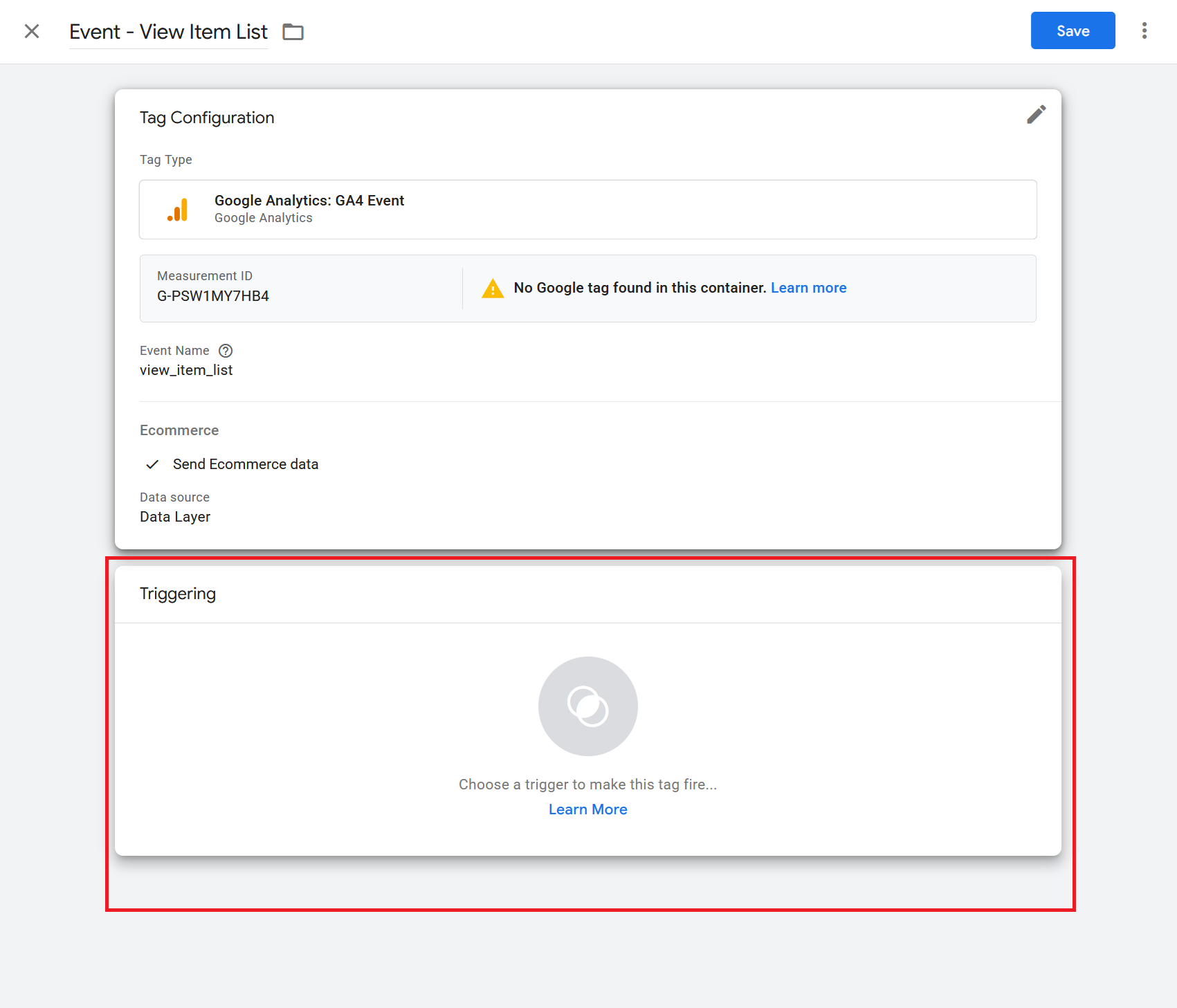
- Select the custom trigger you created in Step 0.
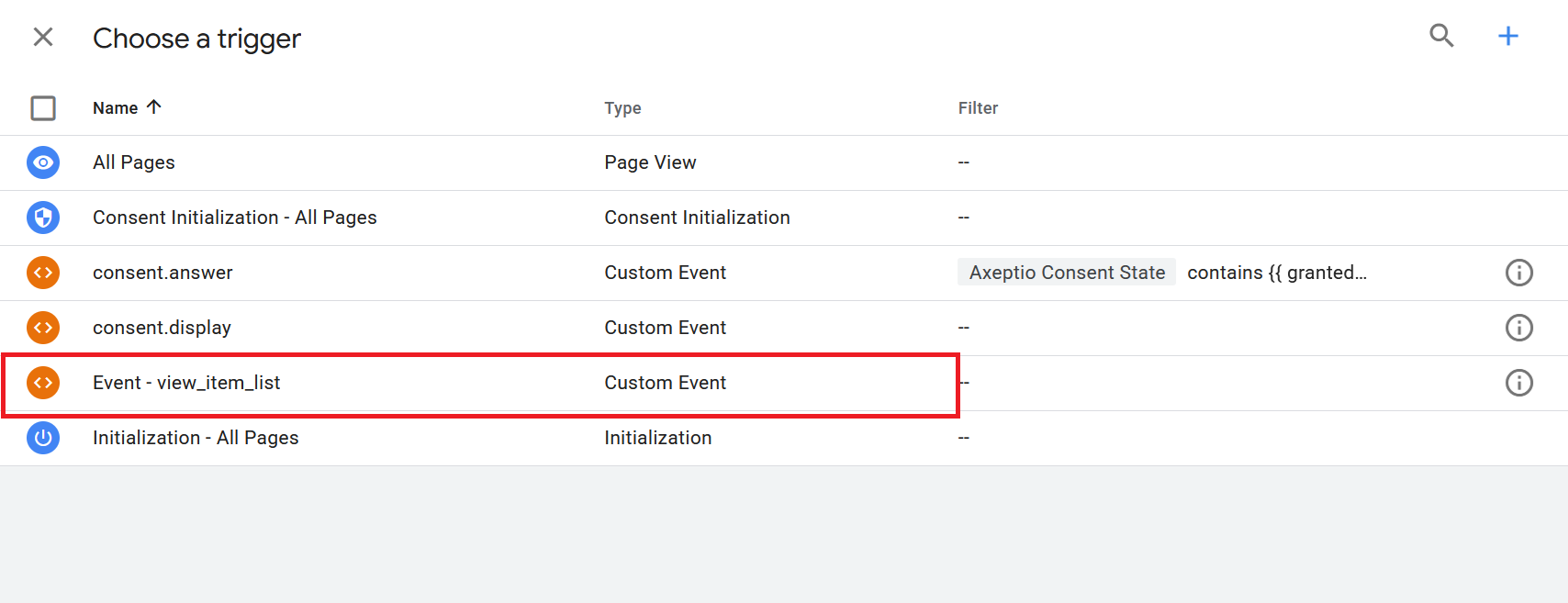
- Click Save

Step 3: Test Your Event
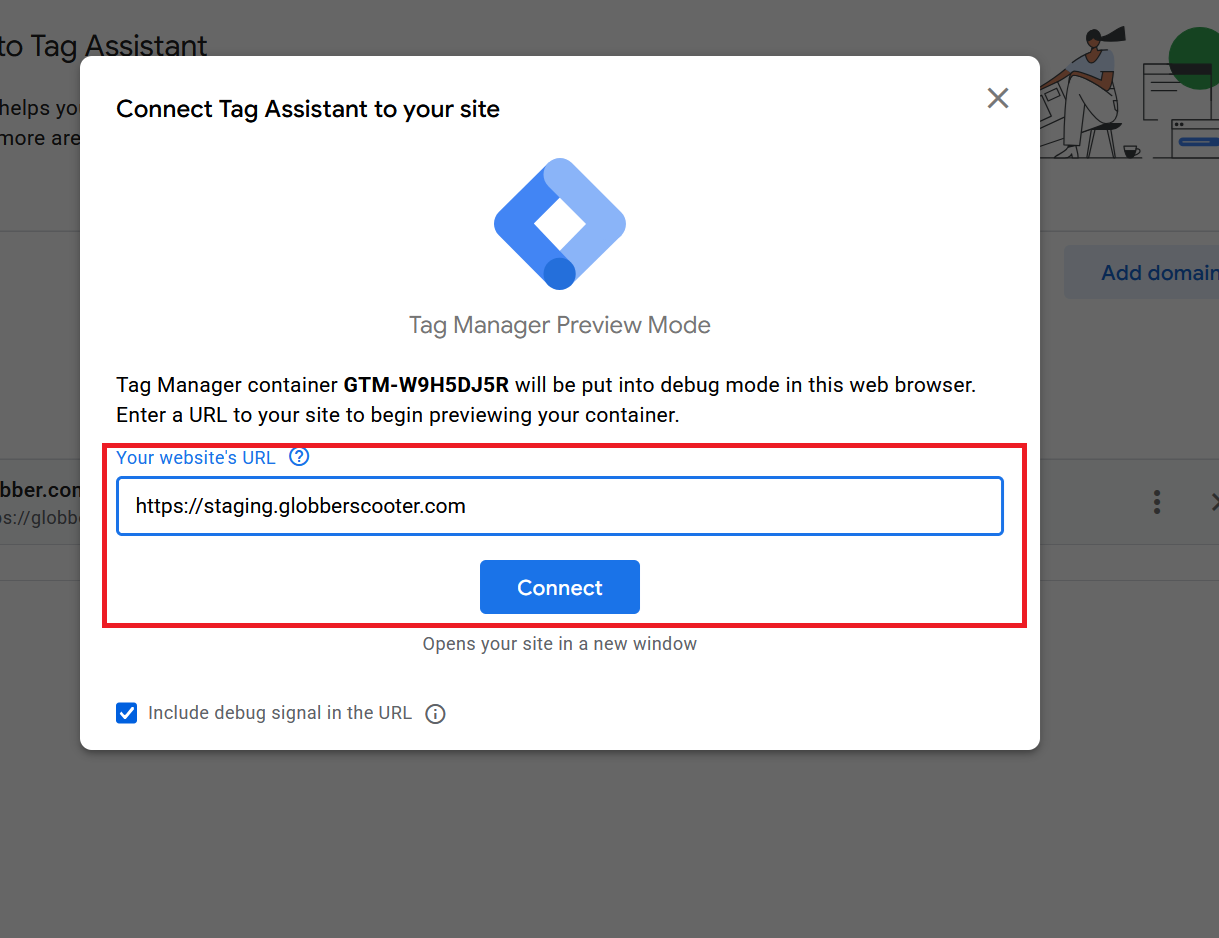
- Click Preview in the top right

- Enter your website URL and hit Connect
- Navigate to a category page or product page.
- Verify
view_item_listappears in Tags Fired
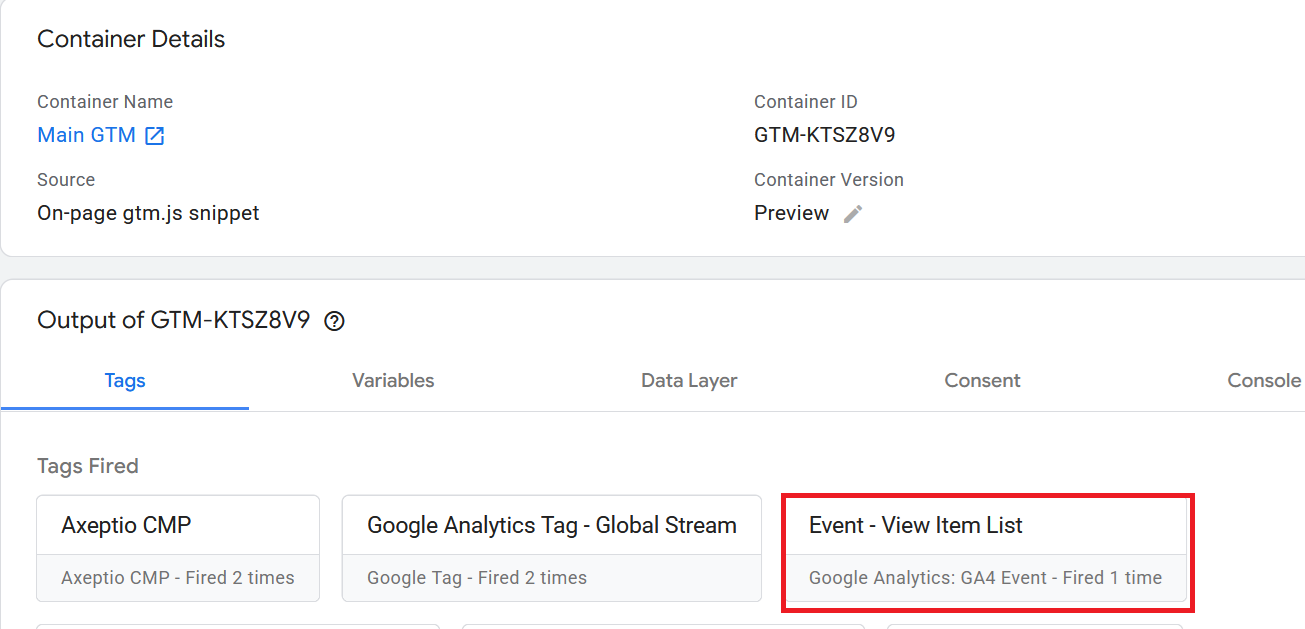
Always test before publishing to avoid sending bad data.
Step 4: Publish
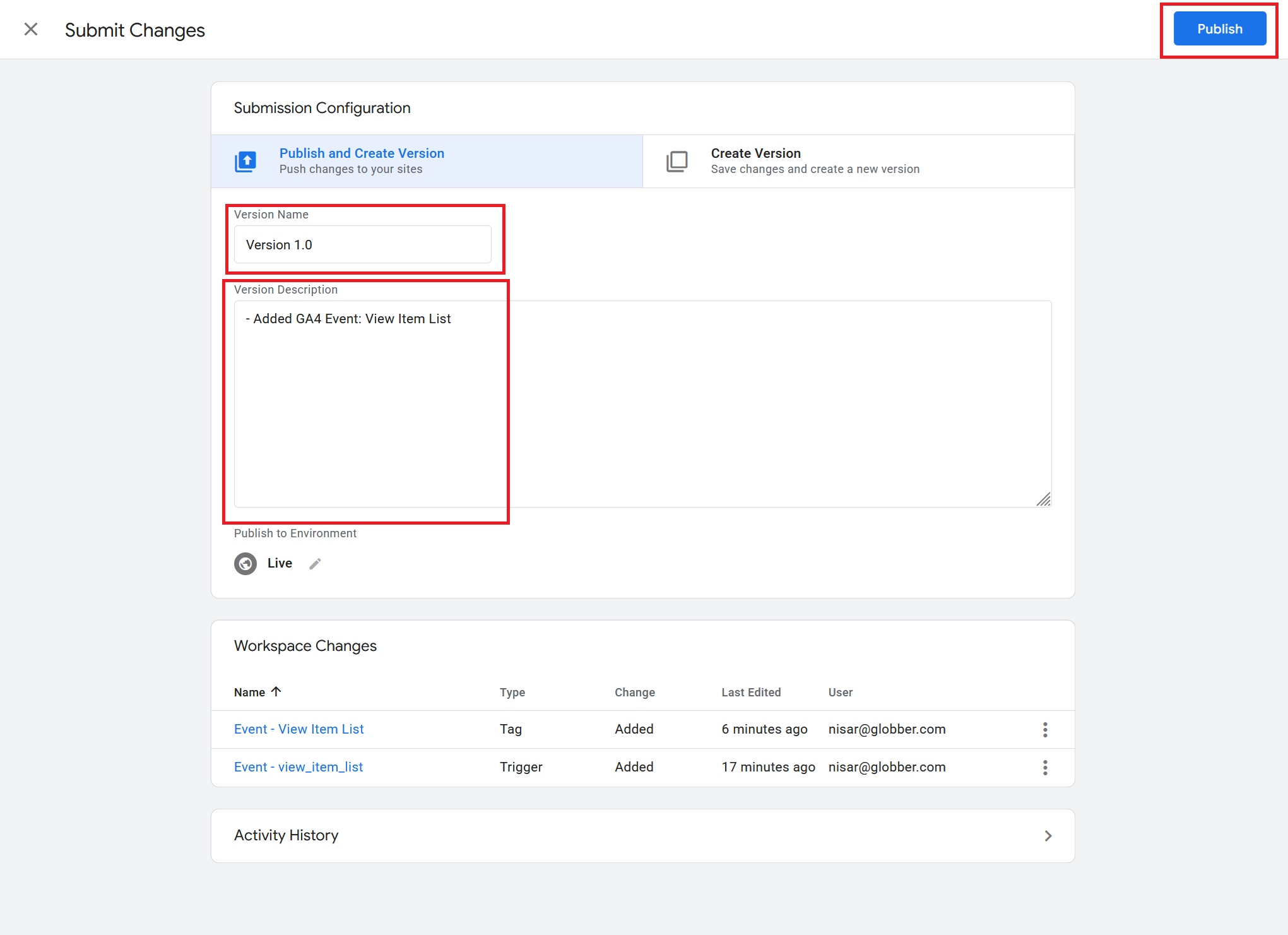
- Click Submit on the workspace's top-right corner

- Add a version name (e.g., "Added view_item_list event")
- Click Publish
Verify in GA4
- Go to analytics.google.com
- Navigate to Reports → Realtime
- Visit a category page
- Check for
view_item_listin the event list
Historical data appears in Reports → Engagement → Events within 24 hours.
Contact the Globber IT team for assistance with GTM setup or custom events.
Learn More
- GA4 Recommended Events: Event Reference
- GTM Tag Configuration: Tag Types
- Data Layer Guide: Developer Documentation