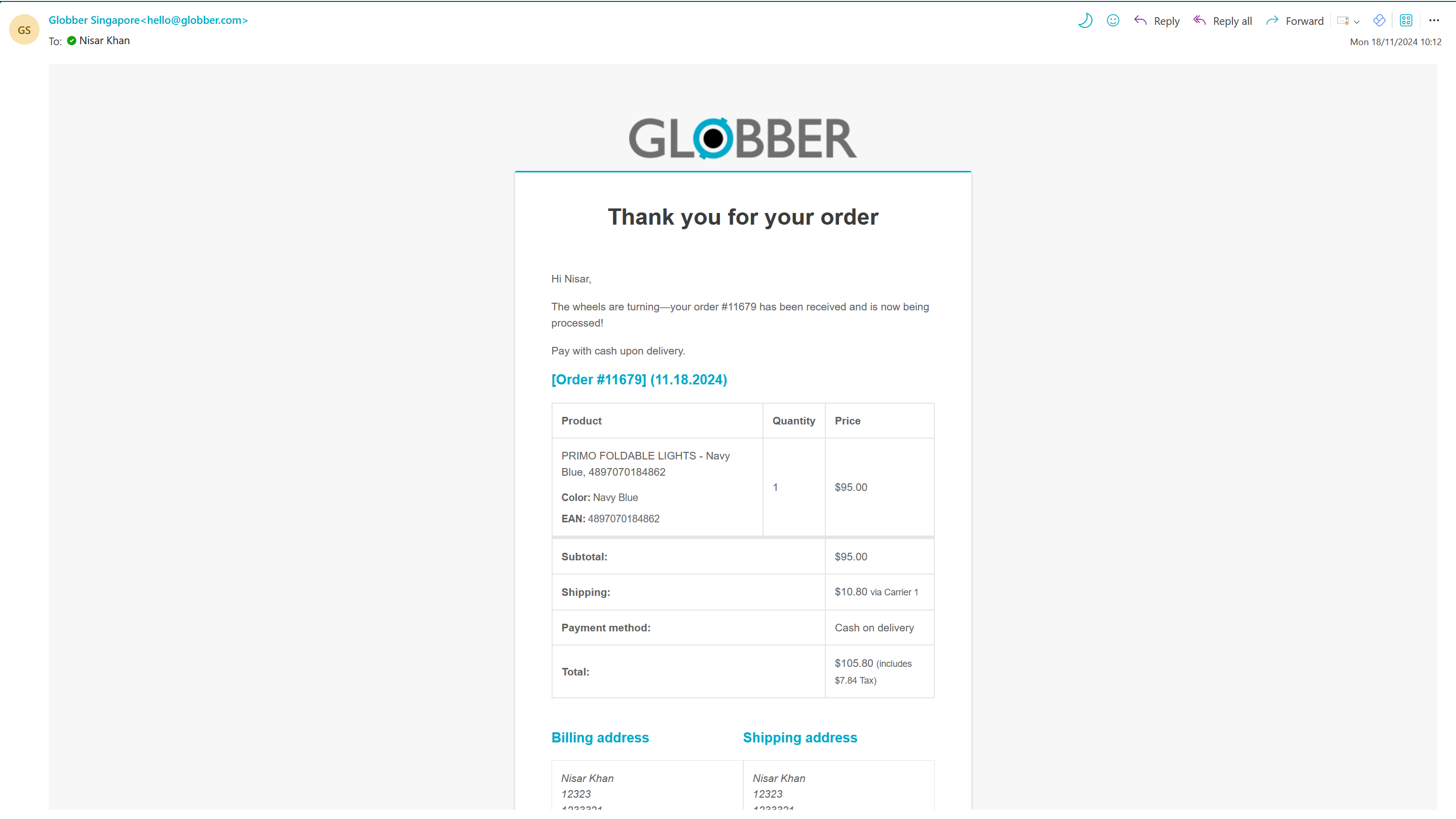
View Customer Journey
You will need to follow a customer journey to better understand the technical approach of order management.
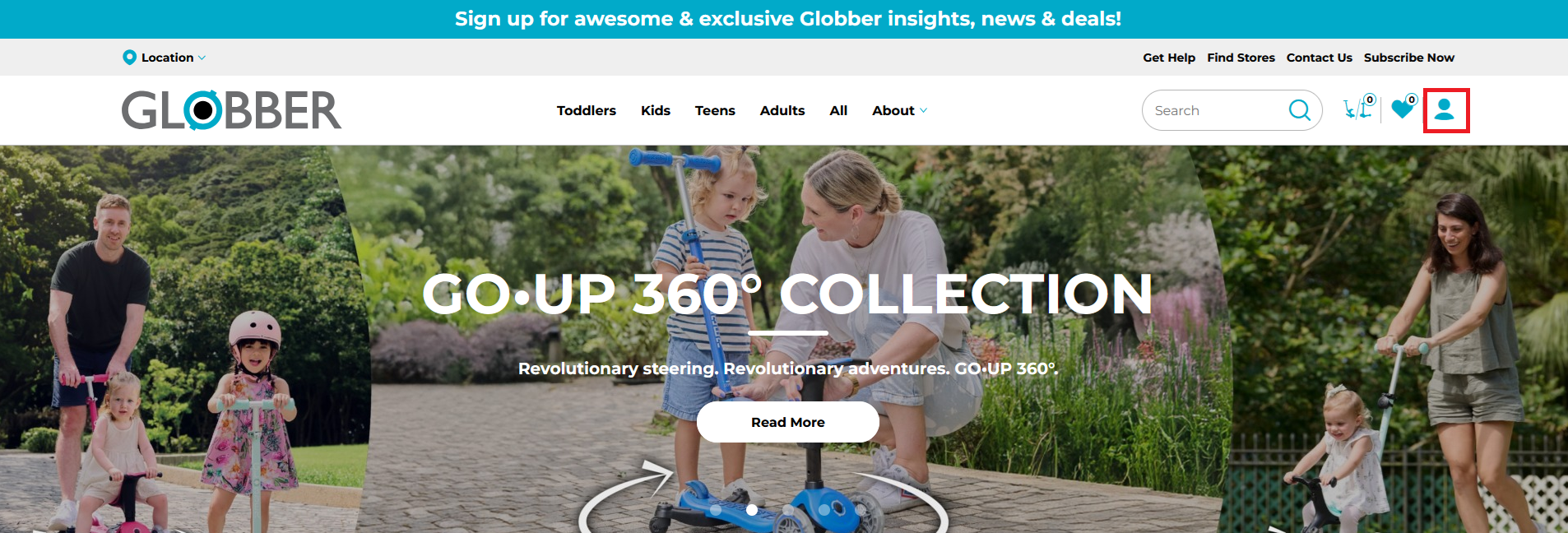
To start, let's create a customer profile on the Globber website.
On the website, click the highlighted icon in the top right corner of the Globber website.
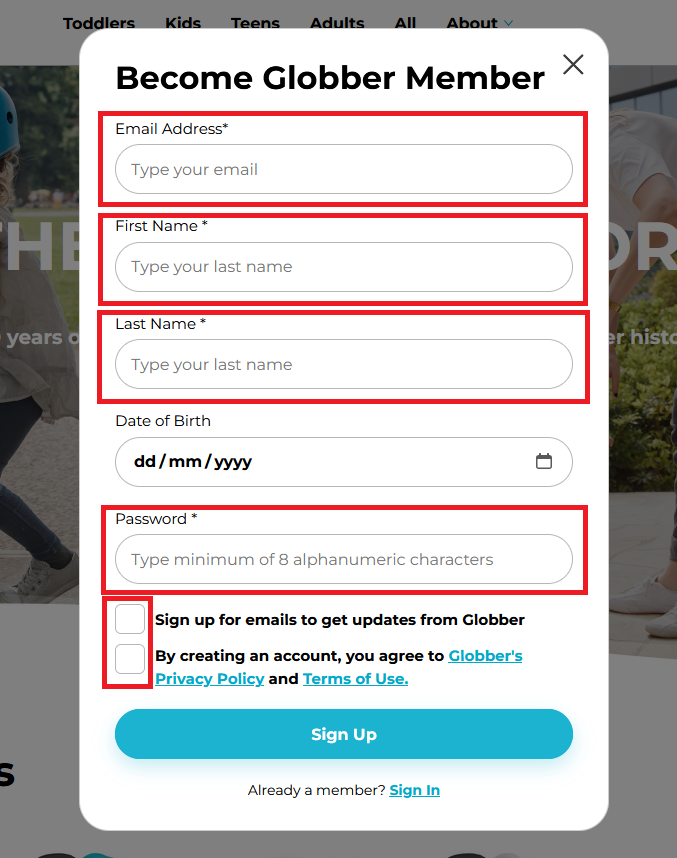
Fill in all required fields, including Email Address, First Name, Last Name, and Password.
Check the relevant boxes before you hit Sign Up button.
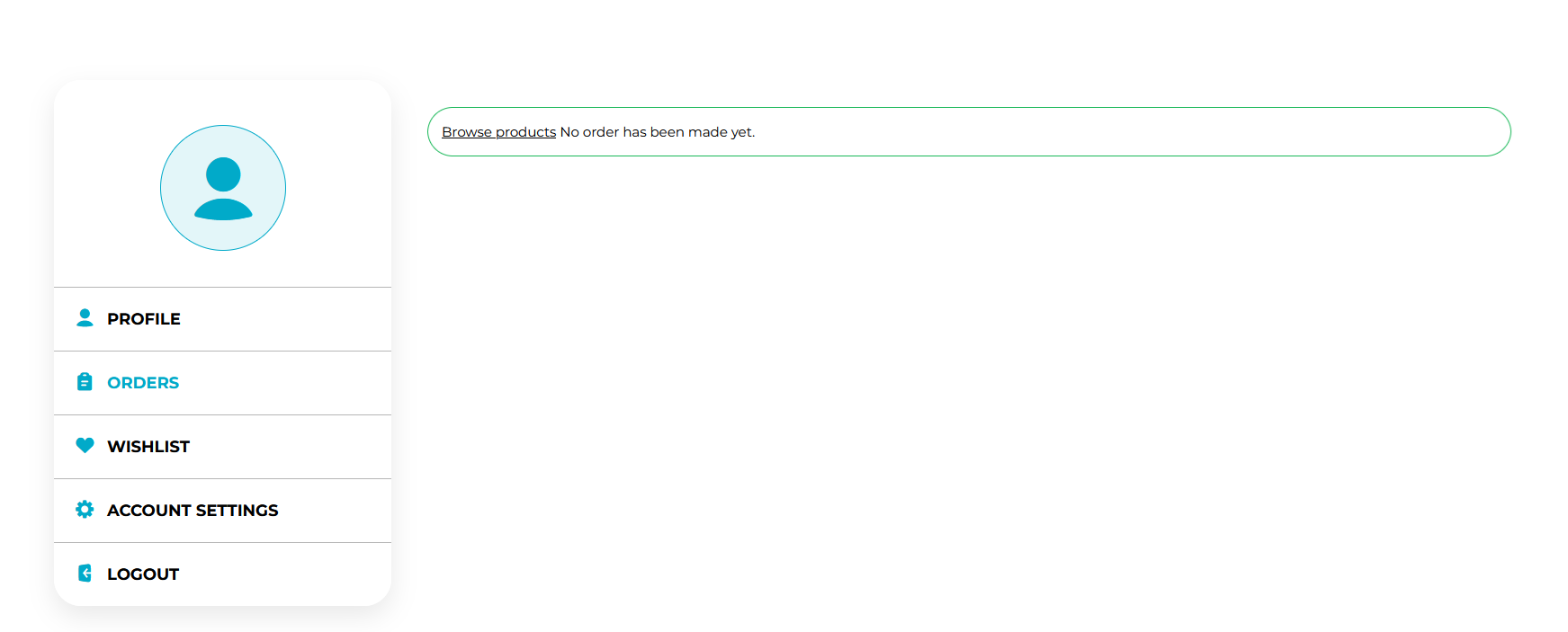
After registration, you can navigate to your profile and select the Orders section.
Inside Orders section, you will see that there is no history with your profile at this moment.
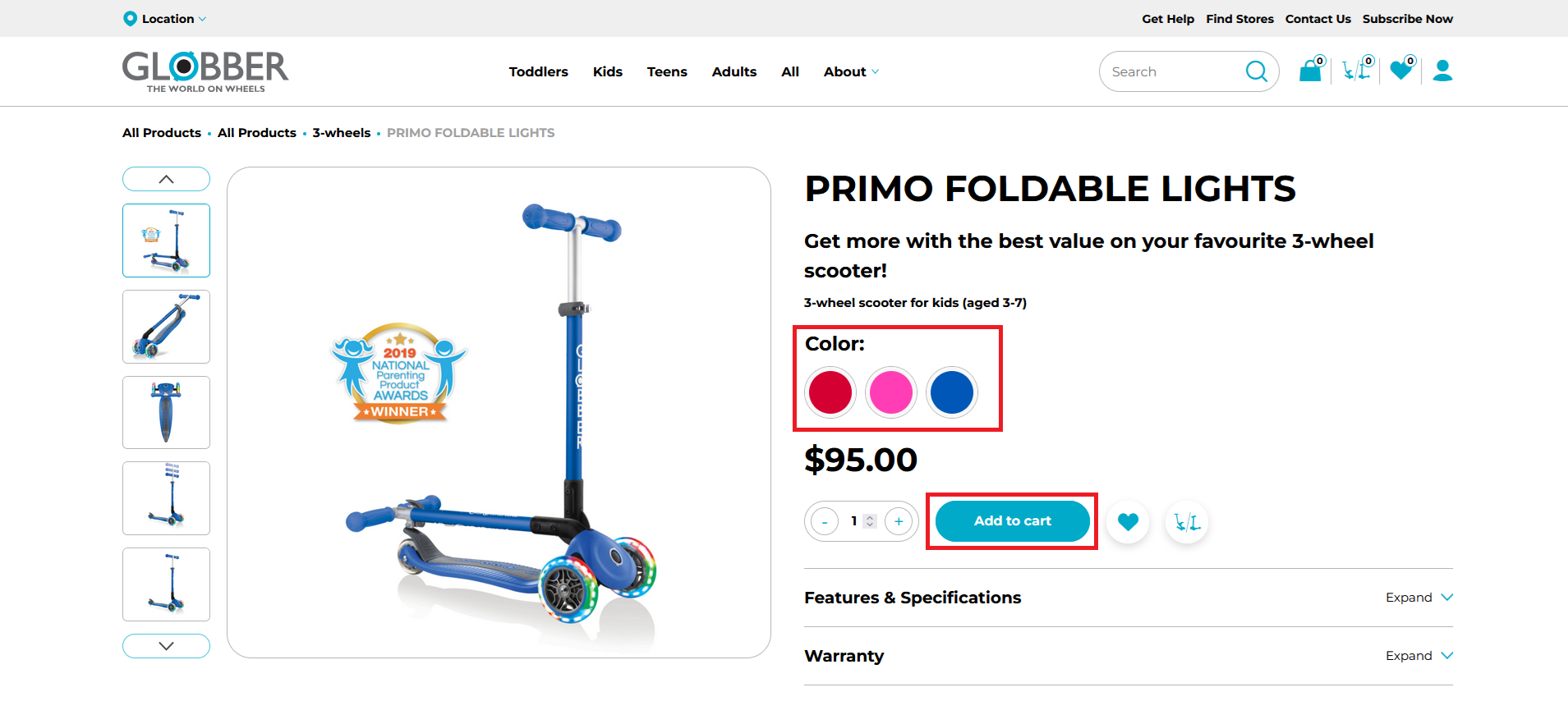
Customers can make a purchase by clicking on their desired product page, selecting the specific color, and then clicking Add to Cart when they're ready.
A pop-up will appear to confirm that the product(s) have been added to the cart. Customers can proceed to the shopping cart by clicking Go to Shopping Cart to begin the checkout process when they're ready.
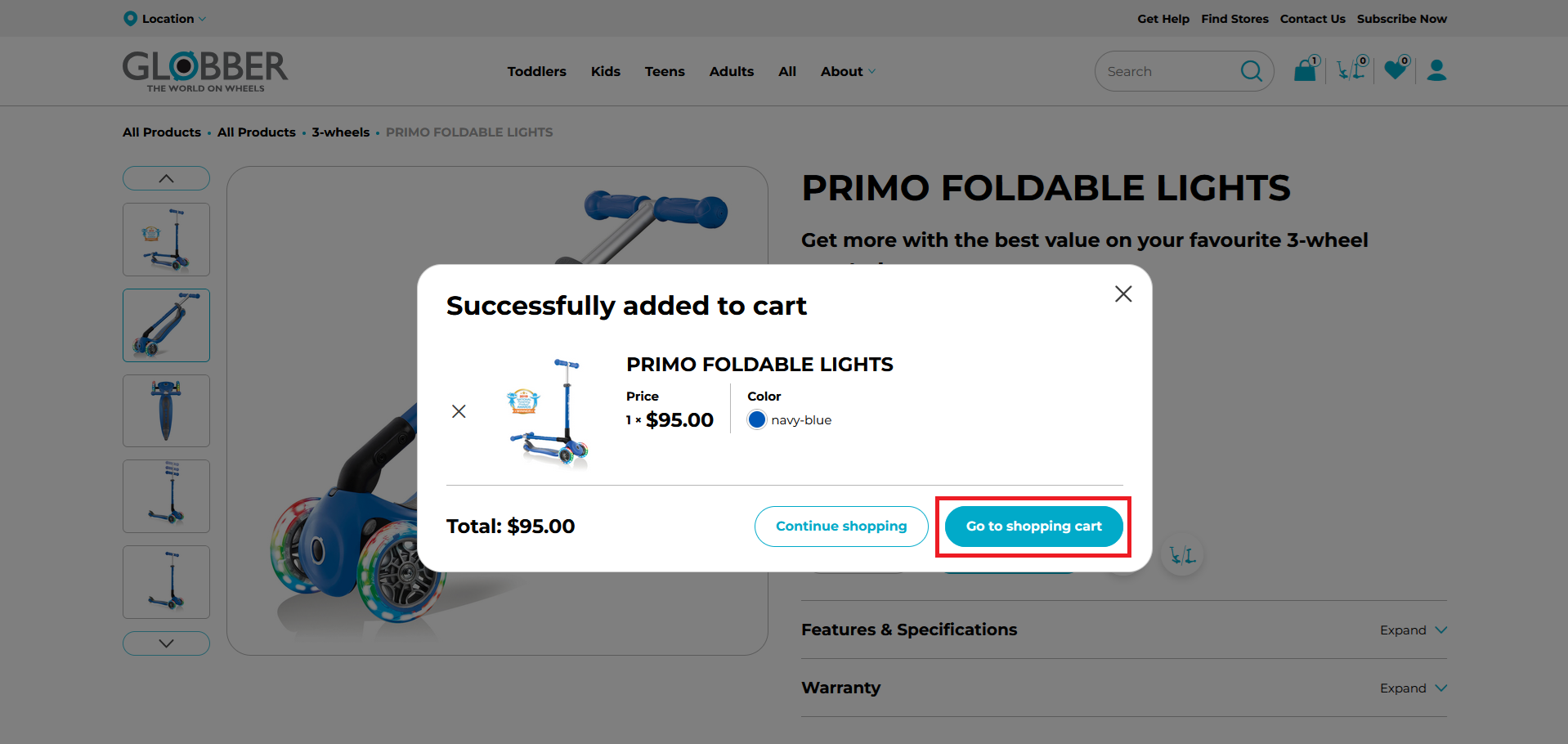
If customers decide to continue browsing the website, they should click Continue Shopping.
When they're ready to make a purchase, they can select this shopping bag button on the top right corner of the website.

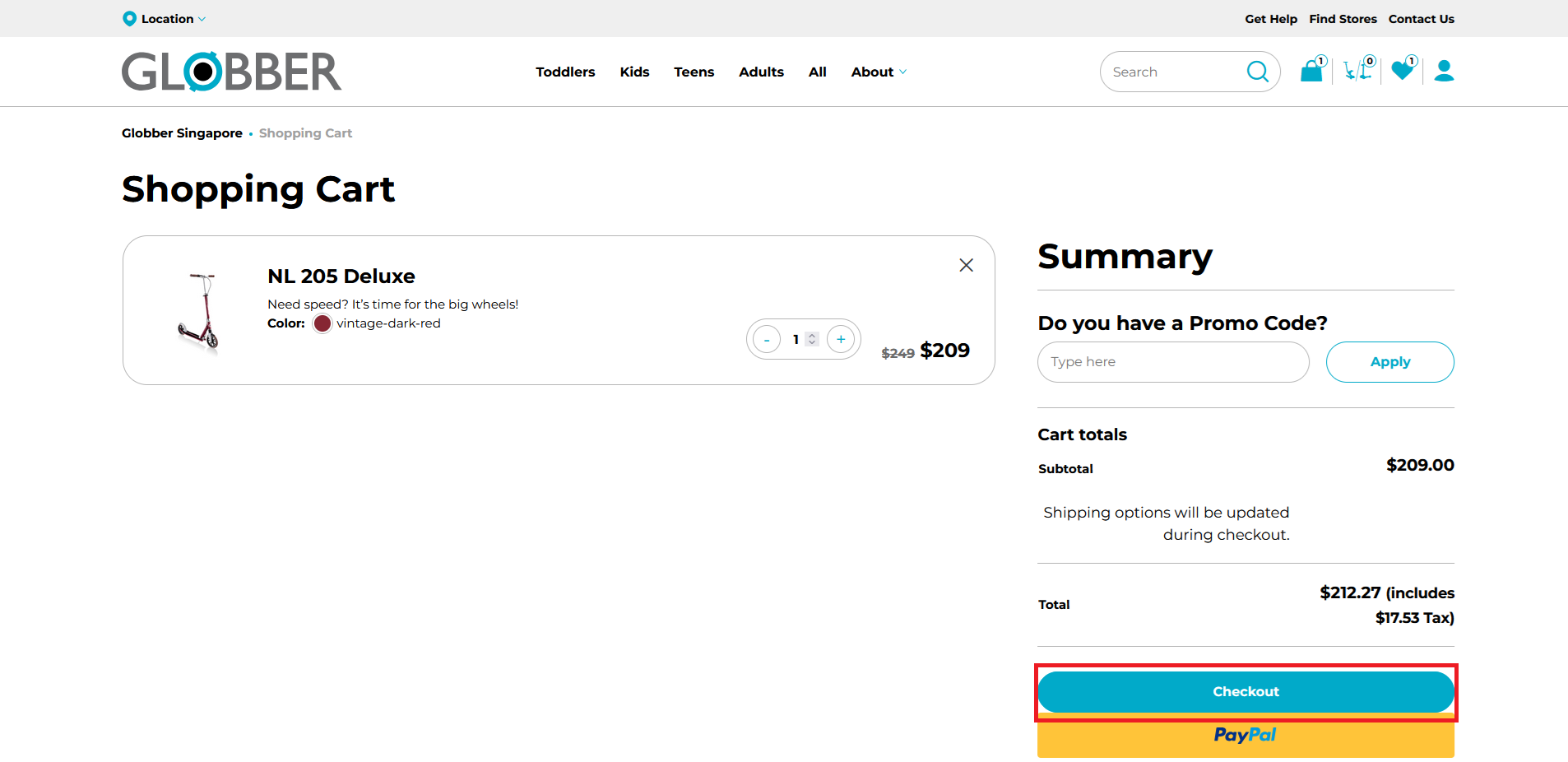
On the Shopping Cart page, customers will see an overview of their purchase, where they can enter promo codes if applicable.
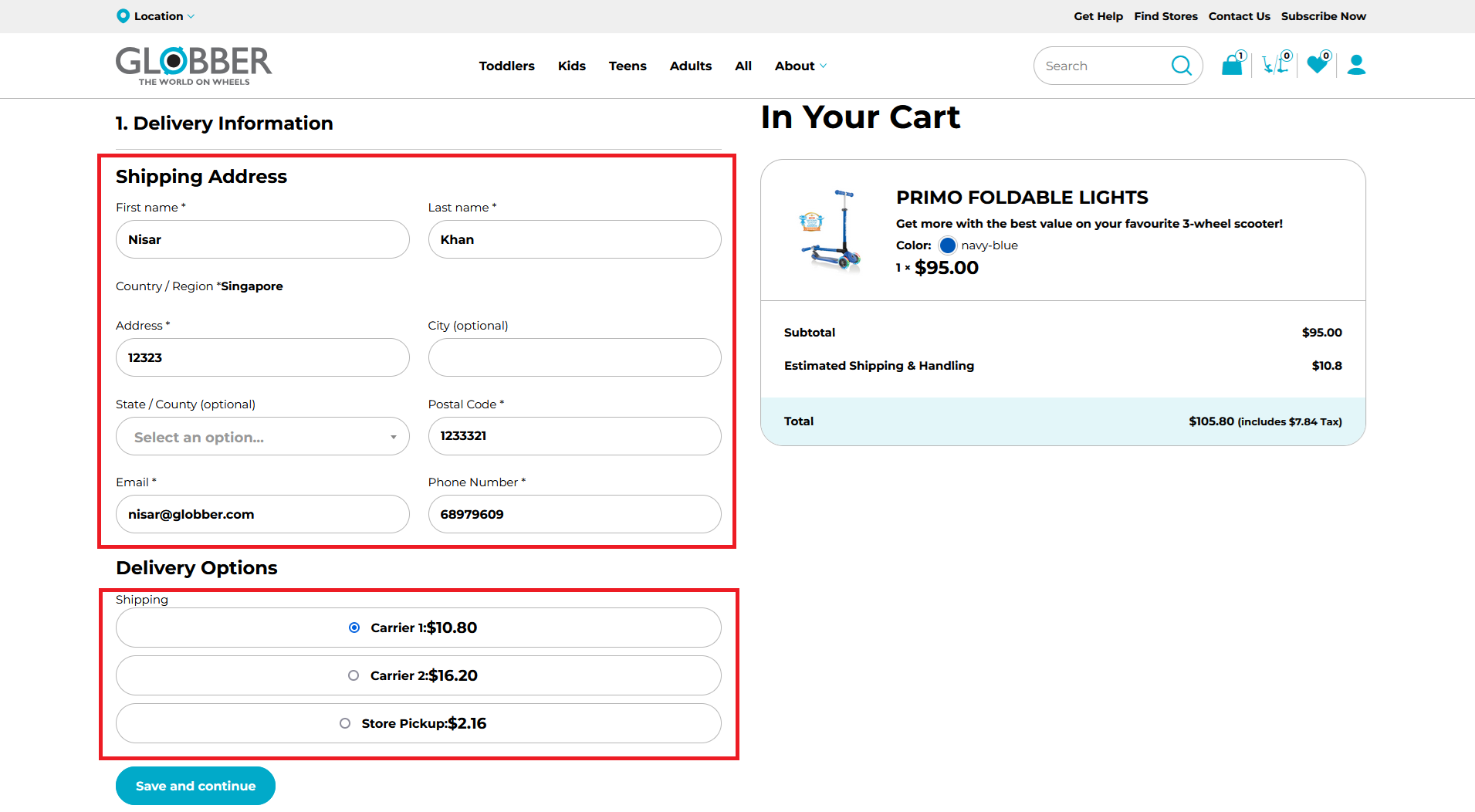
In the Checkout page, customers will have to fill in their delivery information with their contact information, address and select their delivery options.
Next, customers need to choose their preferred payment method and enter any required payment details.
They can then click Continue.
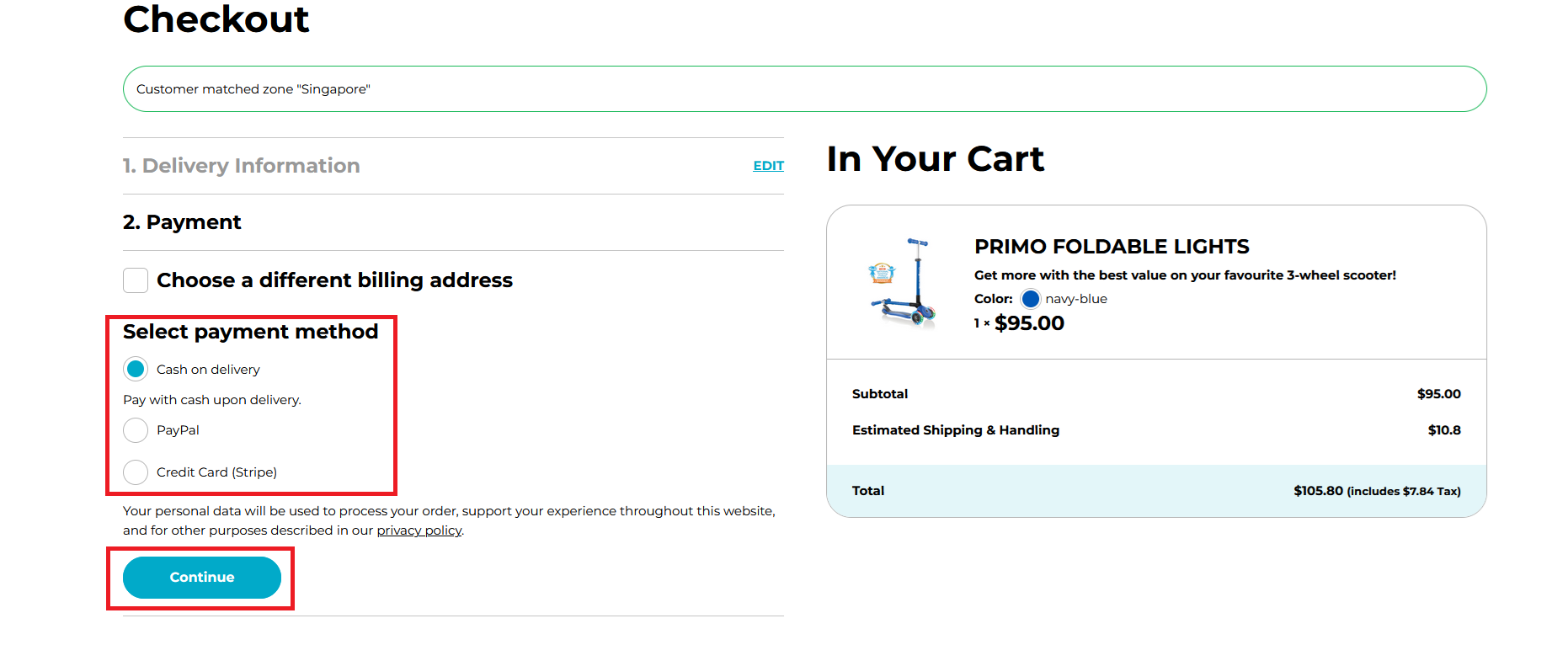
The checkout includes inline field validation, a built-in discount code form in the order summary, and an optional newsletter opt-in. See the Checkout guide for configuration details.
Customers will receive a thank you message alongside their order number.
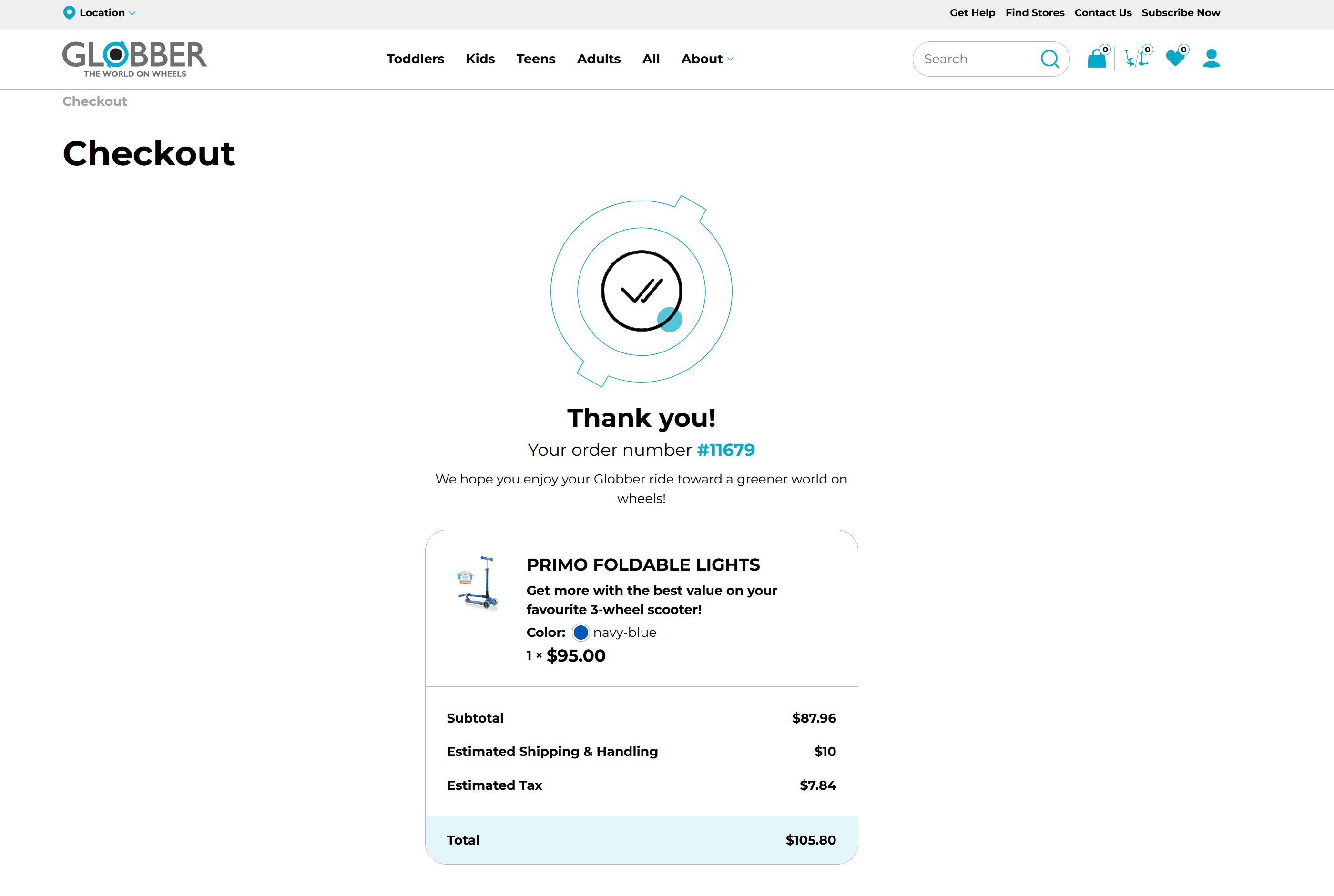
Customers will also receive an automated email containing their order details.