Emails
This documentation explains how to manage and customize WooCommerce email notifications.
Accessing Email Settings
On the left-hand side menu, navigate to WooCommerce and click on Settings.
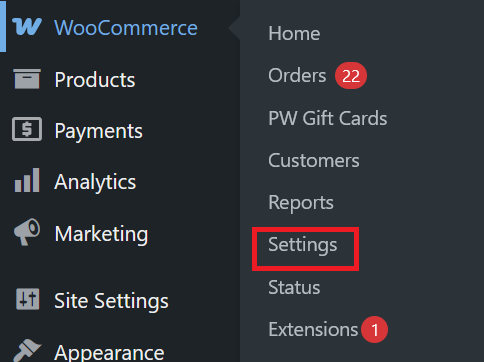
Select Emails on the WooCommerce settings page to get started.

Configure Email Notifications
WooCommerce sends automatic emails for order statuses and customer actions:
Email types include:
- For customers: New order, Cancelled order, Failed order, Order on-hold, Processing order, Completed order, Refunded order, Order details, Customer note, Reset password, New account, Wishlist - Product in stock, Gift Card, New receipt
- For selected recipients (admin email): New order, Cancelled order, Failed order
Edit Email Notification Template
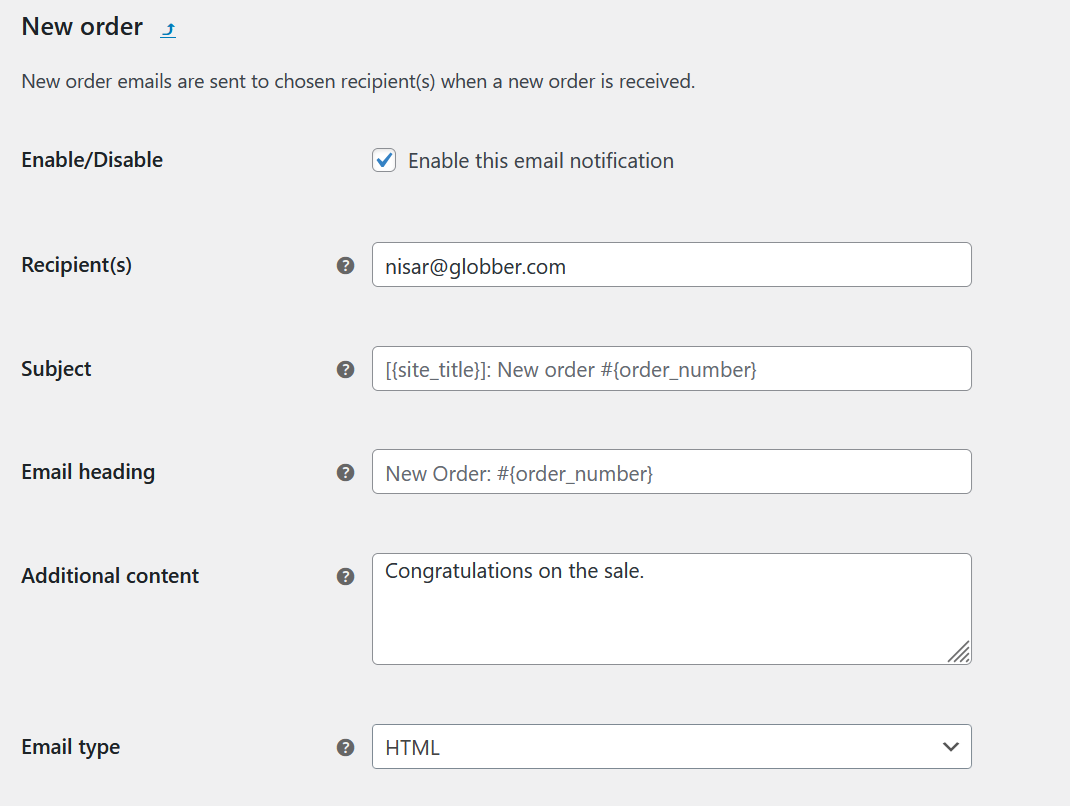
To make changes to a specific email notification template, click Manage on the email type you want to edit.
To change all email templates at once, use the Configure Email Sender Options section below.

In this section, you can replace the recipient name (specific to which admin runs the regional Globber website). You can also change the subject line, email heading and additional content.
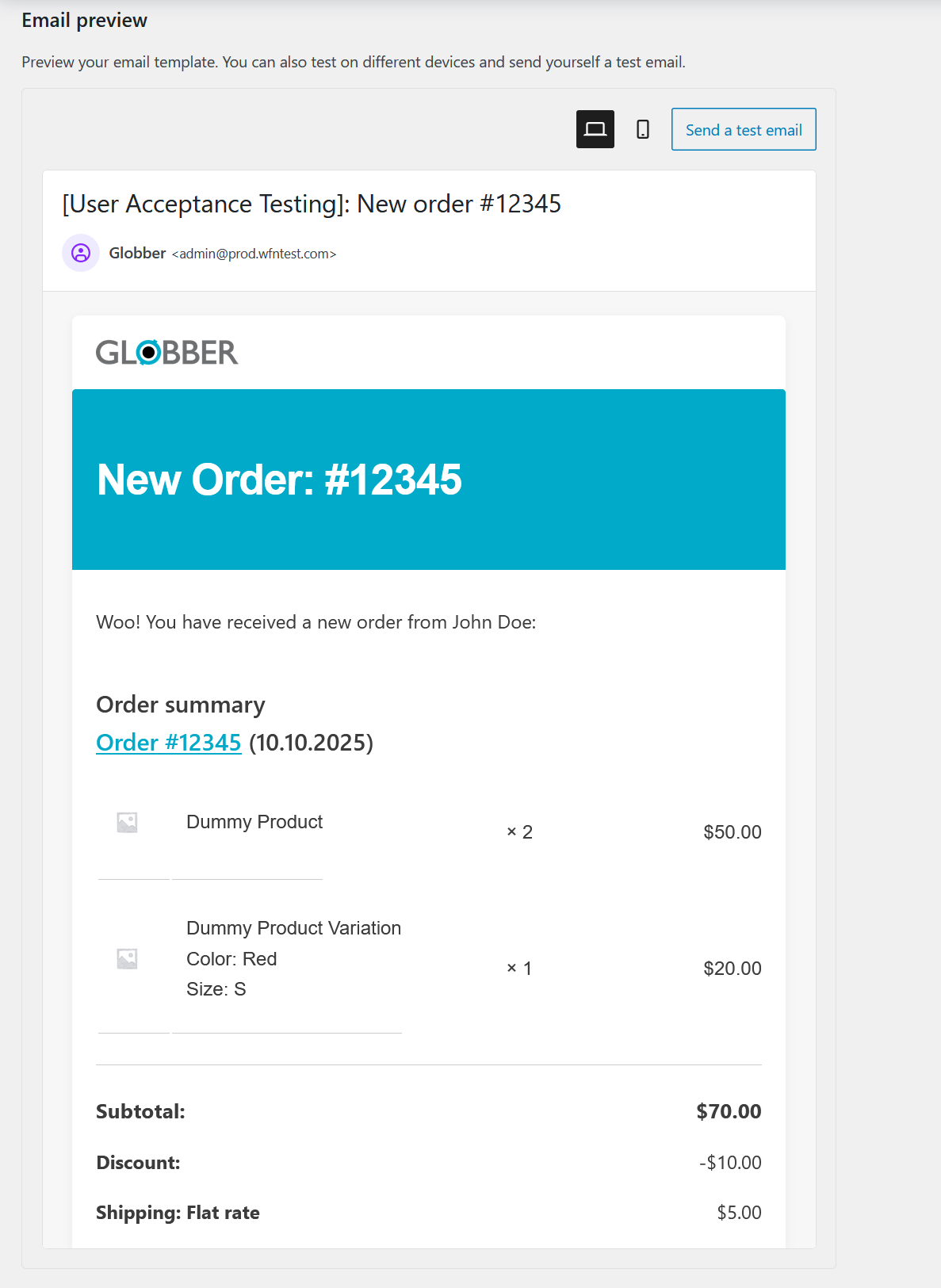
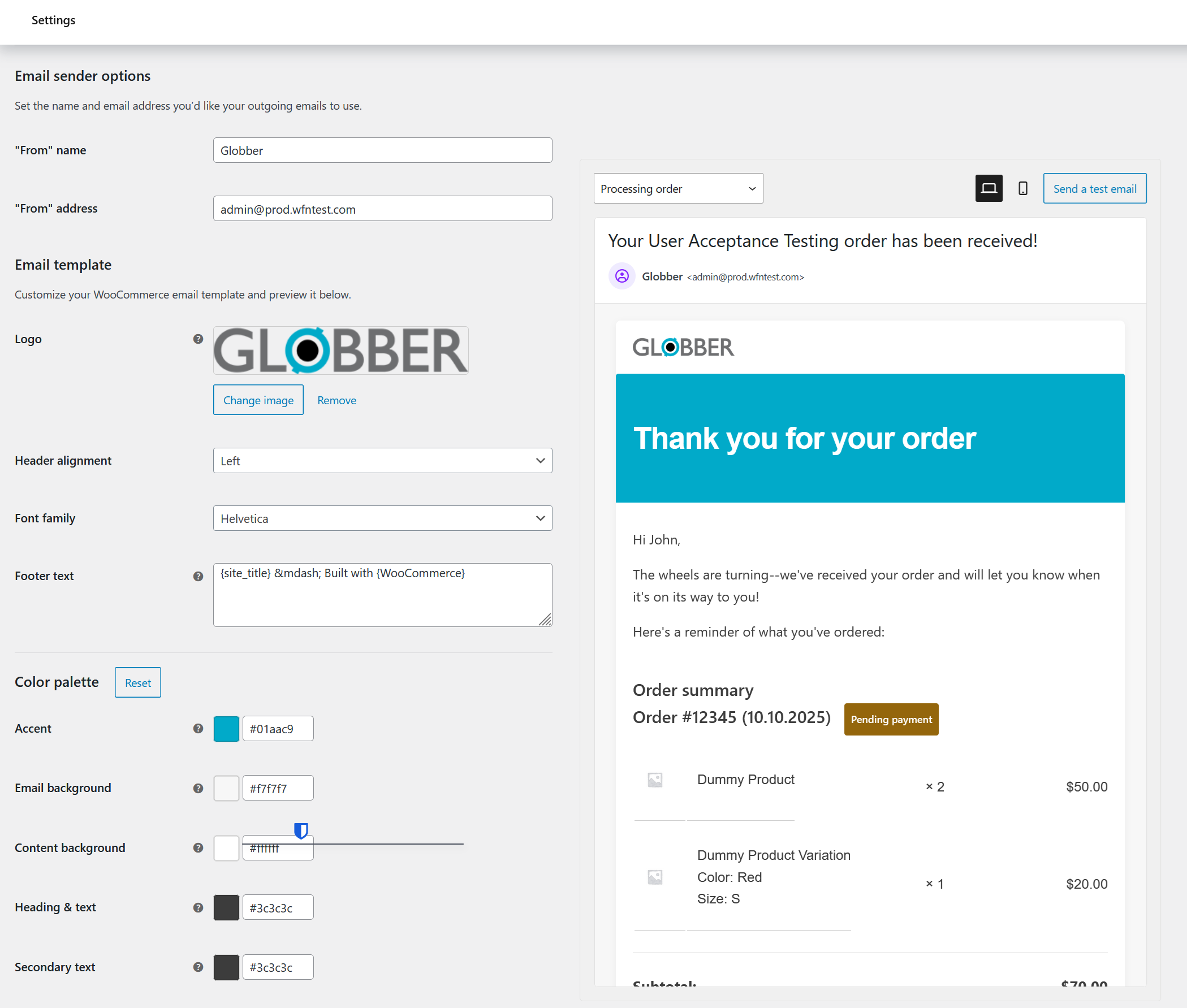
Scroll below this section to find a preview of your email (both desktop and mobile version)
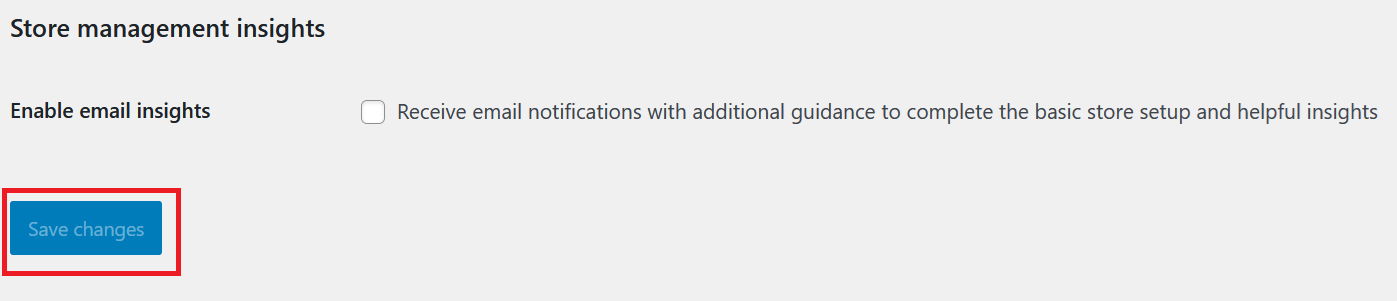
Hit save changes when you want to finalize your change.

Configure Email Sender Options
Below the Email Notifications section, you will find Email Sender Options.
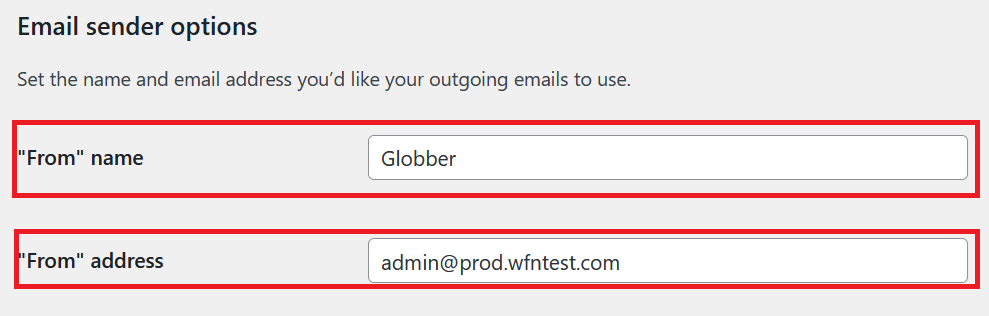
Configure sender information:
- "From" name: Set as "Globber (COUNTRY)" or your store name
- "From" address: Use your globber domain email
Visual Customization
Customize email appearance:
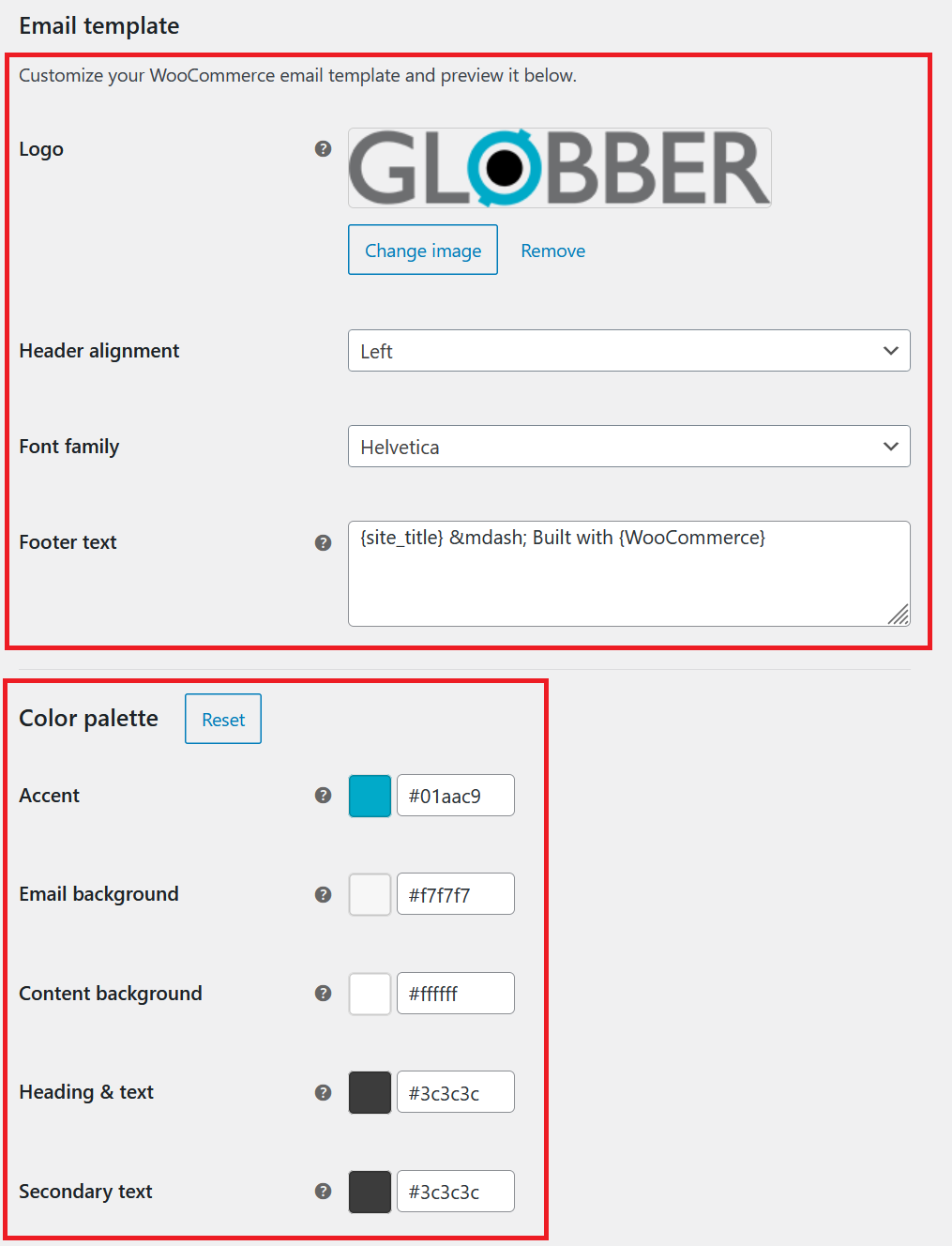
- Logo: Upload Globber logo
- Font: Choose font family (Helvetica recommended)
- Colors: Set accent, background, and text colors that align with Globber's branding
- Footer: Add custom footer message
Email Preview
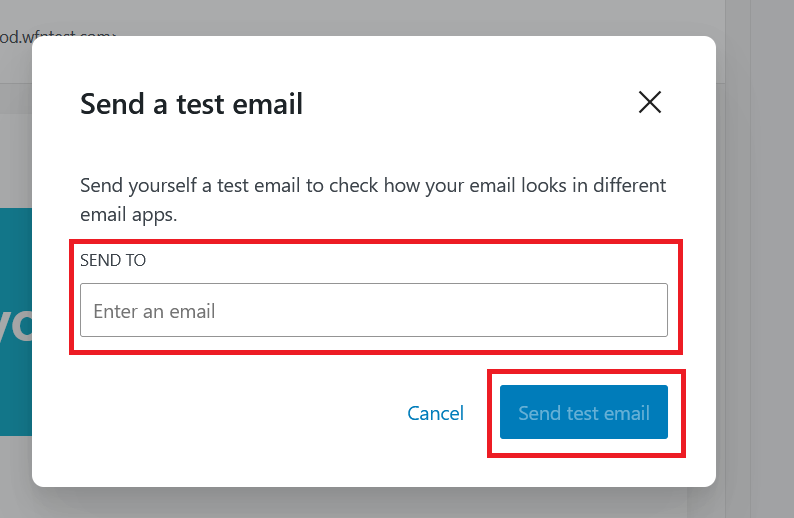
Preview your email design in both desktop & mobile version, select the specific email notification type you want to preview.
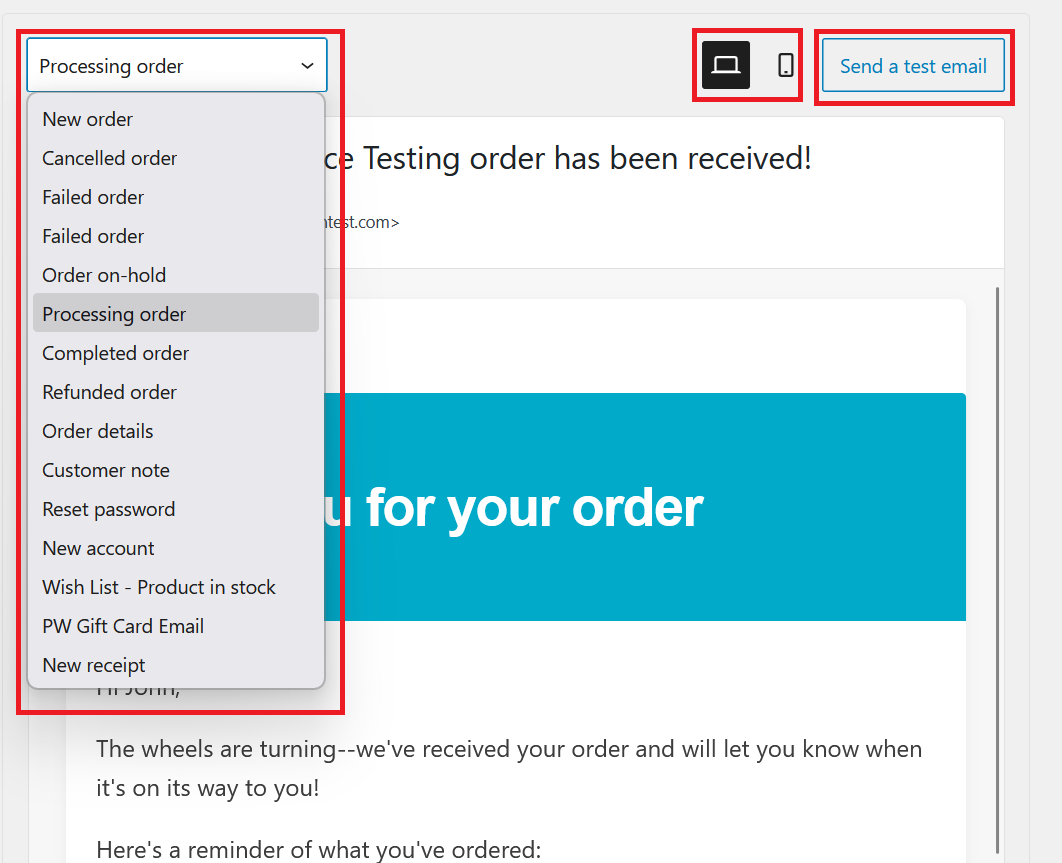
Click Send a test email to send a test email to your desired email domain.
Hit Save changes to publish your changes.