Order Status & Customer Updates
Manage Processing Orders
In WordPress dashboard, navigate to the WooCommerce tab on the left-hand side menu and select Order.
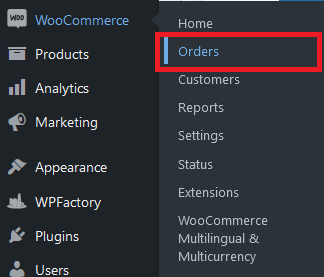
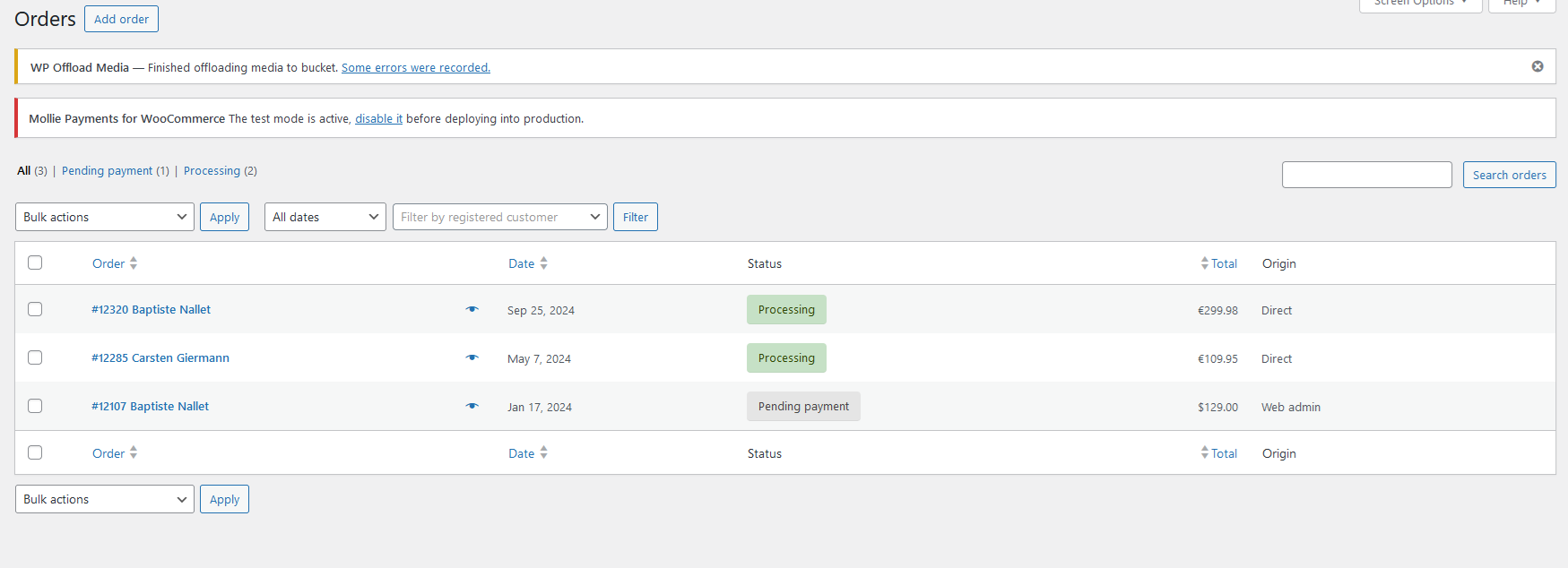
You can view all order history in this section.
Select an order marked with Processing status or the most recent example order from the Starting with Customer Journey section
Tracking Orders
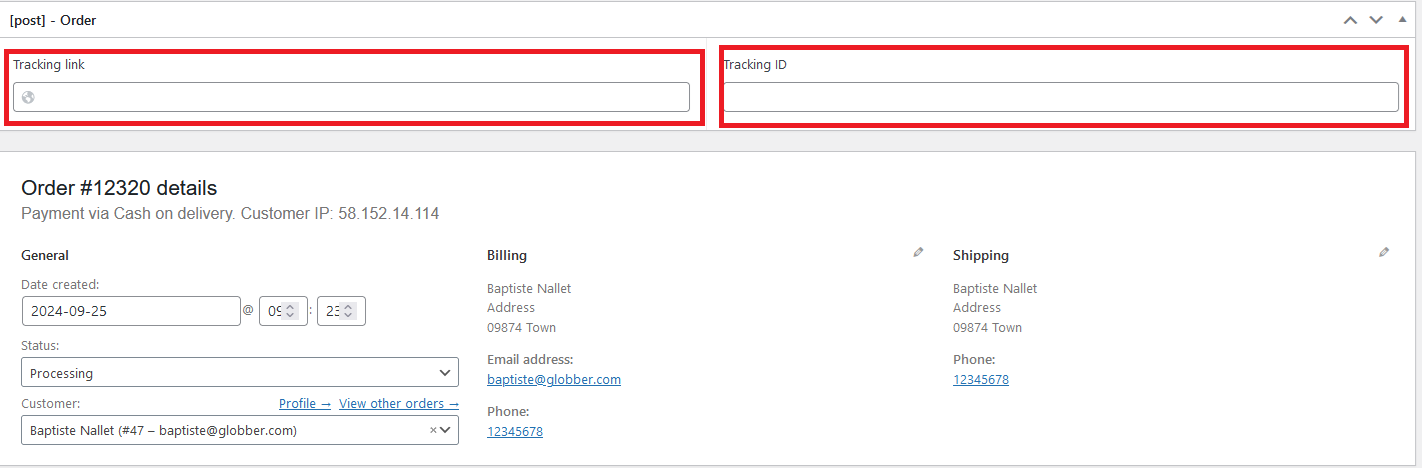
The most important step is to fill out the tracking link and tracking ID fields under the [post] Order section at the top of the order details.
- Tracking link accepts URL
- Tracking ID accepts order number or letters
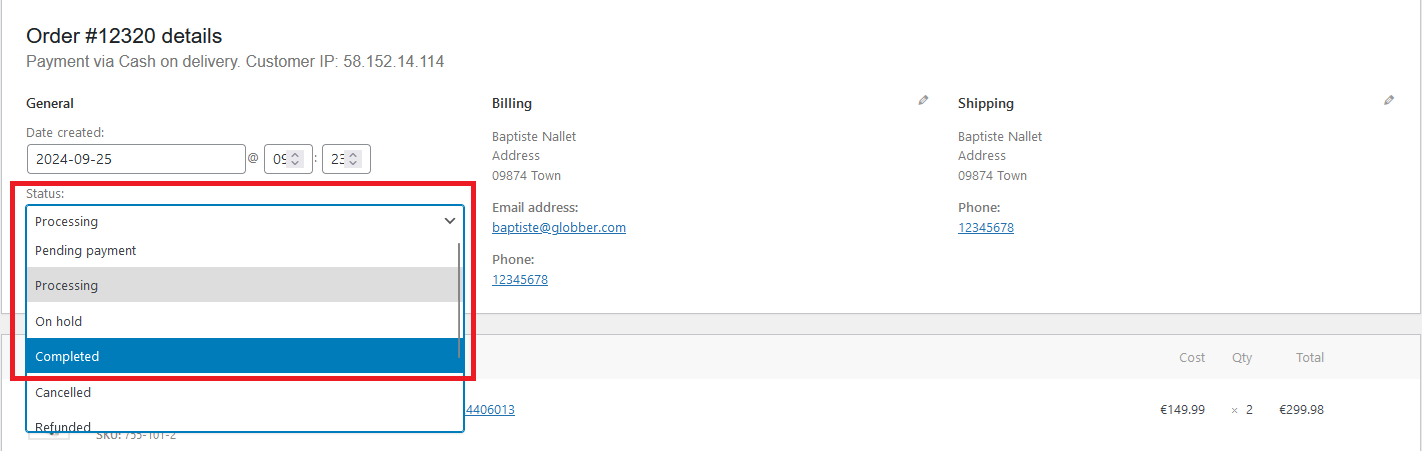
When you're ready to finish processing, mark the order status as Completed using the dropdown menu under Status, as highlighted below.
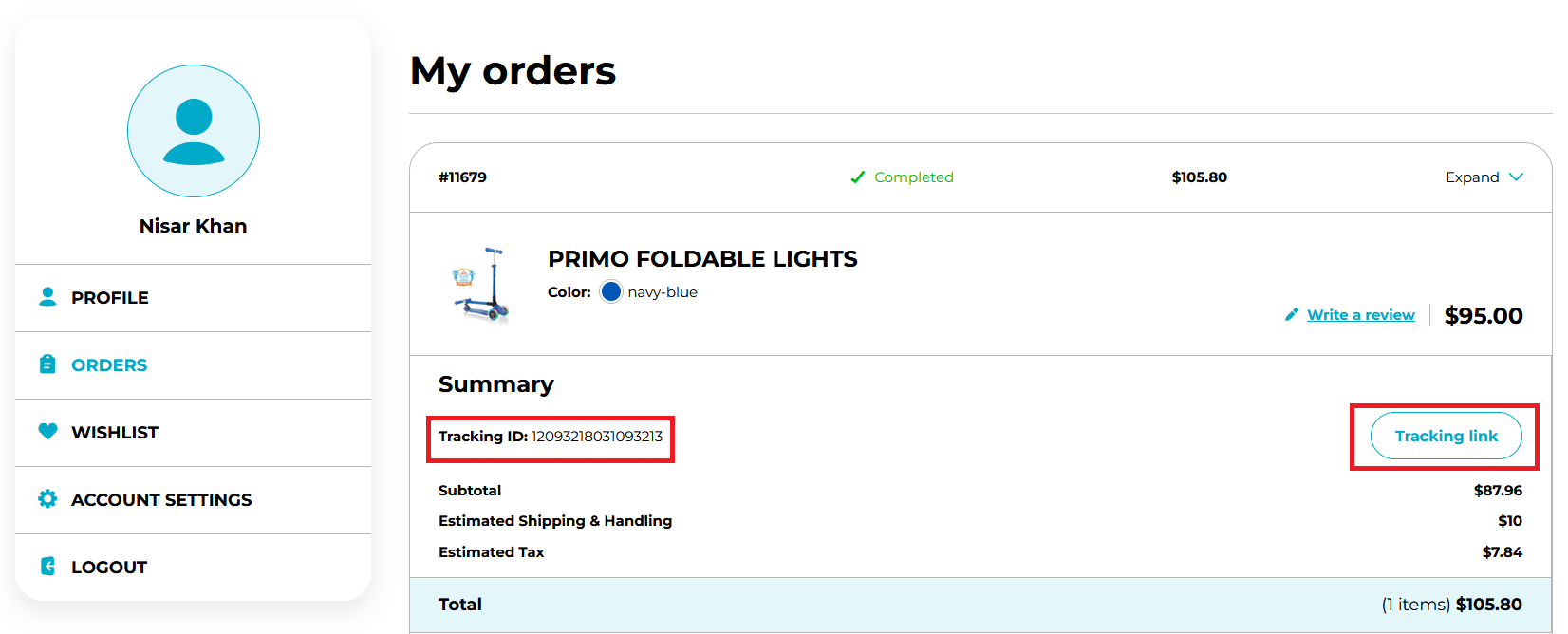
This information will be reflected in the customer's order dashboard.
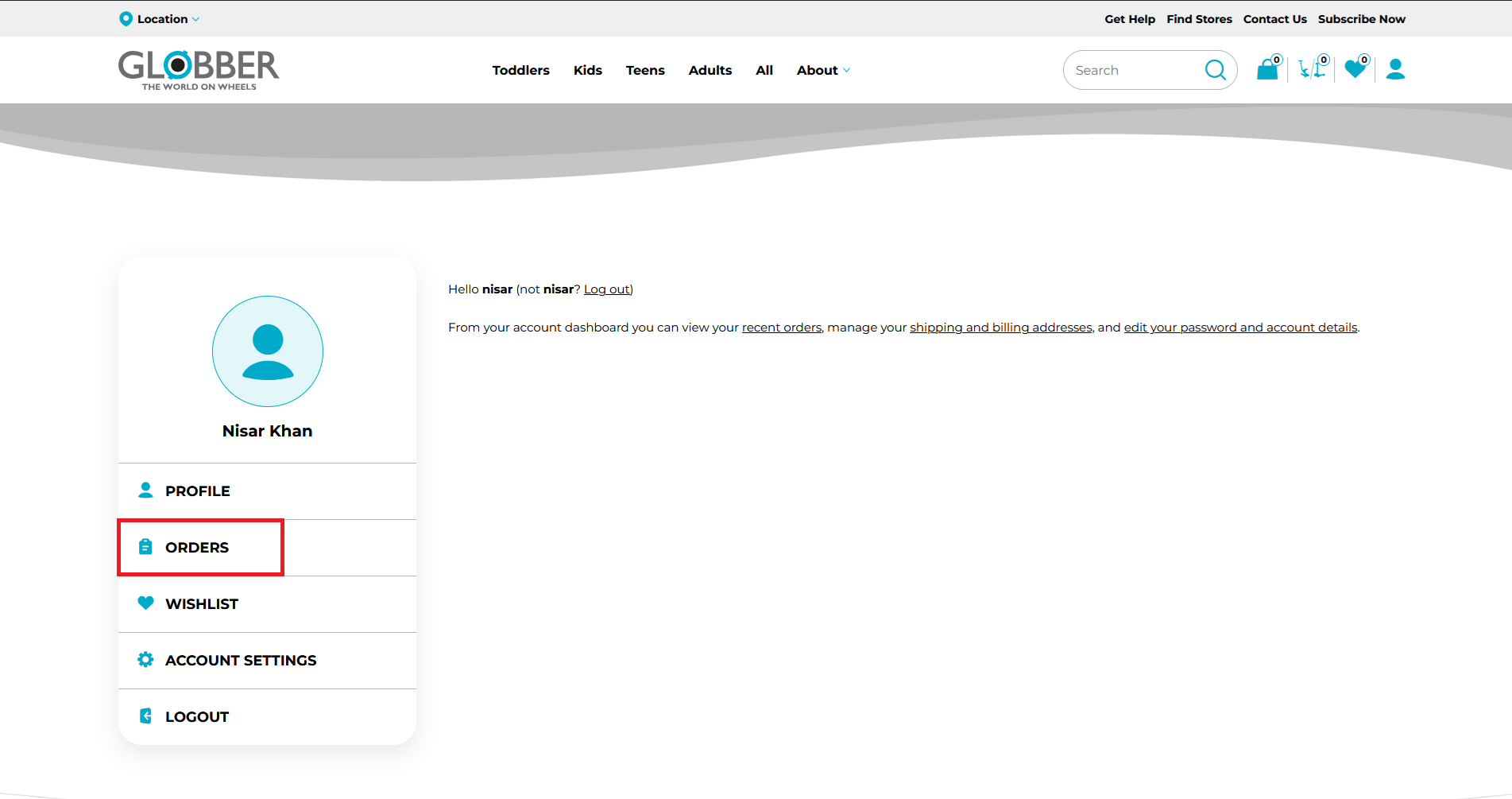
To access the order dashboard, customers should click the person icon in the top right corner of the Globber website

In the customer account dashboard, select ORDERS to have an overview of all orders made on their own profile.
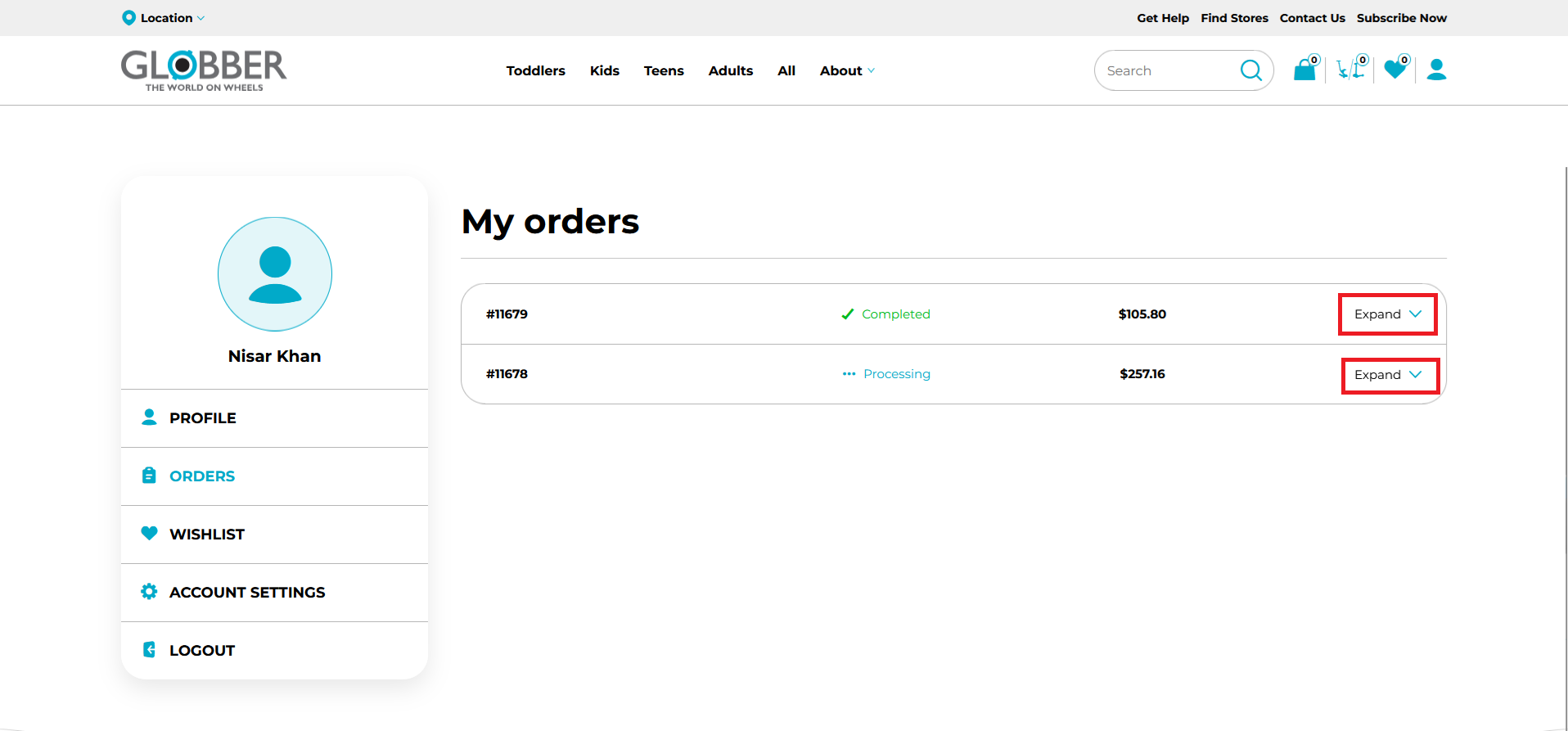
In the customer's order dashboard, they can expand their recent order to access the tracking link and tracking ID.
You can communicate with customers using the Notes function. Return to the customer's order page on WordPress, navigate to the right-hand side menu of an order, under Order notes.
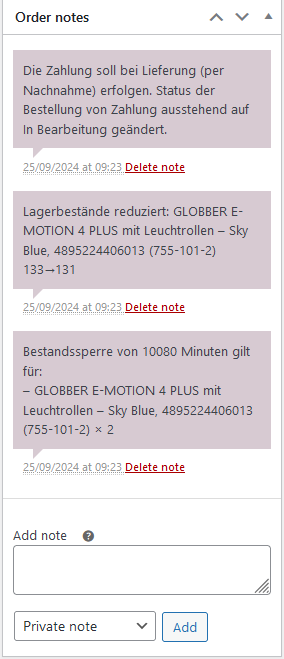
You can type your message under Add note, select Note to customer from the dropdown menu and hit Add when you're ready to send.

Refund Processing
In WordPress dashboard, navigate to the WooCommerce tab on the left-hand side menu and select Order.
You can view all order history in this section.
Select an order marked with Processing status or Completed to begin the refund process.
If a customer is not satisfied with their order, scroll down the order menu and click the Refund button.
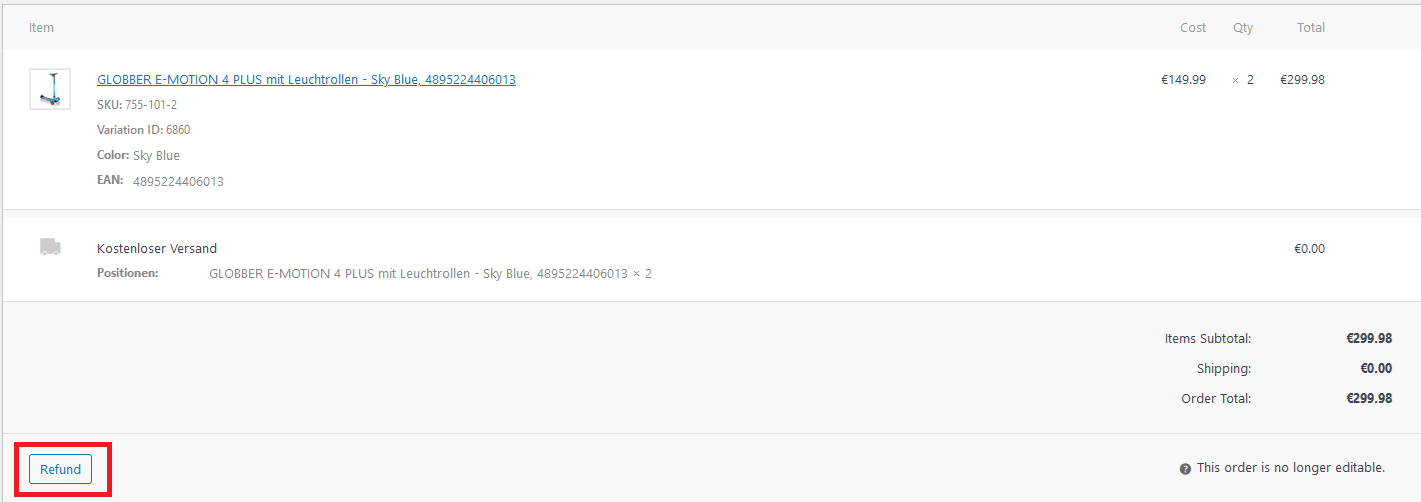
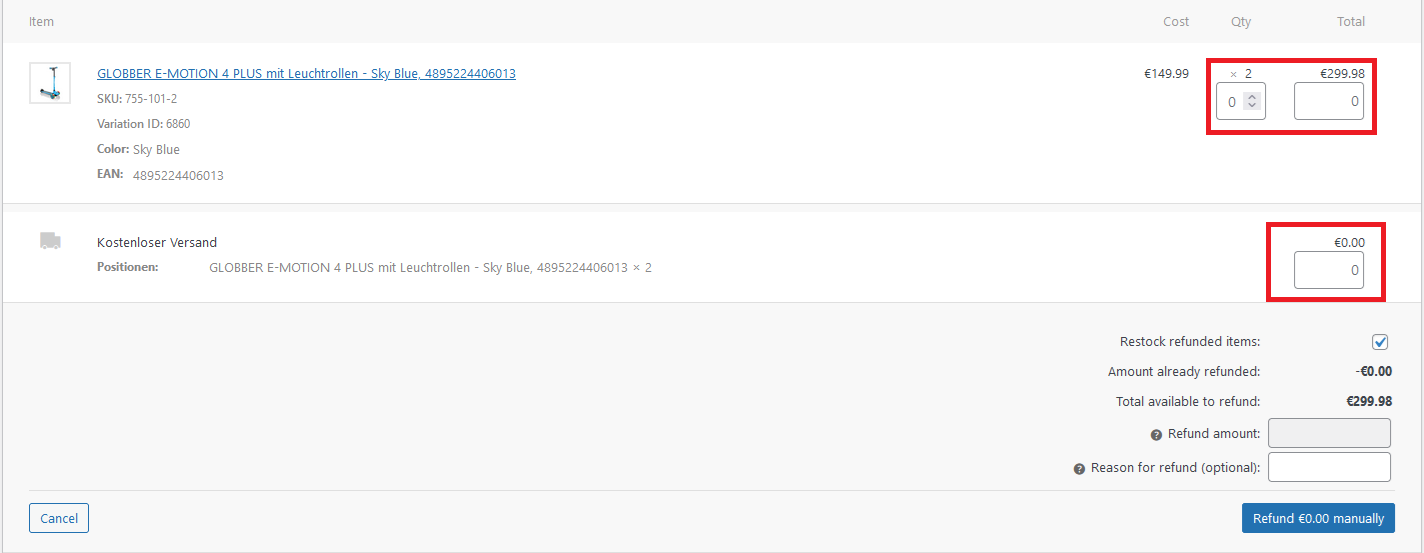
Additional fields will appear in the refund section.

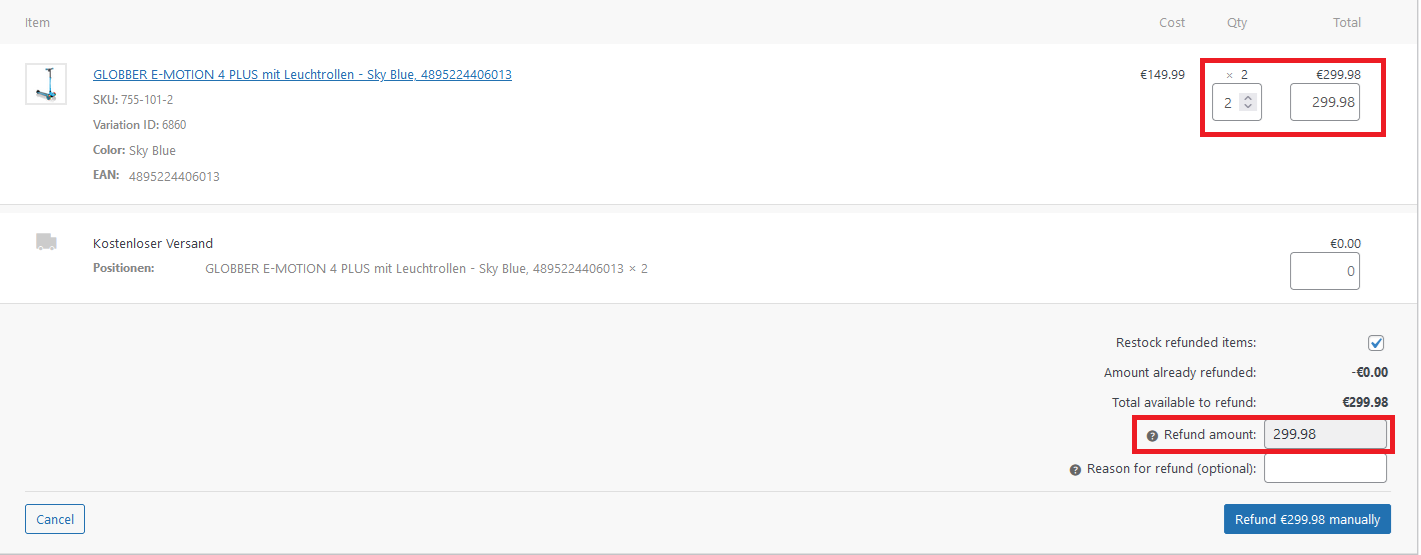
Refund amounts will have to be specified depending on customer case, you can input the amounts in specific fields highlighted below.
After filling out the relevant fields, choose Refund manually or Refund via (payment method).
- Select Refund manually if you processed the refund outside the website.
- Choose Refund via (payment method) if you want to refund using the customer's payment method.
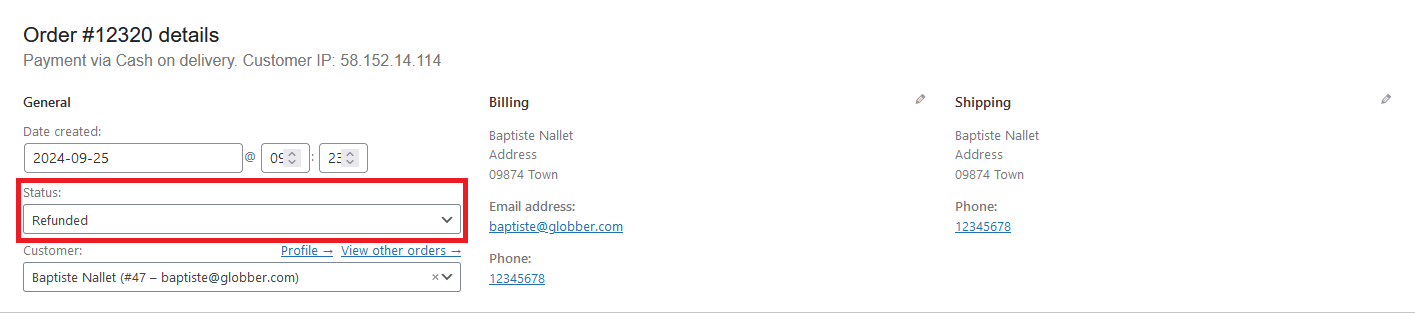
After clicking the refund option, the order status will automatically switch to Refunded
If you want to add an additional note to the customer, fill in the Add note box, select Note to customer from the dropdown menu, and click Add when you're ready to send.
This action will send another email to the customer, notifying them of the note you sent.
