Arrange Product Page Sections
Use Flexible Sections to control the order of marketing content below the main details on an individual product page. You can move, add, or remove sections without changing the product gallery, price, variations, or purchase controls.
Open the live product page in another tab and record the current section order. Existing products continue to use their legacy layout until flexible sections are created.
Open the product
- In the WordPress dashboard, select Products > All Products.
- Find the product you want to change.
- Select Edit below the product name.
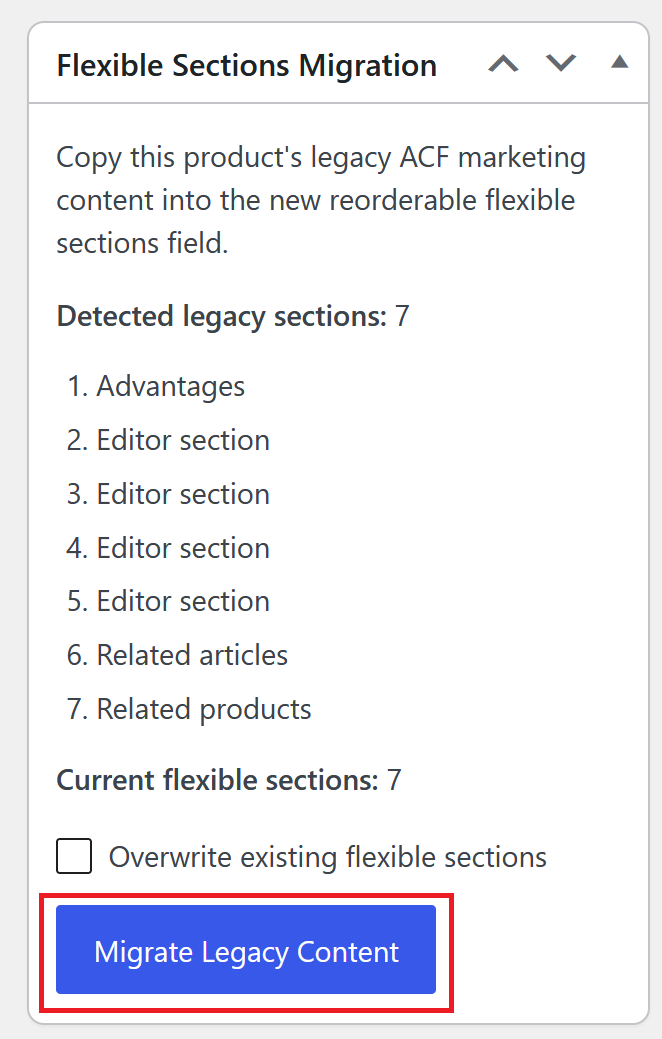
- Find the Flexible Sections field and the Flexible Sections Migration panel.
Migrate existing product content
The migration tool copies supported legacy marketing content into Flexible Sections. It does not remove the original legacy fields.
- In Flexible Sections Migration, review Detected legacy sections and the ordered list below it.
- Confirm that the listed sections match the current live product page.
- Select Migrate Legacy Content.
- Wait for the success message stating how many sections were created.
- Review the new rows in Flexible Sections before changing their order.
If Flexible Sections already contains rows, do not select Overwrite existing flexible sections unless you intend to replace every current flexible section with a new copy of the legacy content.
Reorder sections
- In Flexible Sections, find the section you want to move.
- Drag its row by the handle to the new position.
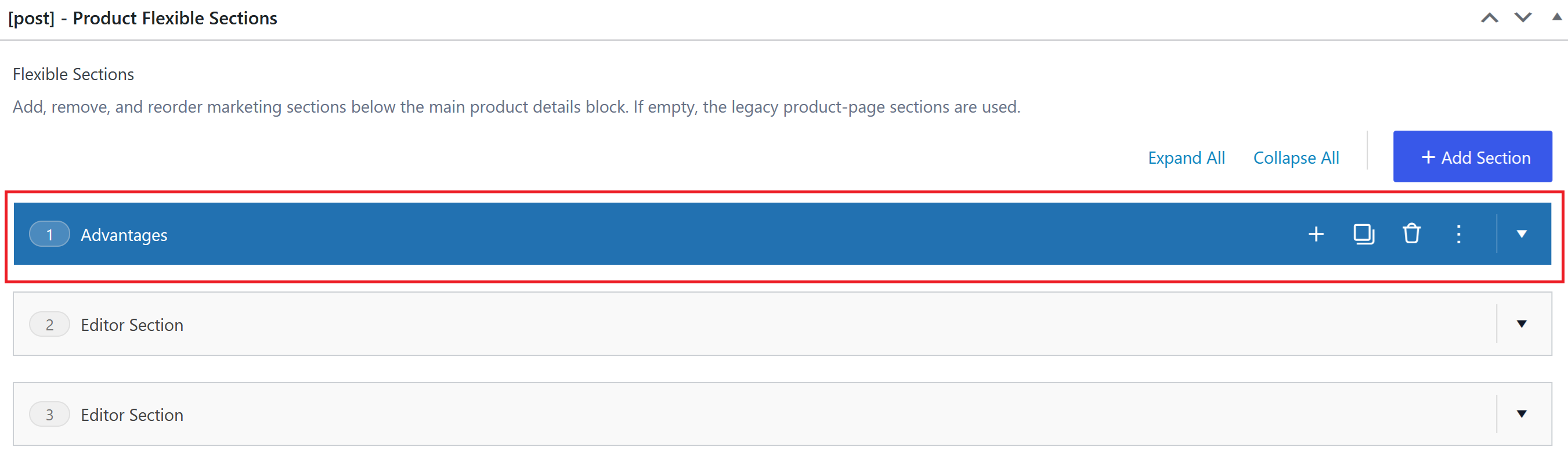
- Repeat until the rows match the order customers should see.
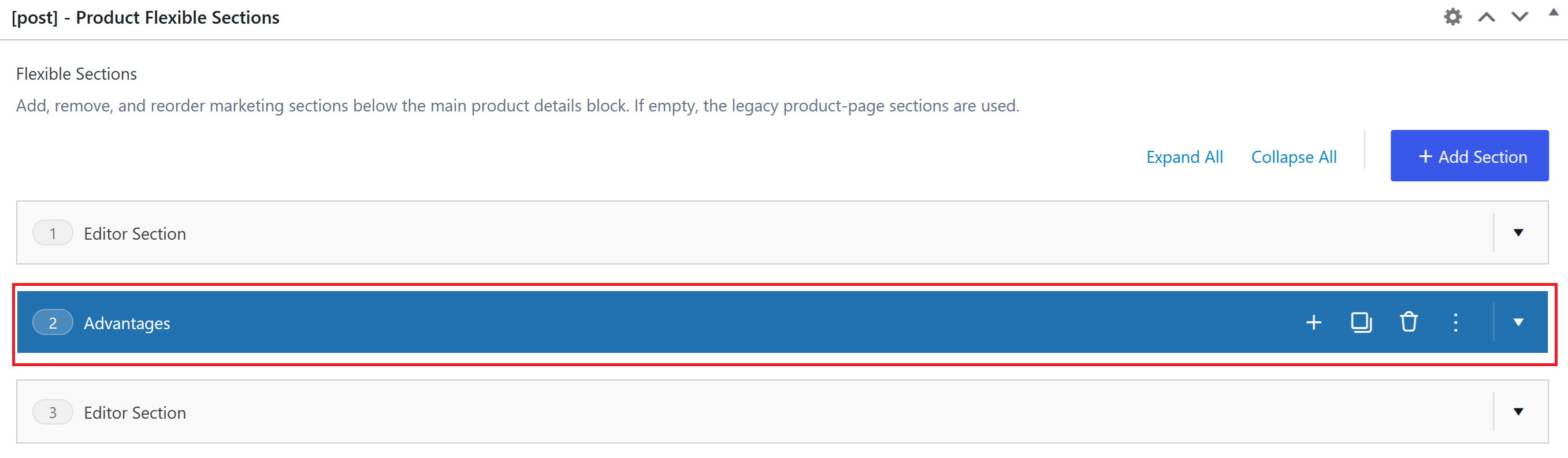
- Select Update.
- Refresh the product page and confirm that the sections appear in the same top-to-bottom order.
Add a section
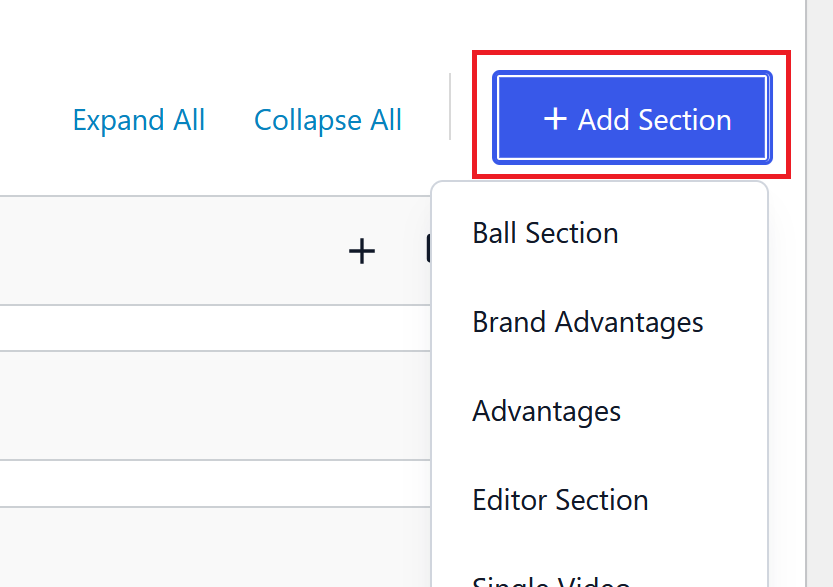
- Select Add Section at the bottom of Flexible Sections.
- Choose the section type.
- Complete the fields shown for that section.
- Drag the row into the required position.
The available section types are:
| Section | Purpose |
|---|---|
| Ball Section | Adds the configured ball-style promotional content. |
| Brand Advantages | Compares Globber benefits with other products. |
| Advantages | Shows product benefits, with an optional alternate design and gloves decoration. |
| Editor Section | Adds a formatted image-and-text content block. |
| Single Video | Adds the product's configured video section. |
| Discounts | Shows discounts assigned to the product. |
| Product Bundle | Shows the configured product bundle. |
| Related Articles | Shows articles connected to the product, with editable heading and link text. |
| Related Products | Shows the product's related or upsell products. |
| Product FAQ | Adds a section title and a list of product questions and answers. |
Remove a section
Removing a row and selecting Update removes that section from the product page. Record any text or settings you may need before deleting it.
- In Flexible Sections, open the row you want to remove.
- Select the remove control on the row.
- Confirm the removal when WordPress asks.
- Select Update.
- Refresh the product page and confirm that the section is no longer shown.
Save and check the product page
- Select Update after making changes.
- Open or refresh the product page.
- Check every section from top to bottom.
- Confirm that headings, images, videos, discounts, product links, and FAQ content are correct.
- Check the page on both desktop and mobile.
If Flexible Sections is empty, the product uses the legacy fixed section order. Migrate the legacy content or add at least one flexible section to use the new order.
If something does not look right
| Problem | What to do |
|---|---|
| No sections were detected | Confirm that the product has content in the legacy marketing fields. The migration button is unavailable when there is nothing to copy. |
| Migration says flexible sections already exist | Review the existing rows. Only use Overwrite existing flexible sections when replacing them is intentional. |
| A section is missing from the live page | Open its row and confirm that its required content is filled in, then select Update again. |
| The old layout appears | Confirm that Flexible Sections contains at least one saved row. |
| Product details are incorrect | Update the source product, discount, article, or bundle information used by that section. |