Edit Price (Bulk)
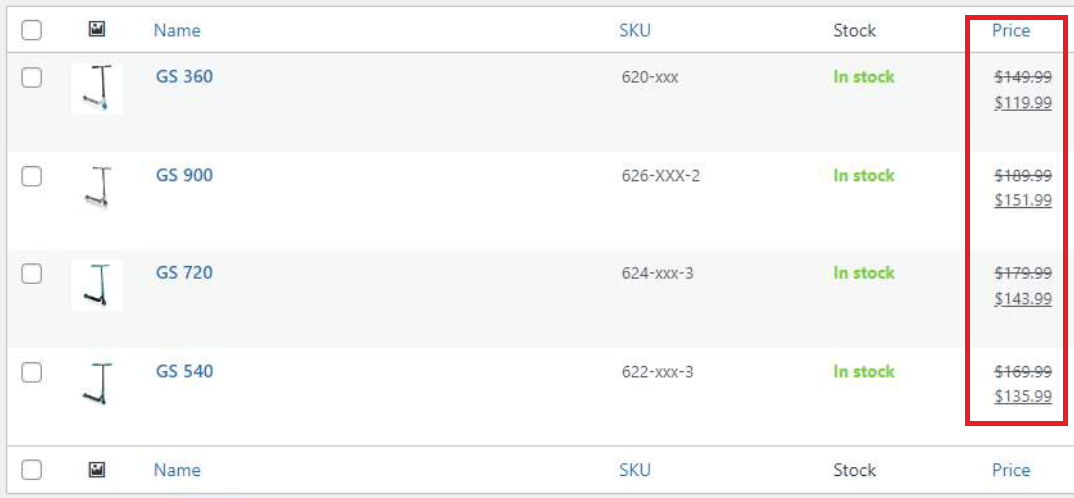
This documentation helps you edit multiple product prices in bulk (regular and sale prices) for WooCommerce.

How to Edit Price in Bulk
Navigate to Products at the left-hand side menu on WordPress and select All Products

In the Products section, click on Export at the top of the page.

On Export products to a CSV file, ensure you add the columns ID, Name, Sale price and Regular price to be exported in the highlighted field.
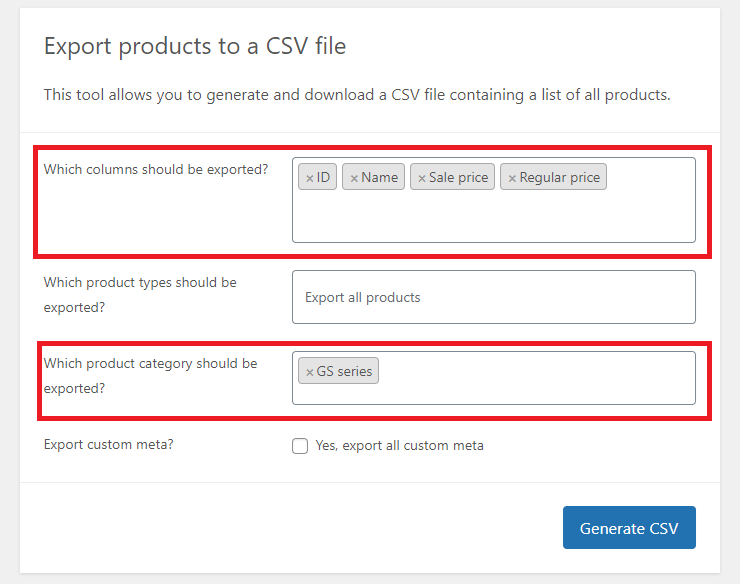
As an optional step, you can select the specific product category you'd like to export.
In this example, we will export products from the GS category. You need to enter the specific product category you want to export in the highlighted field.
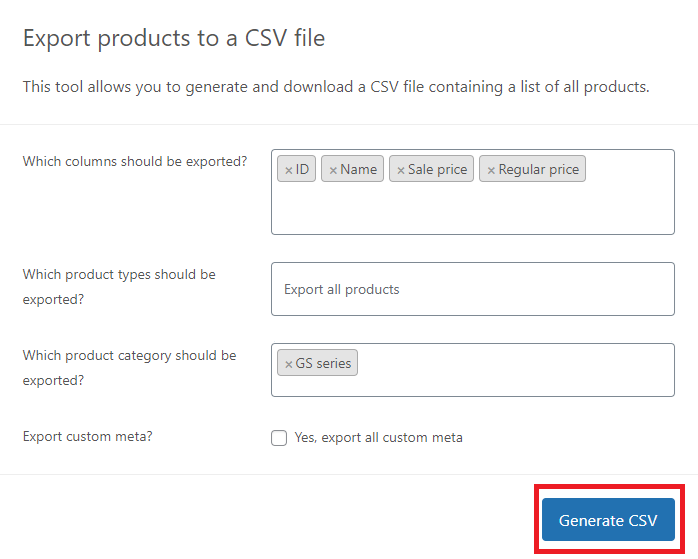
When you're ready, click Generate CSV to export the products and their prices for bulk editing.
Edit CSV File
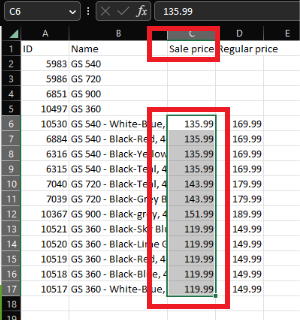
Inside the CSV file, you can modify the prices according to your desired sales pricing.
Please make sure you are editing the prices for the correct products. Use the Name field to accurately identify the products you are adjusting. Inside the Name field, you can see the Product's Name, Color and EAN.
Click Save within the CSV file when you are finished with editing the prices. Depending on the Excel version you are using, navigate to your Excel's program "File" tab and click Save.

Import New Prices in Bulk
Return to WordPress and navigate back to All Products under the Products section.
In the Products section, click on Import at the top of the page.

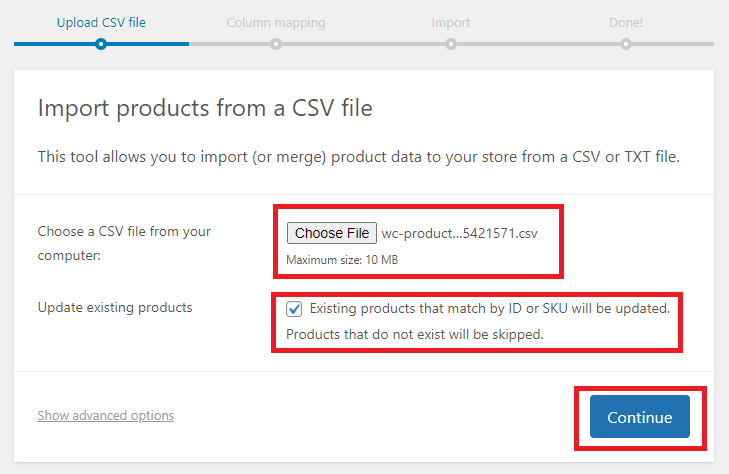
Select Choose File in the highlighted area to upload the CSV file where you edited the prices.
It’s important to check the box for "Update existing products" to ensure your price changes are applied to the products.
Proceed to the next step by clicking on Continue.
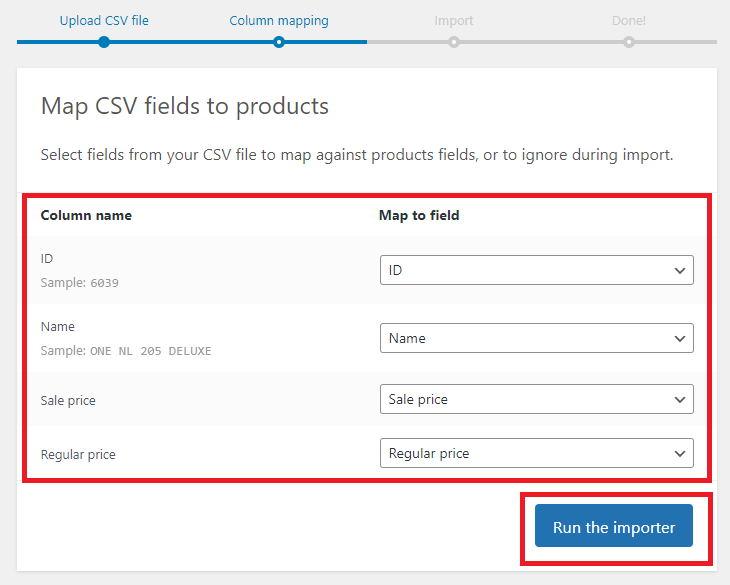
If you didn't rename any of the columns in the CSV file, it should be set automatically and you won't have to modify them.
Once you're sure the columns match from your CSV into the column names on display in this page, click Run the importer.
The import should last a minute or so, depending on the quantity of products you've selected to modify.
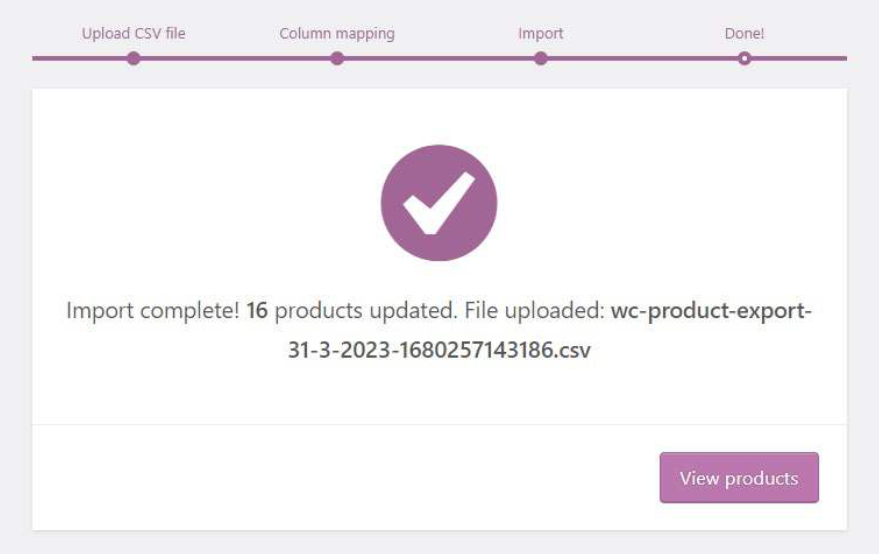
Your product's sale prices have been successfully modified.