Out of Stock Marker
This document explains the Out-Of-Stock visual marker for color variations on your Globber website.
Out-Of-Stock visual markers will only appear when your Globber website is on E-Commerce Mode.
How Out-Of-Stock Markers Work
They indicate the product quantity configured in each item's settings.
In E-commerce Mode, the Out Of Stock Visual Markers are displayed to inform customers about unavailable items.
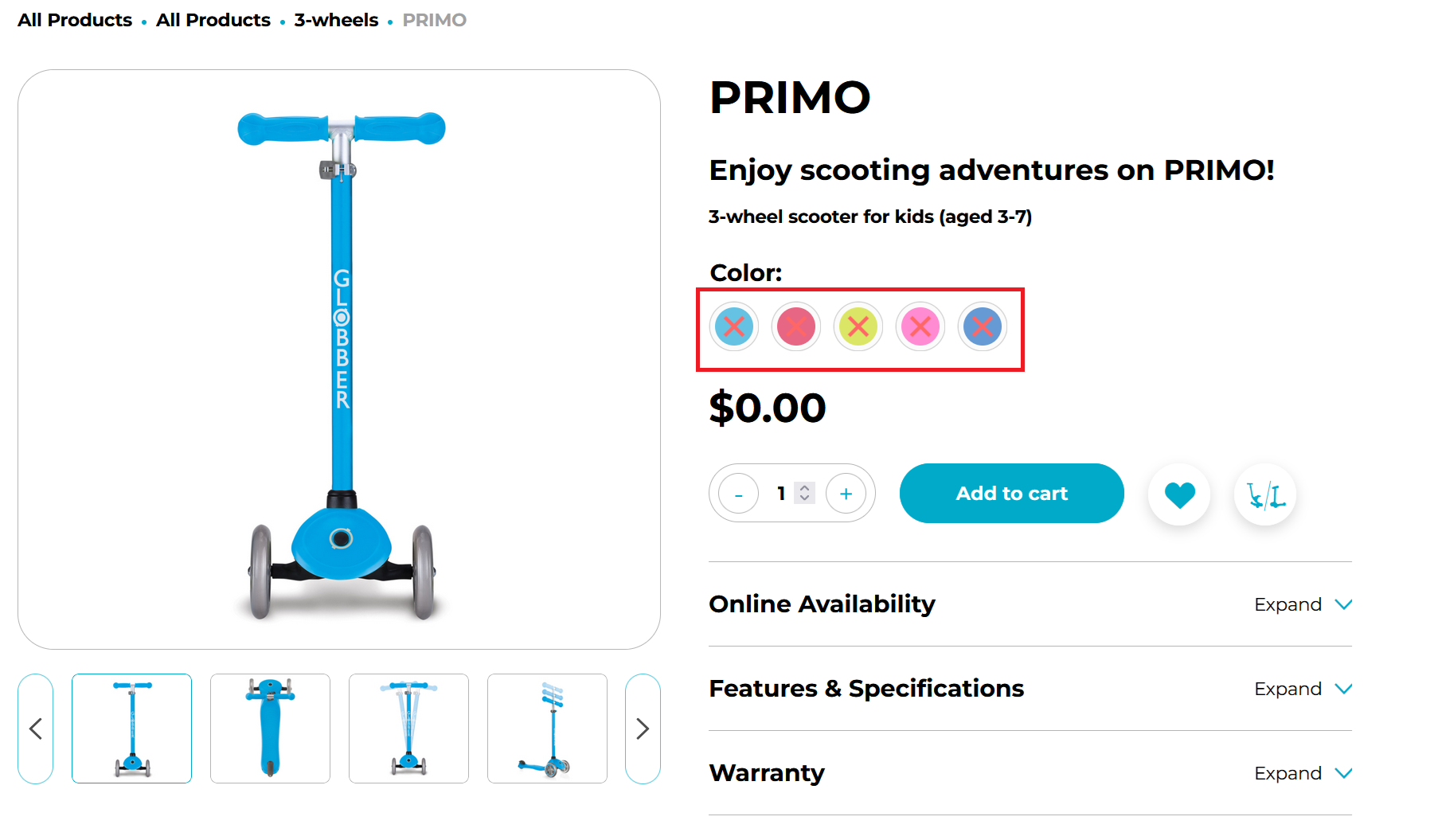
When the site is not in e-commerce mode, these markers are hidden, as product availability is not relevant.
The following will explain how to switch between E-Commerce and Catalogue mode.
E-Commerce Mode
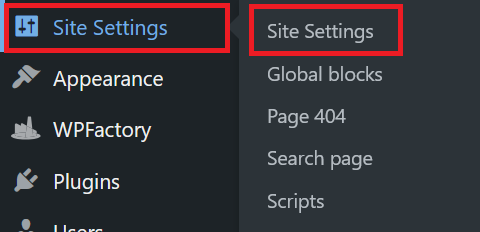
On the left-hand side menu, navigate to Site Settings and select Site Settings.
On Site Settings page, select E-commerce tab.

In E-commerce tab, ensure that "Disable all purchase options" is switched off.
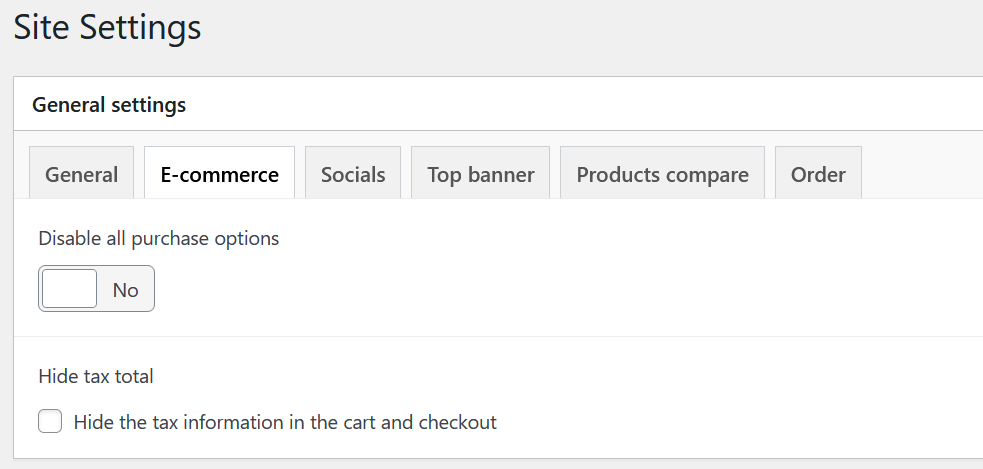
You have the option to hide tax information in the cart and checkout, if required by regulations.
Catalogue Mode
On the left-hand side menu, navigate to Site Settings and select Site Settings.
On Site Settings page, select E-commerce tab.
In-Ecommerce tab, ensure "Disable all purchase options" is switched on.
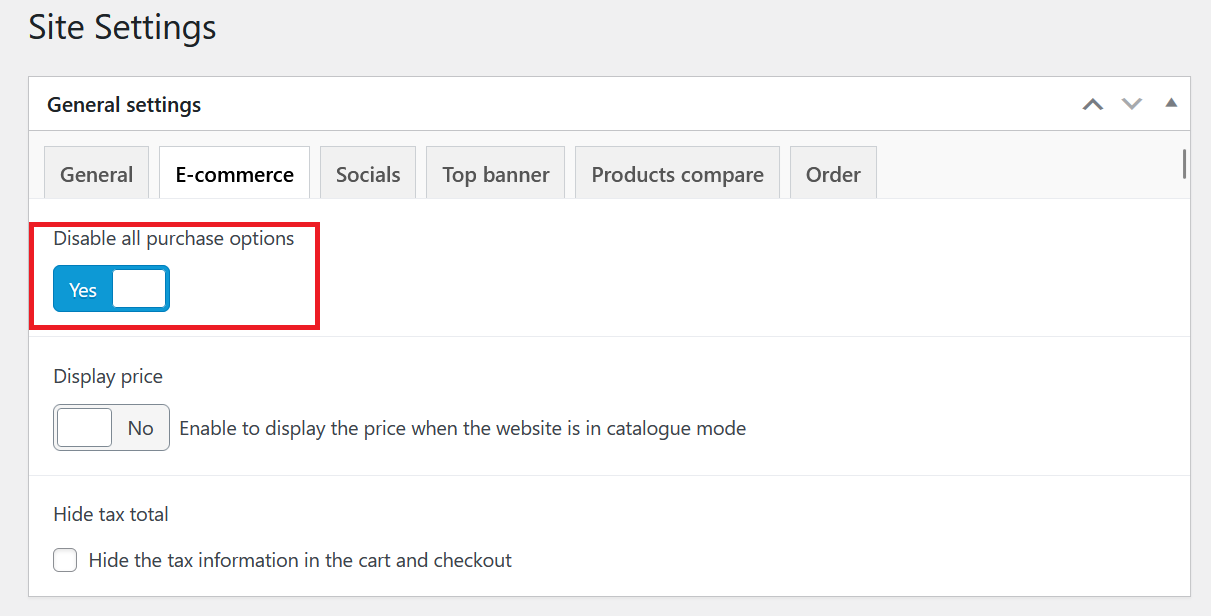
You have the option to display price when your website is in catalogue mode by activating Display price.
Option to Hide Out‑of‑Stock Markers
If you prefer to remove out-of-stock products from the storefront (instead of just showing markers), follow these steps:
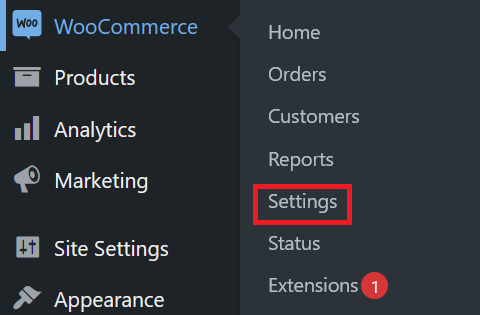
On the left-hand side menu, Navigate to WooCommerce and select Settings.
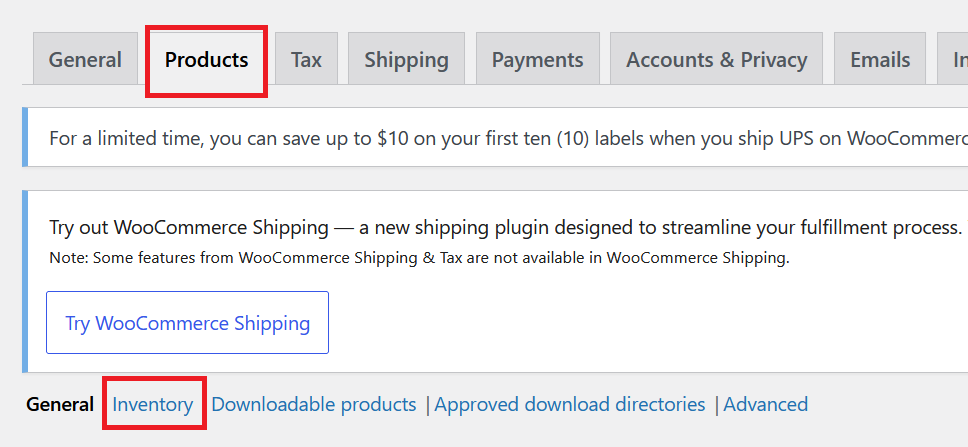
In WooCommerce settings, select Products tab and click Inventory.
Find the option Hide out of stock items from the catalog and check the box.
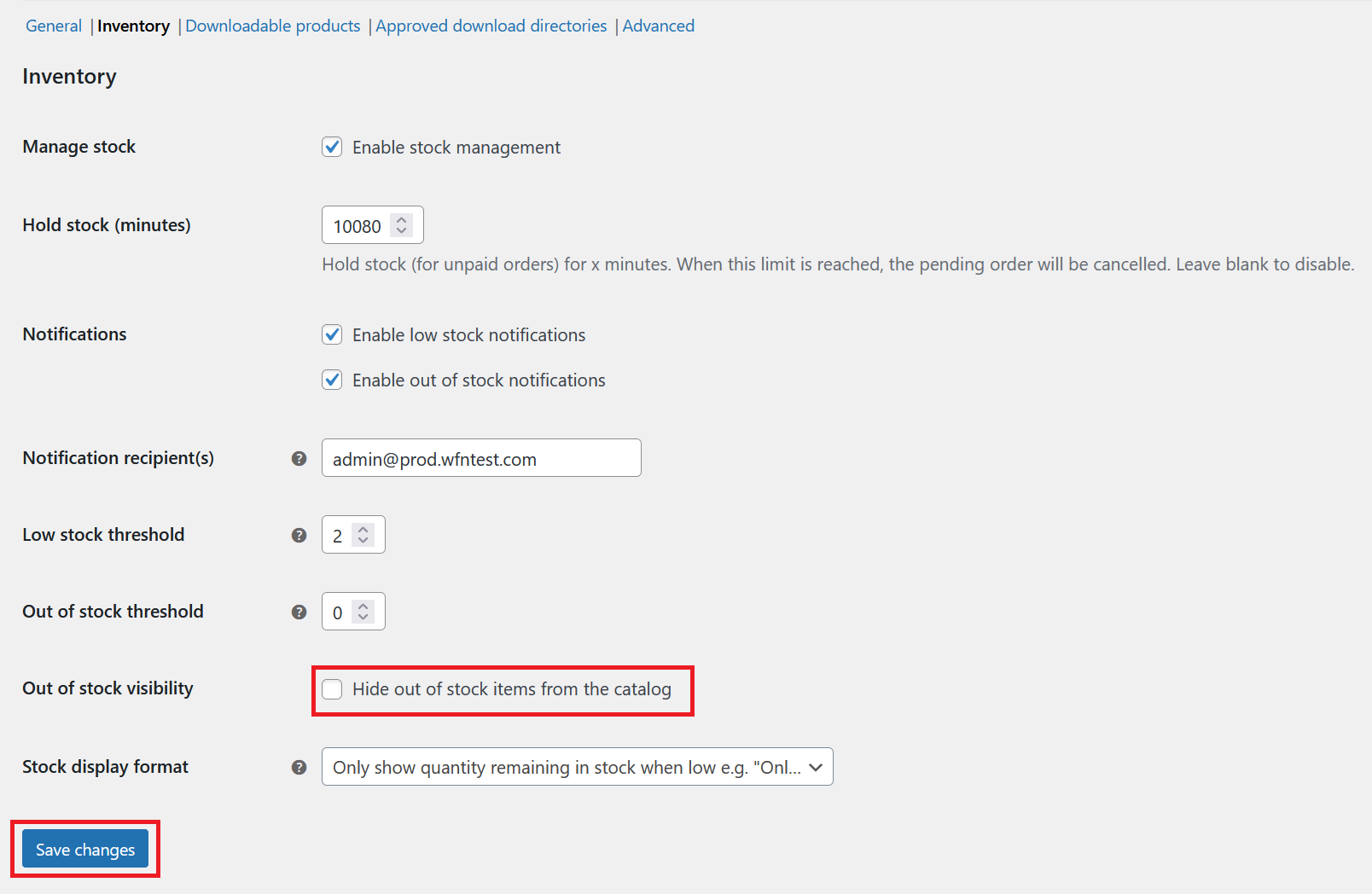
Click Save changes at the bottom of the page.
Once enabled, products (and their variations) with zero stock and no backorders allowed will no longer appear in category listings or product search results.