Upsell & Cross-sell Products
This documentation explains how to configure upsell and cross-sell products on your Globber website.
Get Started
On left-hand side menu, navigate to Products → All Products

Click Edit on the product you wish to upsell and cross-sell to get started.

How to Configure Upsells
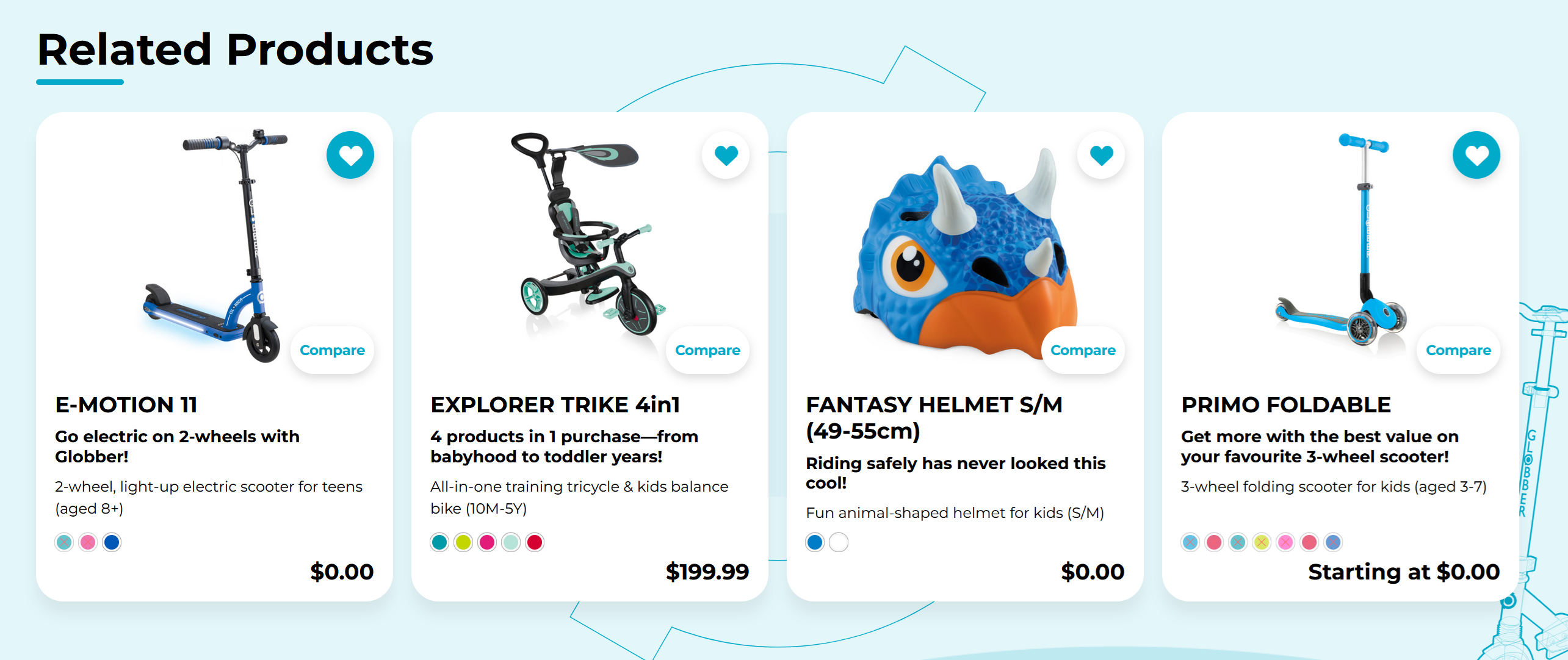
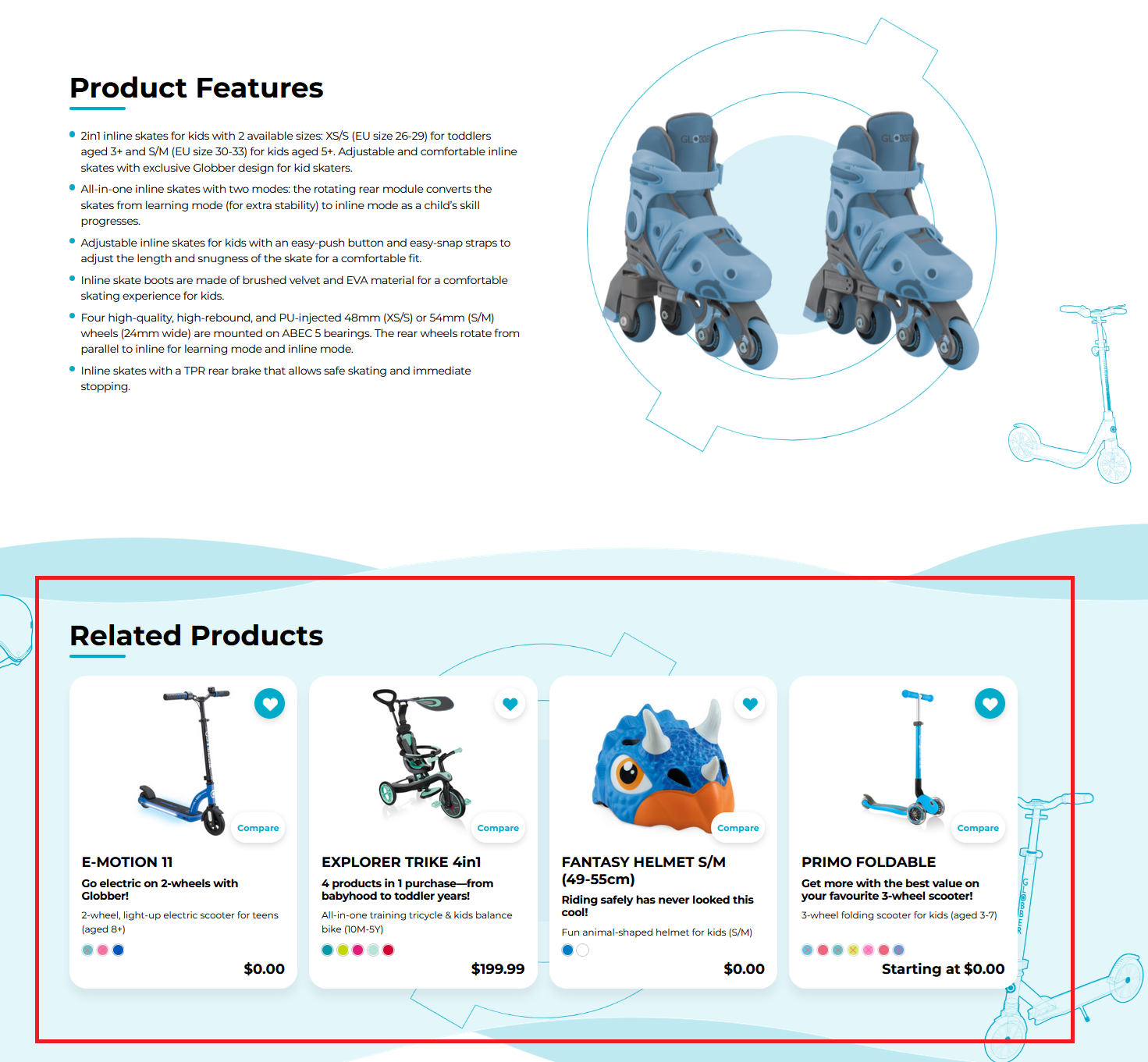
Upsell products appear on product pages to suggest related items.
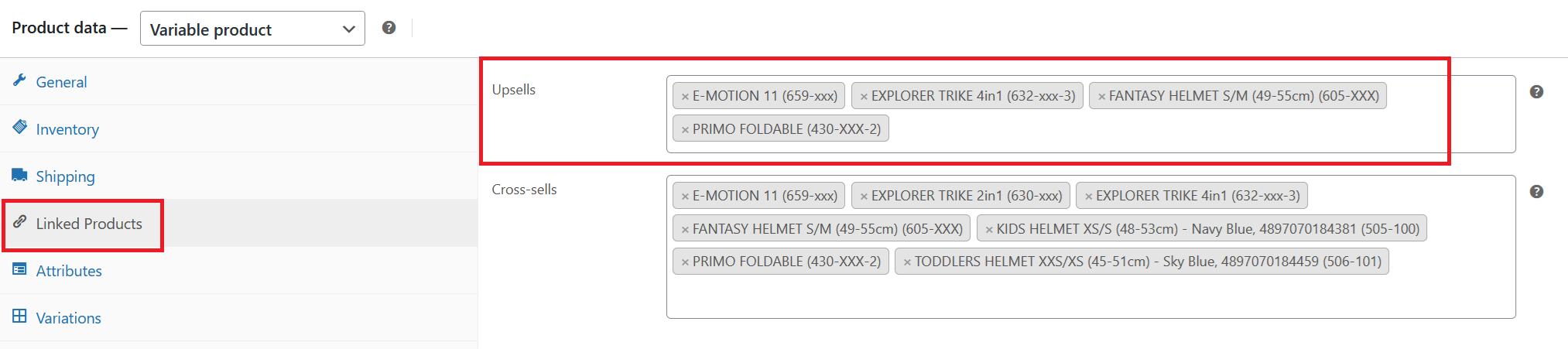
At a product page editor, scroll down to Linked Products section and add products to the Upsells field.
Related Products Block
Only use this to position upsells before or after marketing content. Related products block is no longer in use for adding products
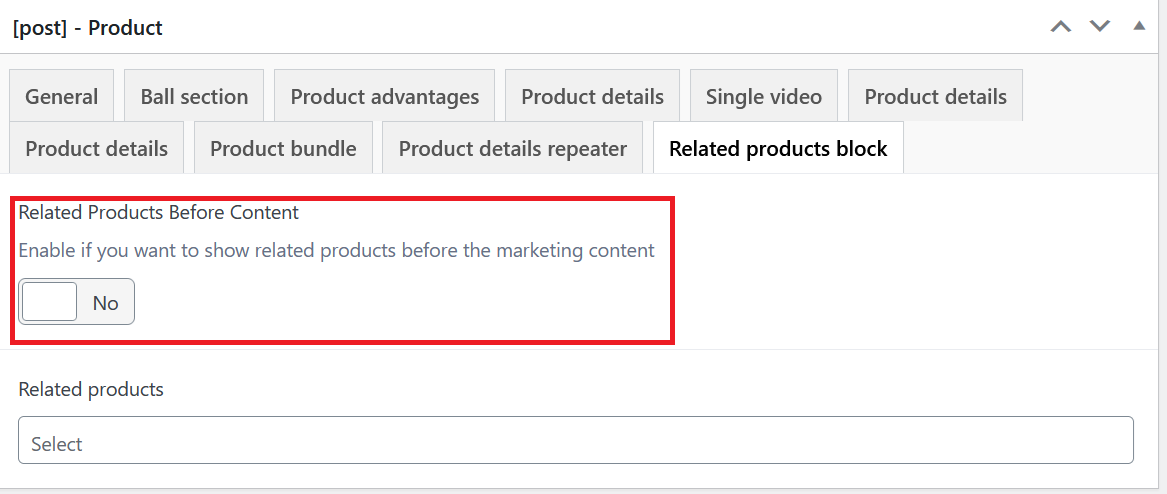
- Enabled: Shows upsells before marketing content
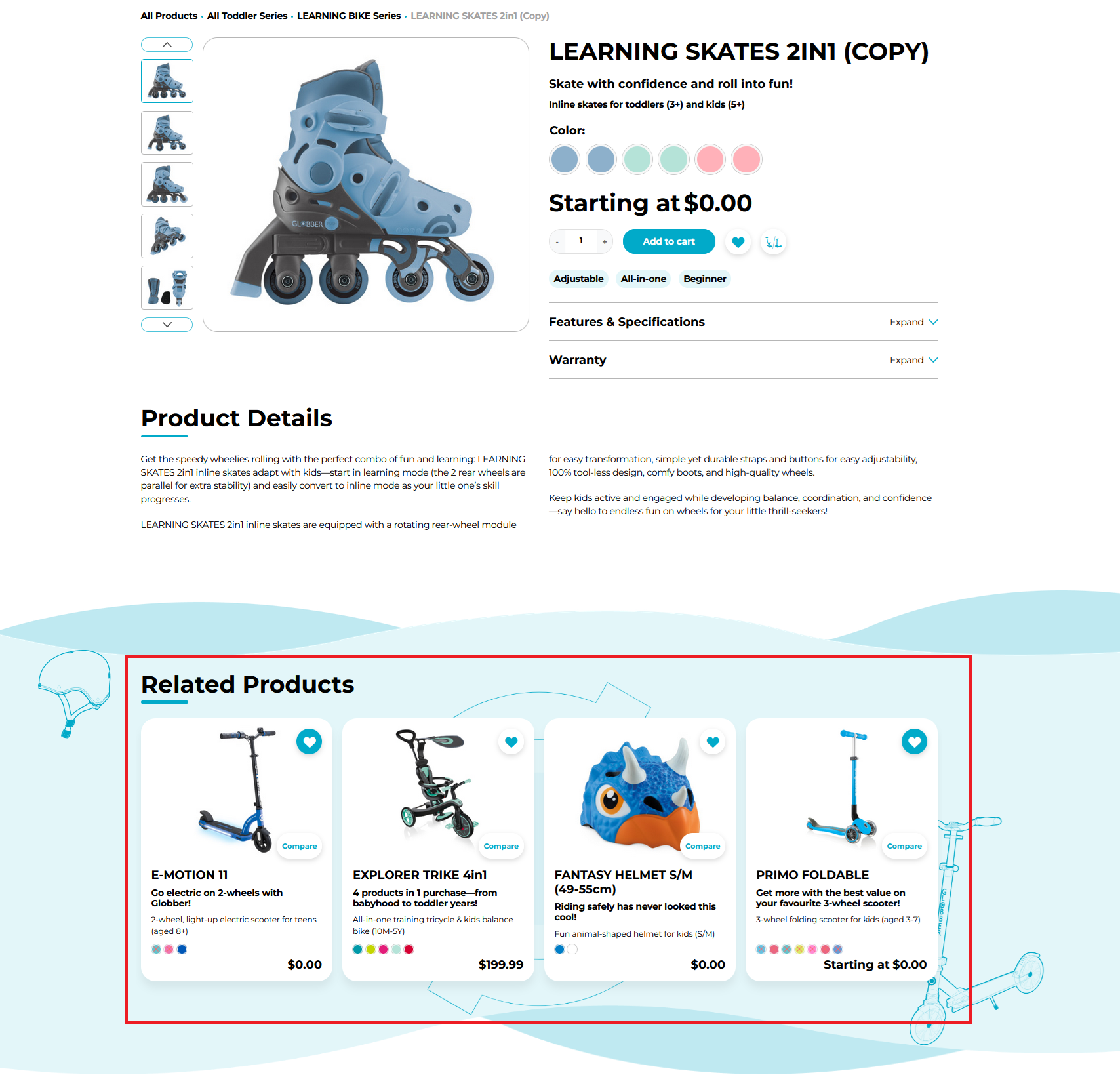
- Disabled: Shows upsells at bottom of page
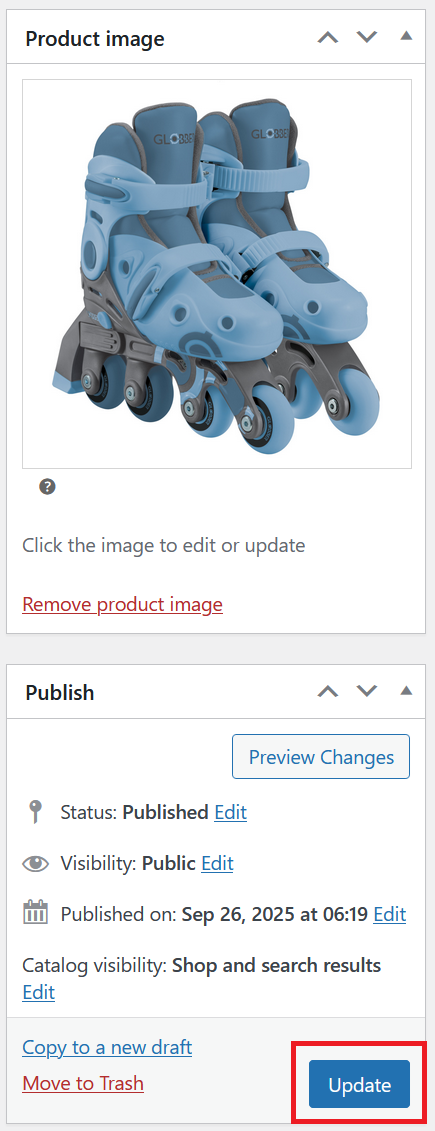
Ensure you click Update on the right-hand side of product page editor to save your changes.
How to Configure Cross-sells
Cross-sell products appear on the bottom of cart page to encourage additional purchases.
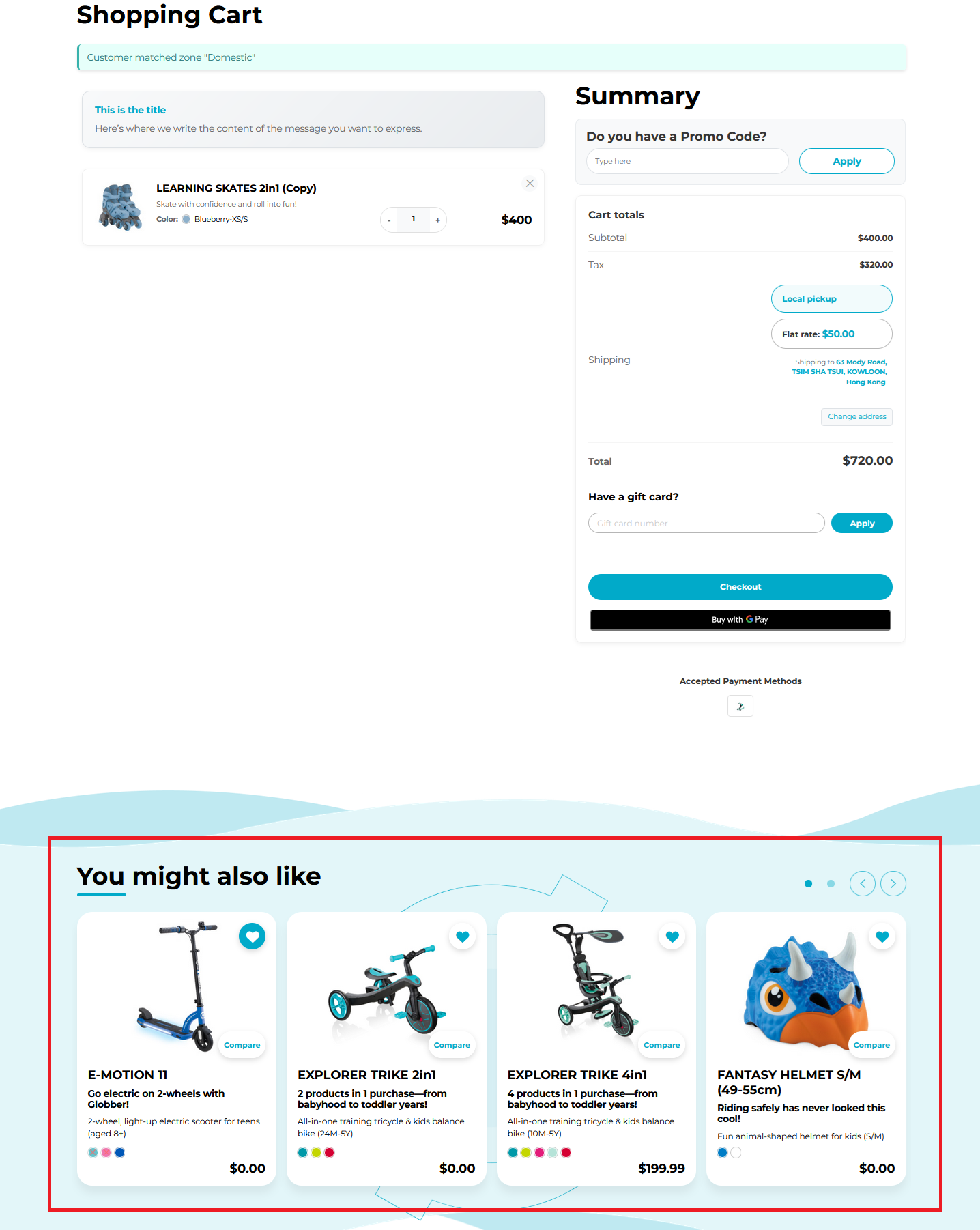
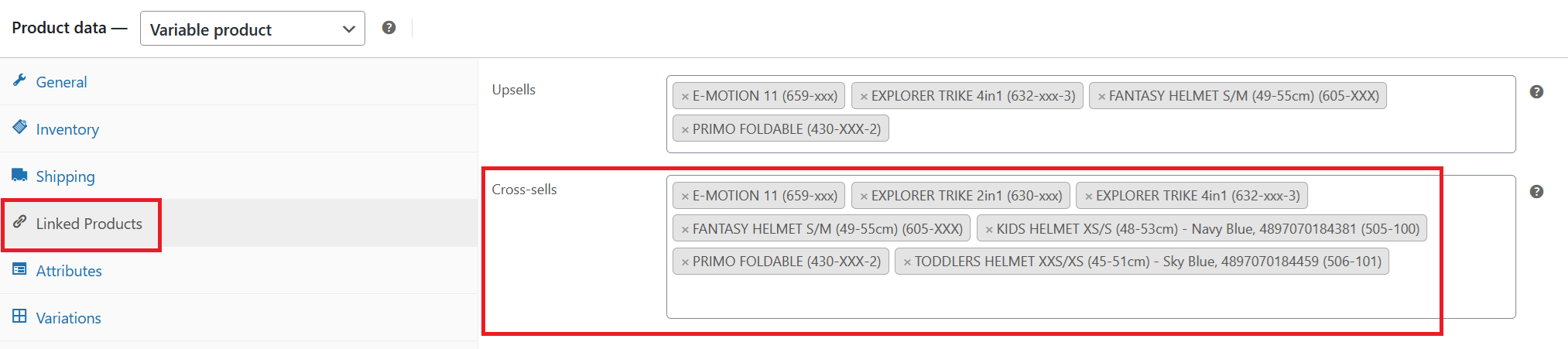
At a product page editor, scroll down to Linked Products section and add products to the Cross-sells field.
Ensure you click Update on the right-hand side of product page editor to save your changes.
Slider Features
Both sections use a responsive slider with:
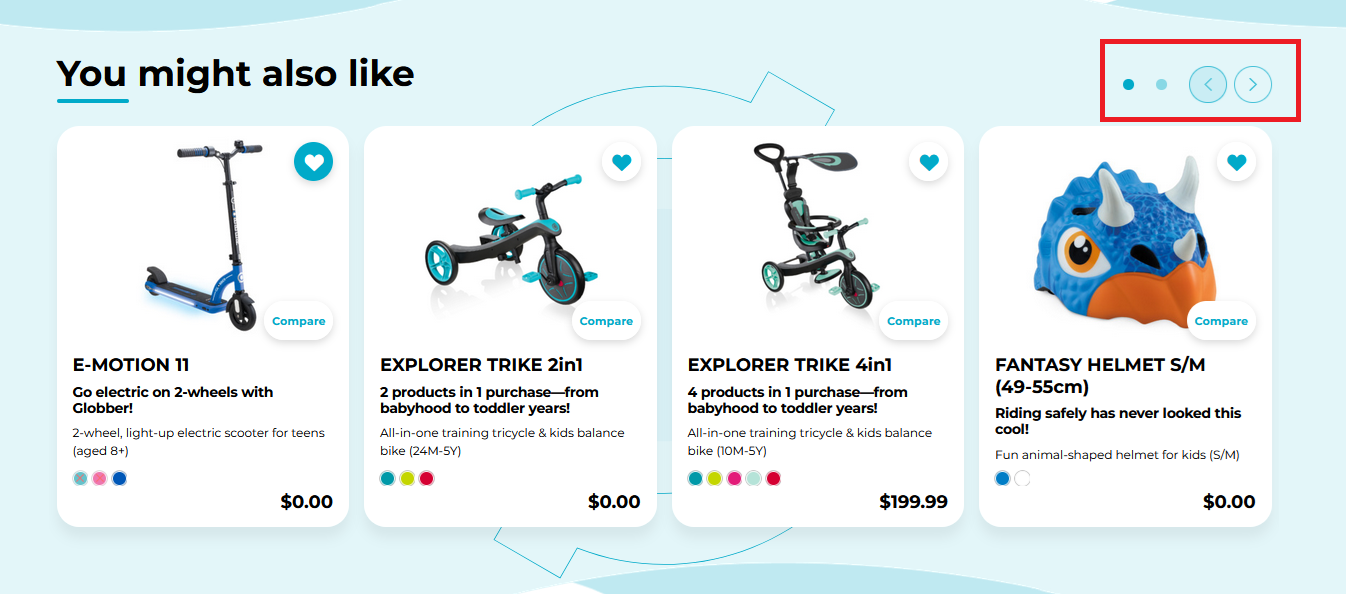
- Navigation arrows
- Pagination dots
- Touch/swipe support
- Globber-branded scooter and helmet decorations