Product Special Badges
This page explains how to manage special product badges in WordPress.
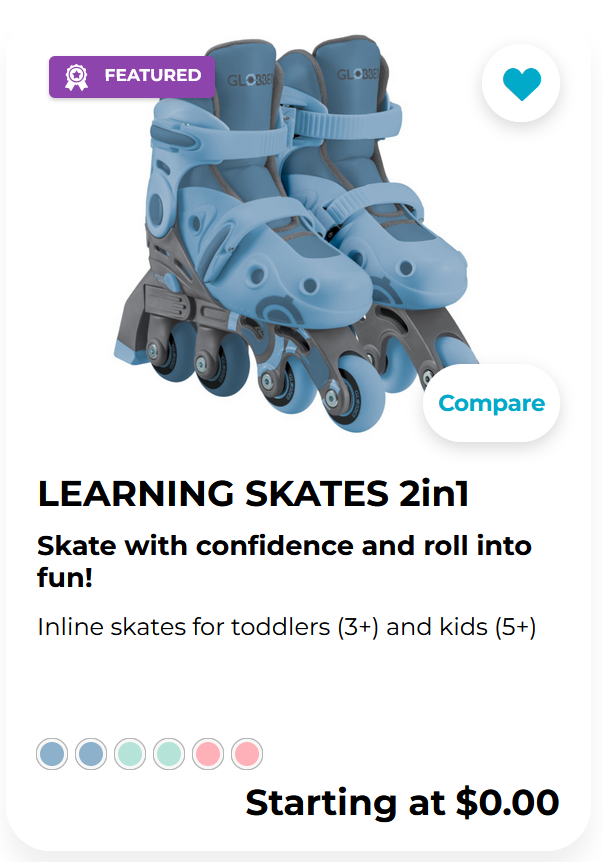
Special product badges are displayed as thumbnails in product overviews.
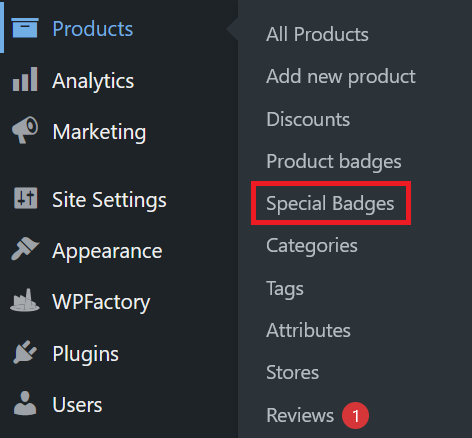
To get started, navigate to Products in the left-hand menu and select Special Badges.
Add New Special Product Badge
On the Special Badges page, fill out the fields on the left to create a new badge.
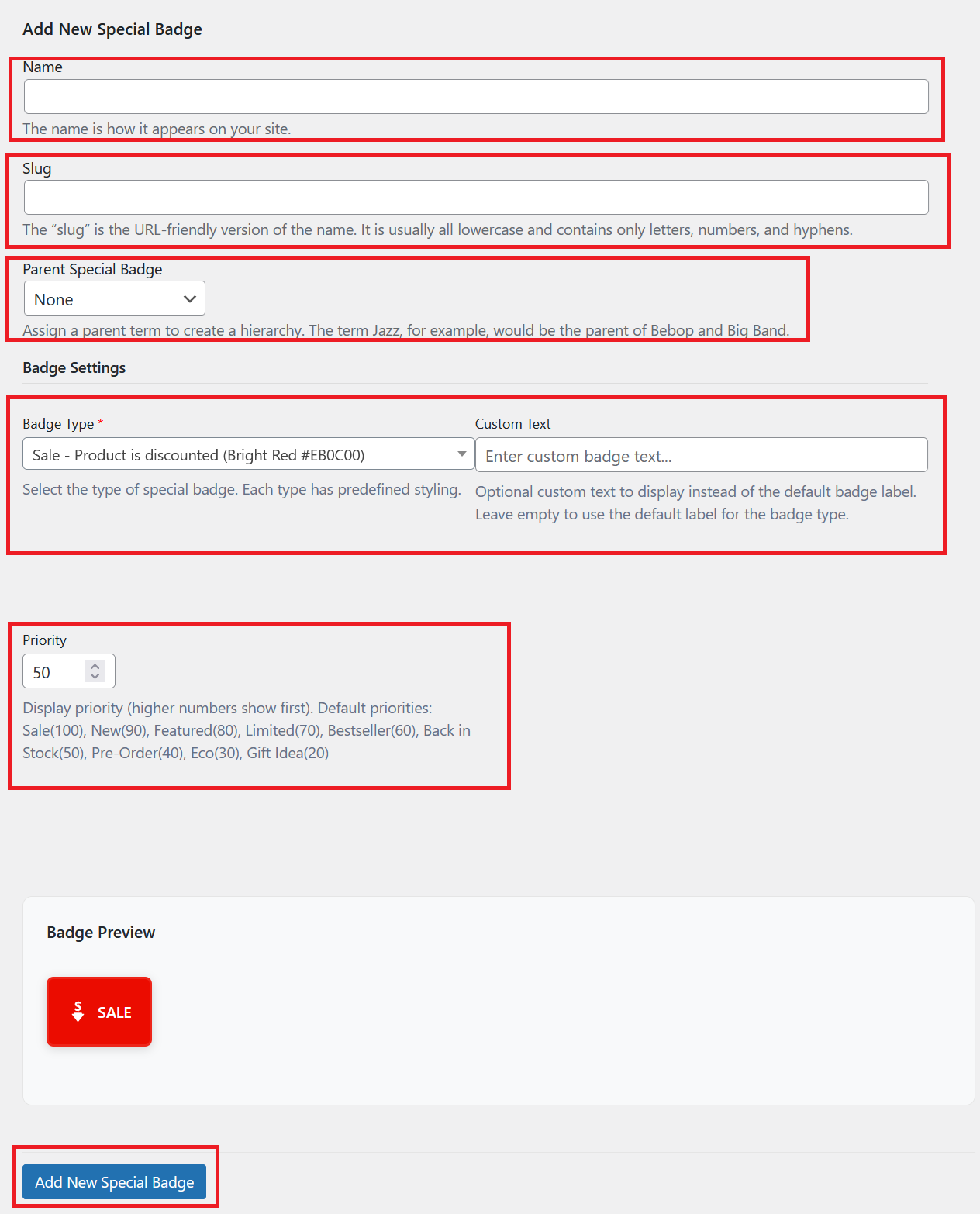
- Name: The display name of the special badge.
- Slug: URL-friendly version of the name (lowercase; letters, numbers, hyphens only).
- [Optional] Parent Special Badge: Choose a parent to create a hierarchy of badges.
- Badge Type: Select the type of special badge. Each type with predefined styling.
- [Optional] Custom Text: Optional custom text to display instead of default badge label.
- Priority: Controls display order (higher numbers show first). Range: 0–100.
Click Add New Special Badge to create it.
Assign Special Badge to Product
Navigate to Products in the left-hand menu and select All Products.
Select a specific product page by clicking Edit.
When editing a specific product page, you can assign a special badge under this menu. Hit Update to save your changes.
