New Arrivals
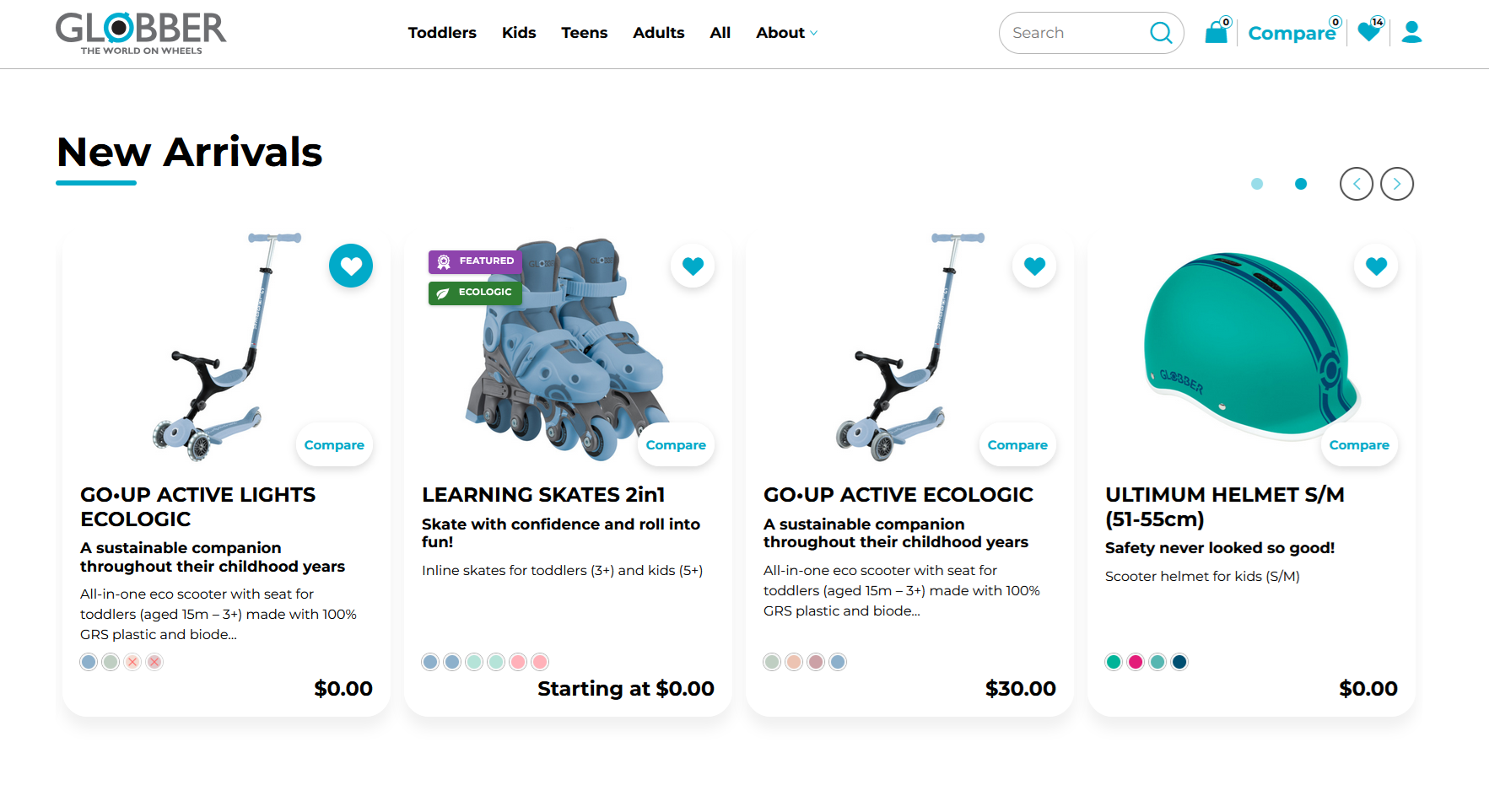
The New Arrivals section showcases the latest products added to the store on the homepage, encouraging visitors to discover fresh inventory.
How to Setup New Arrivals
On the left-hand side menu, navigate to Pages and click All Pages.

In WordPress Pages section, scroll down to find Home — Front Page and click Edit to begin.

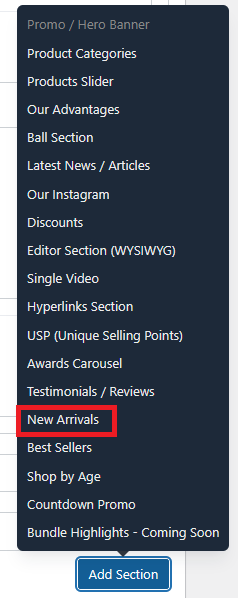
Under [page] - Home V2 section, click Add Section to get started.

In the case of setting up a New Arrivals section, select New Arrivals
There are several options available to configure the New Arrivals section:
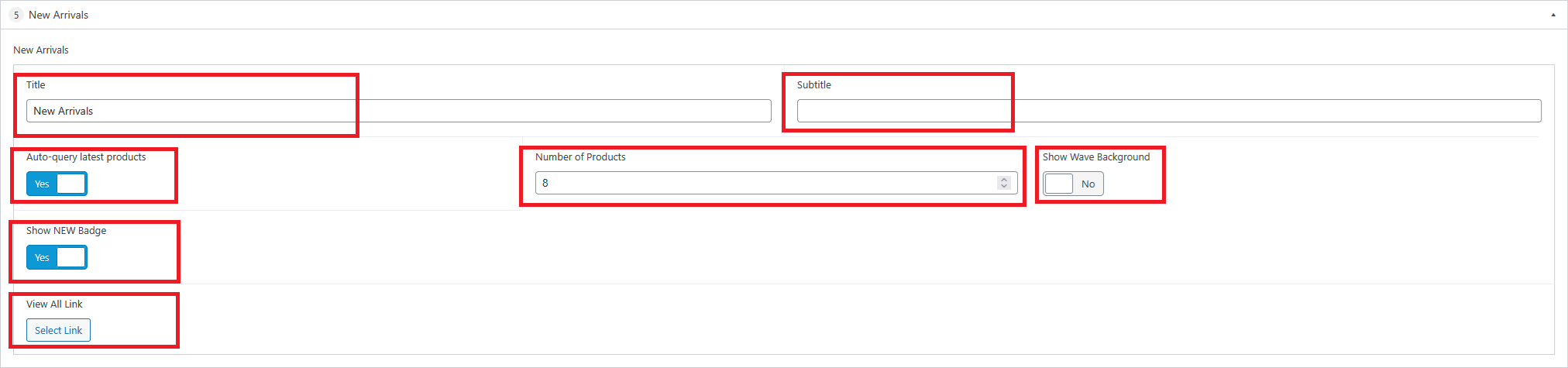
Title : The heading displayed at the top of the section (e.g., "New Arrivals").
Subtitle : An optional secondary line of text displayed beneath the title.
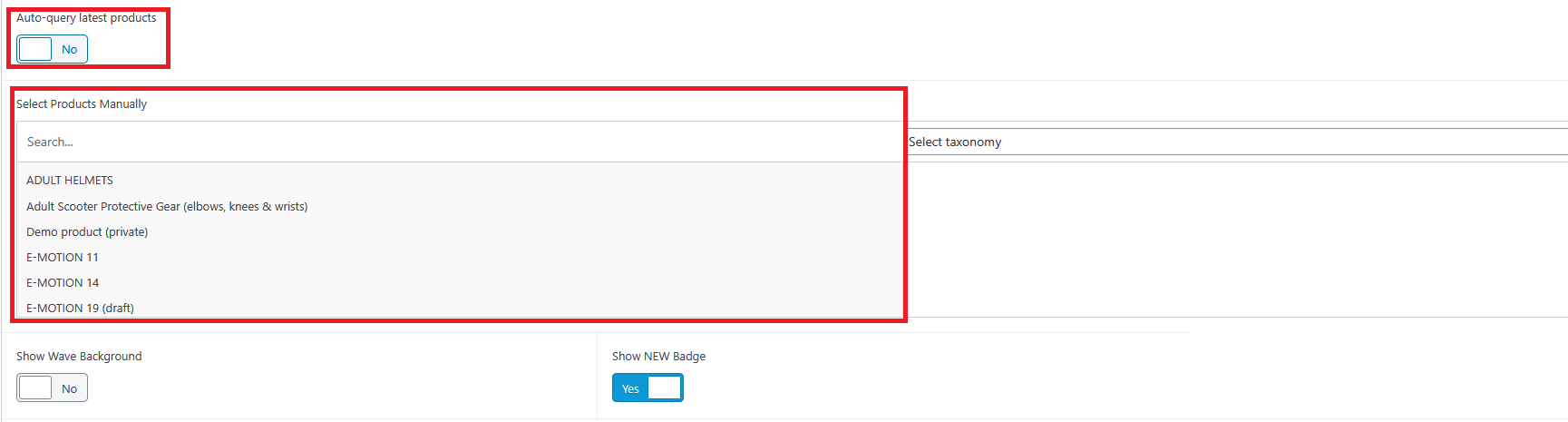
Auto-query latest products : Toggle on to automatically display the most recently added products. When enabled, the section pulls the latest products by date without manual selection.
When disabled, a Select Products Manually panel appears, allowing you to:
- Search for specific products by name using the search bar.
- Filter products by taxonomy using the Select taxonomy dropdown.
- Select individual products from the list to feature in this section.
Number of Products : Controls how many products are displayed in the section. Default is 8.
Show Wave Background : Toggle on to display a decorative wave background behind the section.
Show NEW Badge : Toggle on to display a "NEW" badge on each product card in this section.
View All Link : An optional link that directs visitors to a full listing page. Click Select Link to choose the destination.
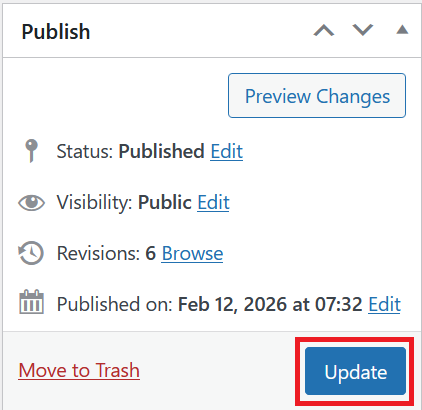
Once you're ready to publish changes, click Update or Publish on the right-hand side.