Editor Section (WYSIWYG)
Reference
This section works the same way as the Product Details block used on product pages. See Product Details for reference.
The Editor Section provides a flexible WYSIWYG (What You See Is What You Get) content area for custom HTML, rich text, and mixed media content.
How to Setup Editor Section
On the left-hand side menu, navigate to Pages and click All Pages.

In WordPress Pages section, scroll down to find Home — Front Page and click Edit to begin.

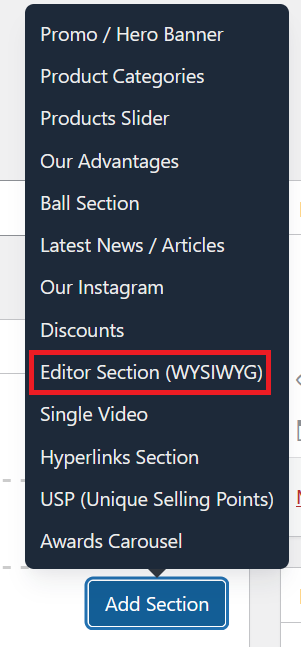
Under [page] - Home V2 section, click Add Section to get started.

In the case of setting up Editor Section, select Editor Section (WYSIWYG).
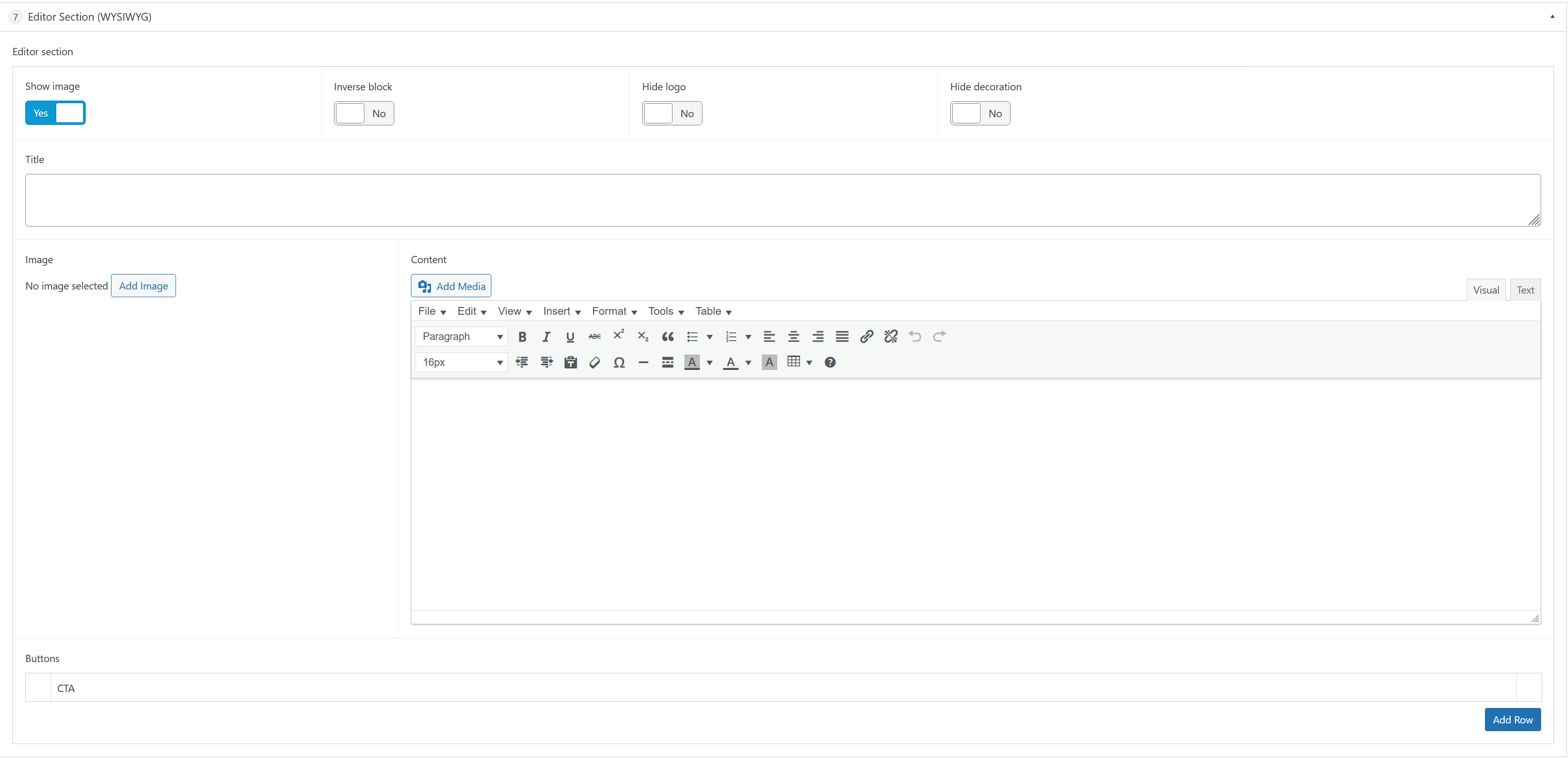
Fill in the following fields:
- Show Image — Turn on to show an image next to the text, turn off to hide it.
- Inverse Block — Moves the image to the other side. Use on every second block to alternate sides.
- Hide Logo — Turn on to hide the Globber logo in this section.
- Hide Decoration — Turn on to hide the decorative graphics.
- Title — The heading for this section.
- Image — The image shown next to the text (only appears if Show Image is on).
- Content — Write your text here. You can bold, italicise, add links, and insert images.
- Buttons — Add buttons that link to other pages. Click Add Row to add more.
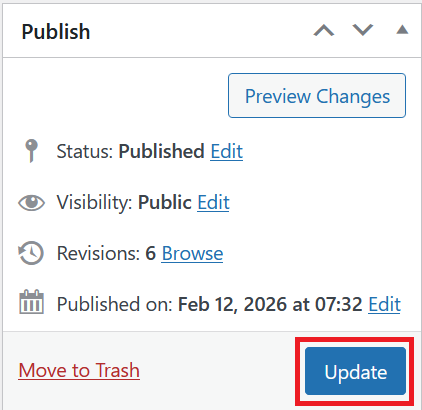
Once you're ready to publish changes, click Update or Publish on the right-hand side.